
Connect to ArcGIS
Public ArcGIS content needs no setup. For content that is private to you or your organization, tell the map how to authenticate. One setting covers every ArcGIS layer and basemap in the visual.
The settings are in Format pane > API Keys & Authentication > ArcGIS Authentication.
Choose an authentication type
| Authentication Type | Who signs in | What the map can see | Use it when |
|---|---|---|---|
| Sign in with ArcGIS | Each person, with their own ArcGIS account | Everything that person can see in ArcGIS | Readers have ArcGIS accounts and should see only what they are allowed to |
| API Key | Nobody. The key is saved in the report | Only what the key grants | Readers have no ArcGIS account |
| OAuth2 (Client ID & Secret) | Nobody. The app credential is saved in the report | Content shared with the owner of the app, and public content | Readers have no ArcGIS account and you use app credentials |
| Username & Password | Each person, in a sign-in window on the map | Everything that person can see in ArcGIS | Your portal does not support Sign in with ArcGIS |
With no credential at all (API Key selected and the key left empty), the map reads public content and Living Atlas layers. For a basemap, that means public tiled services, styles given by their URL and web maps with public layers. Esri's basemap styles always need a credential.
An API key or client secret saved in a report gives everyone who can open the report the access that the credential has. Grant it only the items the report needs.
Sign in with ArcGIS
With this type nothing secret is stored in the report. Each person signs in with their own ArcGIS account and the map shows what that account is allowed to see.
- In ArcGIS Authentication, set Authentication Type to Sign in with ArcGIS.
- For ArcGIS Online, leave Portal URL and Client ID as they are. For ArcGIS Enterprise, see below.
- Switch on Sign In. ArcGIS opens in a browser tab.
- Sign in there with your ArcGIS account, or with your organization's login if ArcGIS is set up for it, then come back to Power BI.
The pane then shows "Signed in to ArcGIS as" followed by your user name, and Sign Out replaces Sign In.
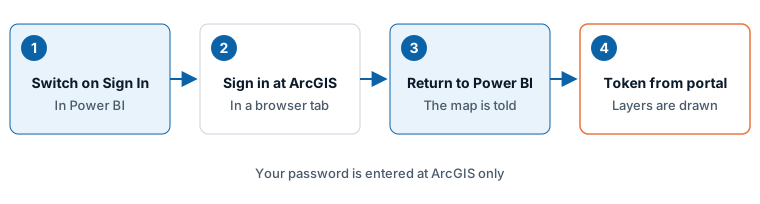
You sign in at ArcGIS, not in Icon Map. The map receives its token directly from your portal.
What report readers see
Each person who opens the report signs in with their own account. A reader who is not signed in sees a prompt on the map: "This map shows ArcGIS content that needs you to sign in." with a Sign in to ArcGIS button.
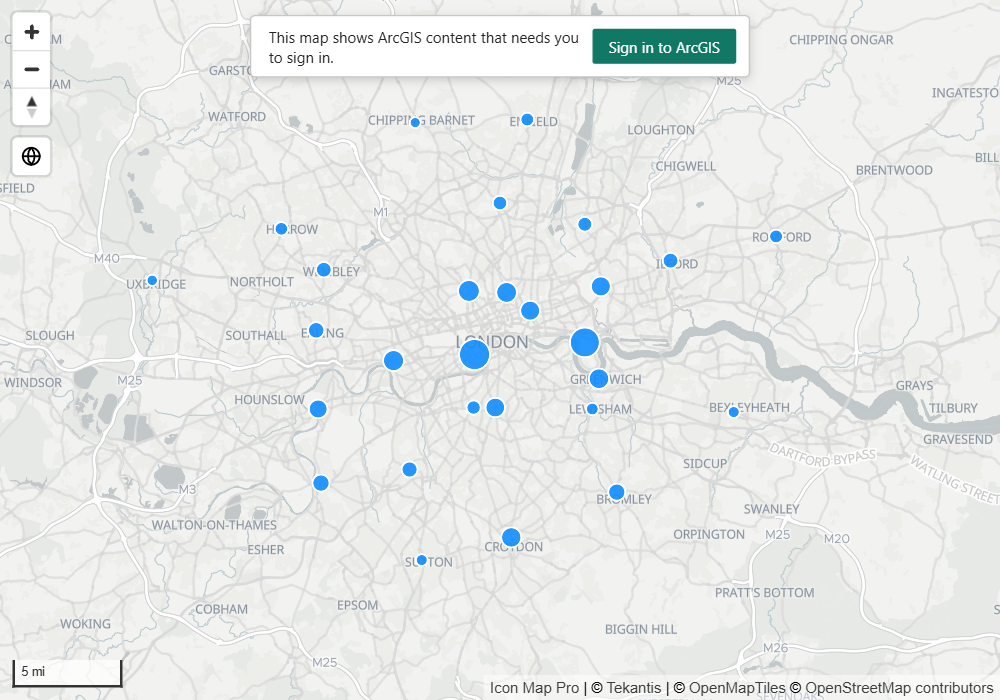
The sign-in is remembered in the browser, and is renewed without a prompt for up to two weeks. Remembering it relies on the local storage setting for custom visuals in the Power BI admin portal. If your tenant has that setting off, readers are asked to sign in more often.
ArcGIS Enterprise
For your own portal, an administrator registers an app once:
- In the portal, register an application and add this redirect URI:
https://api.iconmap.ai/arcgis/oauth/callback - In ArcGIS Authentication, enter the address of the portal in Portal URL and the app's client ID in Client ID.
The portal must allow requests from Power BI (CORS) for the sign-in to complete.
API key
- Create an API key in ArcGIS and grant it the items and services the report uses.
- Set Authentication Type to API Key and paste the key into API Key.
API keys expire and cannot be renewed by the map. When ArcGIS rejects a key, the map says so. Create a new key and paste it in.
OAuth2 (Client ID & Secret)
- Create OAuth 2.0 developer credentials in ArcGIS. When ArcGIS asks for a redirect URL, enter
https://app.powerbi.com. - Set Authentication Type to OAuth2 (Client ID & Secret).
- Enter the Portal URL if you do not use ArcGIS Online, then the Client ID and Client Secret.
The client secret is stored encrypted in the report and shown as dots once entered. The app credential sees only content that is shared with the owner of the app, or that is public.
Username & Password
Set Authentication Type to Username & Password and enter the Portal URL if you do not use ArcGIS Online. No user name or password is saved in the report.
Each person who opens the report sees a Sign in to ArcGIS window the first time the map needs ArcGIS content, and enters their own ArcGIS user name and password. The sign-in lasts two weeks where the browser is allowed to remember it. When it expires the window is shown again.
Test the connection
Switch on Test Connection to check the whole setup. It opens Browse ArcGIS on a view that lists the checks: the portal, the credential and every ArcGIS layer in the map. A check of the proxy is listed only when the proxy is in use. Reference layers are headed "ArcGIS Overlay 1", "ArcGIS Overlay 2" and so on. Anything that fails comes with an explanation and what to do about it.
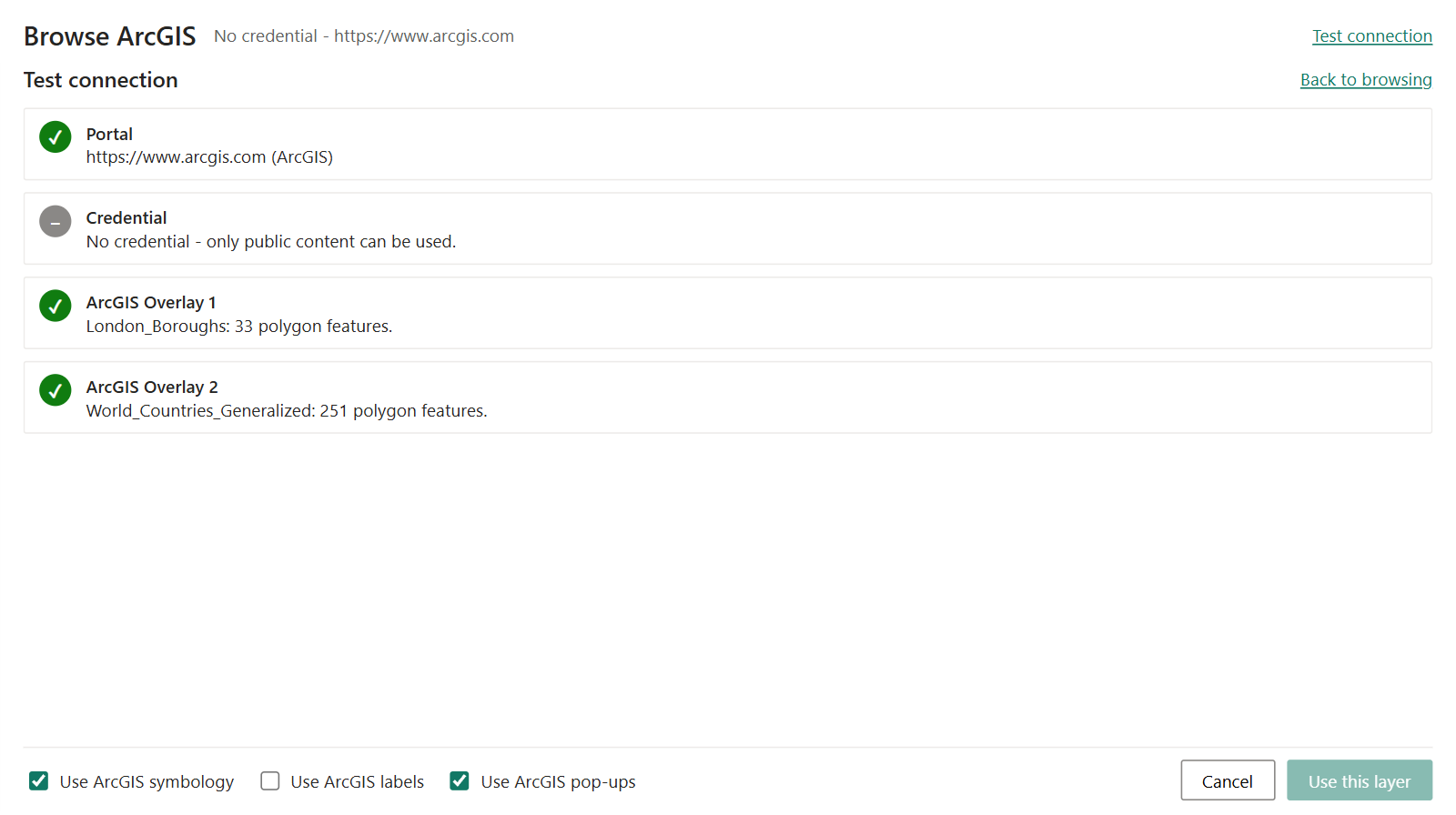
Common results:
| Message | What to do |
|---|---|
| "The server does not allow requests from Power BI (CORS)." | Switch on Use proxy when required, or ask the ArcGIS administrator to allow requests from Power BI |
| "The server could not be reached." | Check the address, and that this computer can reach the server (VPN, firewall) |
| "The API key was rejected - it may have expired or been revoked." | Create a new key |
| "Your account does not have access to this content." | Ask the owner to share it with you or your organization |
| "ArcGIS Enterprise 11.5 and later reject these API keys on the URL" | Set Send Credential As to Authorization Header (Bearer) |
| "The server does not allow the Authorization header from Power BI." | Set Send Credential As to URL Parameter (Default), or add Authorization to the server's allowed CORS headers |
Servers that block Power BI
A Power BI visual can only read a server that allows it (CORS). ArcGIS Online does. Some ArcGIS Enterprise servers do not.
Switch on Use proxy when required to let the Icon Map proxy fetch from those servers. Each server is still tried directly first, and only a server that blocks Power BI is read through the proxy. The request and its credential pass through the proxy. An Icon Map license key is required, and proxied requests may consume additional usage credits.
Browse ArcGIS offers the same switch when it meets a blocked server: select Use the CORS proxy.
The proxy is not available when Airgapped Environment is on. For what the proxy receives and how it is secured, see API keys, authentication and the proxy.
How the credential is sent
Send Credential As decides how the token or key travels to ArcGIS.
- URL Parameter (Default) adds it to the address of each request. Leave it on this unless your server rejects it.
- Authorization Header (Bearer) sends it as a request header. ArcGIS Enterprise 11.5 and later may reject newer API keys (starting
AAPT) on the URL with "Invalid Token". Those servers need this option, and must allow the Authorization header in their CORS settings.
Requests for public content carry no credential, and a credential is sent only to the servers it belongs to.
Settings
Format pane > API Keys & Authentication > ArcGIS Authentication
| Setting | What it does | Default |
|---|---|---|
| Authentication Type | API Key, OAuth2 (Client ID & Secret), Username & Password or Sign in with ArcGIS | API Key |
| Send Credential As | URL Parameter (Default) or Authorization Header (Bearer) | URL Parameter (Default) |
| API Key | The ArcGIS API key. Shown for API Key | Empty |
| Portal URL | The address of your ArcGIS portal. Shown for every type except API Key | https://www.arcgis.com |
| Client ID | The client ID of your app. For Sign in with ArcGIS, leave it blank for ArcGIS Online | Empty |
| Client Secret | The client secret of your app. Shown for OAuth2 (Client ID & Secret) | Empty |
| Sign In, Sign Out | Start or end your ArcGIS session. Shown for Sign in with ArcGIS | |
| Test Connection | Checks the portal, the credential and every ArcGIS layer in the map | |
| Use proxy when required | Reads ArcGIS servers that block Power BI through the Icon Map proxy | Off |
Sign In, Sign Out and Test Connection are switches that act once and turn themselves off again.