
Supported environments and limits
Icon Map Pro runs wherever Power BI shows custom visuals. This page lists each environment and the license it needs, what the machine displaying the map must support, and the network addresses the visual connects to.
Environments and licenses
| Environment | Supported | License that works there |
|---|---|---|
| Power BI Desktop | Yes | User license, license key, or the free developer license |
| The Power BI service, editing a report | Yes | User license, license key, or the free developer license |
| The Power BI service, reading a report | Yes | User license or license key. The developer license is not valid here |
| Power BI Embedded | Yes | License key. Power BI cannot provide user licenses here |
| Publish to web | Yes | License key |
| Power BI Report Server | Yes | License key. See Power BI Report Server (on-premises) |
| US government (GCC) and regional clouds | Yes | License key. Microsoft's licensing service cannot validate AppSource purchases in these clouds |
| Power BI mobile apps, dashboards, and exports to PDF and PowerPoint | Treated as the Power BI service for licensing | The license that covers the report in the service |
A report that uses the developer license shows an "Unsupported Environment" message to readers in the Power BI service, in Embedded and in Publish to web. See Free trial and developer license and License types.
Where Power BI does not allow interaction with a visual, such as in an export, tooltips and selection are inactive.
Graphics: WebGL 2
The Modern engine draws the whole map with WebGL 2, so the browser or Power BI Desktop on the machine that displays the report must provide it. Current browsers do when hardware acceleration is on.
WebGL 2 can be missing on virtual desktops (VDI, Citrix, RDP) and on machines with no GPU acceleration. What happens then:
- A new map built on such a machine is created on the Legacy engine, and stays on it for every reader.
- A Modern map opened on such a machine falls back to the Legacy engine for that session. The saved map is not changed. A message titled "WebGL 2 is not available in this environment." explains what happened, and features that only exist on the Modern engine are not drawn.
To make WebGL 2 available:
- Enable hardware acceleration in your browser settings.
- Update your graphics drivers.
- On a virtual desktop, ask your IT administrator about enabling GPU passthrough.
- Try a different browser.
See Modern and Legacy engines.
Power BI settings the visual depends on
| Power BI setting | Why it matters |
|---|---|
| Custom visuals allowed in your tenant | Icon Map Pro is not a certified visual. If your organization blocks uncertified visuals, an administrator must add it as an organizational visual. See Security and certification |
| Local storage for custom visuals | Optional. Used to remember a person's ArcGIS sign-in between sessions. Without it, people sign in again more often |
Network access
Icon Map Pro loads its basemaps and other resources over the internet. If a firewall or proxy server blocks an address the map needs, the usual result is a blank or gray map, or a layer that never appears.
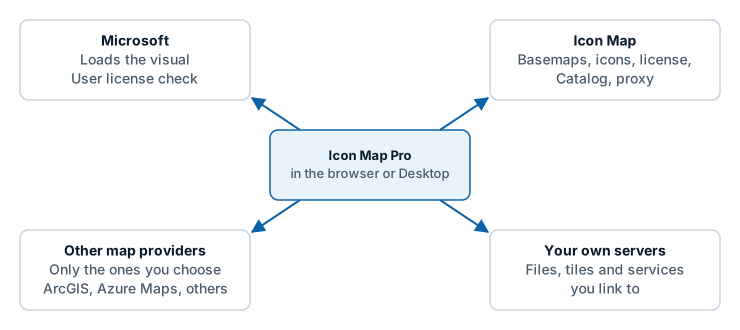
Access is needed from the machine that displays the report: the report author's and each reader's computer. On Power BI Report Server, the server needs access too.
Microsoft
Needed to validate and load the visual from Microsoft AppSource.
| Address | Used for |
|---|---|
pbivisuals.powerbi.com |
Validating and importing the visual |
appsource.powerbi.com |
Validating and importing the visual |
Icon Map
| Address | Used for | Needed when |
|---|---|---|
styles.iconmappro.com |
Icon Map basemap styles, map tiles, fonts, hillshade and terrain, map labels, and the place index of the Search control | You use an Icon Map basemap, hillshade, terrain, Map Labels or Search |
iconmappropublictiles.blob.core.windows.net |
The icon library | You use icons from the icon library |
validate.iconmappro.com |
License key validation. Developer license and trial requests | The report uses a license key, or you request a developer license or trial |
validate2.iconmappro.com |
License key validation over a second route, tried when the first cannot be reached | The report uses a license key |
catalogapi.icon-map.com |
Icon Map Catalog search | You browse the Icon Map Catalog or use its layers |
catalog.icon-map.com |
Icon Map Catalog layers: tiles and data | You use Icon Map Catalog layers |
api.iconmap.ai |
Your organization's Icon Map catalog in Microsoft Fabric. Only used with Icon Map for Fabric | You browse your organization's catalog |
proxy.icon-map.com |
The Icon Map proxy | A proxy switch is on. See API keys, authentication and the proxy |
uksouth-1.in.applicationinsights.azure.com |
Feature usage telemetry | Opt out of telemetry is off. The map works without it |
api.iconmap.ai is also used by Sign in with ArcGIS, to pass the result of the sign-in back to the visual.
License validation tries both validation addresses in turn, because some corporate networks block one route and some the other. Allow both.
User licenses bought through AppSource are checked by Power BI itself, not through an Icon Map address.
Map providers you choose
These are contacted only when you select that provider.
| Provider | Addresses |
|---|---|
| ArcGIS Online | www.arcgis.com, basemapstyles-api.arcgis.com, static.arcgis.com, and the servers of the ArcGIS services you add |
| ArcGIS Enterprise | Your own portal and servers |
| Azure Maps | atlas.microsoft.com |
| Ordnance Survey | api.os.uk |
| Mappable | tiles.api.mappable.world |
| Open Weather Map | tile.openweathermap.org, maps.openweathermap.org |
Your own servers
Any file, tile, WMS, WFS or image link you add is fetched from the server in the link. That server must be reachable from the machine displaying the report, and must allow requests from Power BI custom visuals (CORS). See Troubleshooting.
Networks with no internet access
Turn on Airgapped Environment and host the basemaps yourself. See Power BI Report Server (on-premises).
Limits
| Limit | Value |
|---|---|
| Rows Power BI sends by default | 30,000 |
| Maximum rows, with Maximum data rows raised | 480,000, loaded in steps of 30,000 |
| Text Power BI can hold in one value, which caps a WKT or GeoJSON shape held in your data | 32,766 characters |
| Map projections on the Modern engine | Web Mercator and globe. Tile services in other coordinate systems need the Legacy engine. See the documentation for 1.1.0.9 and earlier |
| Languages | English, German, Spanish, French, Portuguese. See Languages |
More on rows and performance is in Data rows and limits.