
Modern and Legacy engines
Icon Map Pro has two map engines. Modern is used by new maps and draws everything on one map, with globe view, tilt and rotation, and 3D terrain. Legacy is the original engine, kept so that reports built before Modern existed continue to look and behave as they did.
Which engine does my map use?
Look at Format pane > Rendering > Rendering > Map engine. It reads Modern or Legacy.
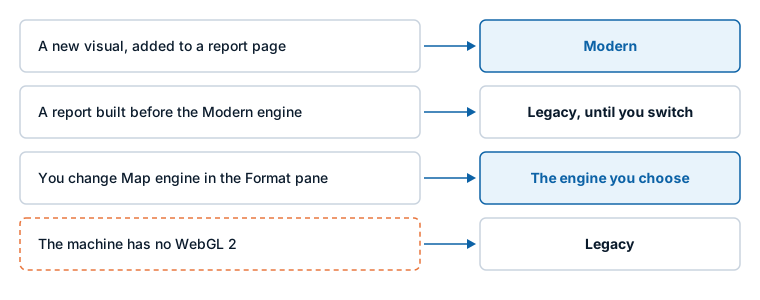
You do not normally choose. The visual decides the first time it meets a map, and then keeps to that decision:
| Situation | Engine |
|---|---|
| You add a new Icon Map Pro visual to a page and give it fields | Modern |
| You open a report that was built before the Modern engine existed | Legacy. It stays on Legacy until you change Map engine. |
| You change Map engine yourself | The engine you choose, on any map, in either direction |
| A report built in Icon Map Lite is switched to Icon Map Pro | Modern |
| You copy a visual, duplicate a page or use a template | The same engine as the original |
| You build a new map on a machine without WebGL 2 | Legacy, because Modern needs WebGL 2 |
The choice is saved with the report while you edit it, so everyone who opens the report gets the same engine.
If Map engine reads Legacy, the settings in your Format pane differ from the ones described here. Use the documentation for 1.1.0.9 and earlier, or switch the map to Modern.
What Modern adds
These exist only on the Modern engine:
- Globe projection, with a button on the map to switch between the flat map and the globe.
- Tilt and rotation, with a default pitch and bearing for the map.
- 3D terrain, hillshade over any basemap, and light and sky settings.
- The 3D columns data layer.
- The Flow Tree, Routes and 3D line shapes.
- Custom shapes for cells.
- The Glass, Dark Glass, Card, Neon and Halo Text data label styles, and labels shown on mouse over or when selected.
- The layer guide that helps you choose a layer type.
- The Antialiasing setting.
In this version Modern also adds the Layer Manager, the Basemaps dialog for new maps, and Browse ArcGIS with ArcGIS legends and pop-ups.
Switch engines
- In the Format pane, expand Rendering.
- Set Map engine to Modern or Legacy.
The map is rebuilt on the other engine. Your fields and settings are kept, and you can switch back at any time.
Before you switch a Legacy map to Modern
Check the map against the list of Legacy-only features below. Then switch, and look over the map:
- If the map uses a basemap that Modern does not have, the map draws without a basemap and shows a message that names it. Choose another basemap, or switch back.
- A map switched by hand keeps the basemap settings in the Format pane. See Set the basemap in the Format pane.
- Labels use the Modern Labels card, which is organized differently. See Data labels.
If you switch a Modern map to Legacy
Features that only Modern has stop drawing, and come back when you return to Modern:
- The Columns layer is not drawn, and its switch is unavailable.
- Lines with the Flow Tree shape are drawn as Flow, and Routes are drawn as straight lines.
- The globe, tilt, 3D terrain, hillshade, light and sky are not available.
What is only on Legacy
Modern does not have the features below. If your map depends on one, keep it on Legacy and use the documentation for 1.1.0.9 and earlier.
| Area | Legacy only |
|---|---|
| Basemaps | Google Maps, Mapbox, MapTiler and Image (a picture or floor plan as the background, with pixel coordinates) |
| Basemap formatting | The Tiles - Formatting group (grayscale and transparency for the basemap) |
| Coordinate systems | Ordnance Survey maps in British National Grid (EPSG:27700), WMS layers in a coordinate system other than Web Mercator, and ArcGIS tiled services that are not in Web Mercator |
| Rendering | WebGL Rendering Mode and the Use WebGL Rendering (experimental) switches on individual layers. Modern always uses WebGL, so these are not needed. |
| Zoom | Zoom Increment |
| Map labels | ArcGIS and Mapbox as the source of the Map Labels reference layer |
| Reference labels | The single Reference Labels group shared by all file layers. On Modern each layer has its own label settings. |
| Data labels | The Text, Alignment and Container layout of the Labels card |
| Circles | Dash patterns on circle outlines, and hatched fills |
| Lines | The curved line shape |
The Diagnostics card, with Show Data Configuration Summary, is also shown only on Legacy. On Modern its job is done by the Layer Manager. See Check your data.
A MapTiler or other MapLibre-compatible style can still be used on Modern by giving its style link as a vector style basemap. See Other basemap providers.
What a new map starts with
A new map does not only get the Modern engine. It also starts with defaults chosen for it, which older reports do not pick up, so that existing maps do not change:
The Circles layer on, and the other data layers off.
The Icon Map basemap.
Padding of 50 pixels around your data when the map zooms to fit it.
The globe button on the map.
World Copies on, so the map repeats as you pan past its edge.
The basemap managed in the Basemaps dialog, with Format pane > Background Layer reduced to a Basemaps group. A map you switch from Legacy to Modern by hand keeps the full Background Layer card.
Settings
Both settings are in Format pane > Rendering > Rendering.
| Setting | What it does | Default |
|---|---|---|
| Map engine | Chooses Modern or Legacy for this map. | Modern for new maps, Legacy for reports built before the Modern engine |
| Antialiasing | Smooths the edges of lines, shapes and 3D. Turning it off can help performance on large maps. The map is redrawn when you change it. | On |
If WebGL 2 is not available
Modern needs WebGL 2, which most browsers and computers provide. Some virtual desktops and machines without graphics acceleration do not.
- A new map built on such a machine uses Legacy, and Map engine is unavailable there.
- A Modern map opened on such a machine falls back to Legacy for that session and shows a message. The saved choice is not changed, so the map is Modern again on a machine that has WebGL 2.
To make WebGL 2 available, turn on hardware acceleration in the browser, update the graphics drivers, or ask your IT administrator about graphics acceleration on virtual desktops. See Supported environments and limits and Troubleshooting.