
Weather, traffic and daylight
Three reference layers show conditions as they are now: weather from OpenWeatherMap, traffic from Azure Maps, and the daylight terminator, which shades the part of the world that is in darkness. Each can be on once per map.
What you need
| Layer | Needs |
|---|---|
| Weather | Your own OpenWeatherMap API key |
| Traffic | Your own Azure Maps key |
| Daylight terminator | Nothing |
Keys are saved under Format pane > API Keys & Authentication. See API keys, authentication and the proxy.
Add one of these layers
- In the Format pane, open the Layer Manager card and switch on Open Layer Manager.
- Select Add a layer, then Reference layer.
- Pick Weather, Traffic or Day and night.
- Choose the options. For weather and traffic you can paste the API key here and it is saved with the other keys.
- Select Add to map, then Apply changes.
In the Format pane, open Reference Layers > Layer Selection and switch on Weather, Traffic or Daylight Terminator. A configuration group for the layer appears below.
Weather
Weather layers are map tiles from OpenWeatherMap, drawn over the basemap.
Format pane > Reference Layers > Weather - Configuration
| Setting | What it does | Default |
|---|---|---|
| Weather Source | OpenWeatherMap (Basic) or OpenWeatherMap (Advanced) | OpenWeatherMap (Basic) |
| Weather Layer | The weather to show. The list depends on the source | |
| Transparency | 0 is solid, 100 is invisible | 10 |
| Z Index | Drawing order, 0 to 1000. Higher is nearer the viewer | 360 |
The advanced layers need an OpenWeatherMap Developer, Professional or Enterprise key.
| Weather Source | Weather Layer options |
|---|---|
| OpenWeatherMap (Basic) | Clouds, Precipitation, Sea level pressure, Wind Speed, Temperature |
| OpenWeatherMap (Advanced) | Convective precipitation, Precipitation intensity, Accumulated precipitation, Accumulated precipitation - rain, Accumulated precipitation - snow, Depth of snow, Wind speed at an altitude of 10 meters, Joint display of speed wind (color) and wind direction (arrows), Atmospheric pressure on mean sea level, Air temperature at a height of 2 meters, Temperature of a dew point, Soil temperature 0-10 cm, Soil temperature >10 cm, Relative humidity, Cloudiness |
Traffic
The traffic layer draws live traffic flow or incidents from Azure Maps along the roads.
Format pane > Reference Layers > Traffic - Configuration
| Setting | What it does | Default |
|---|---|---|
| Traffic Source | Leave on Azure Maps | Azure Maps |
| Traffic Layer | The kind of traffic information to show. See below | Traffic Flow - relative |
| Z Index | Drawing order, 0 to 1000. Higher is nearer the viewer | 350 |
Traffic Layer options:
- Traffic Flow - absolute
- Traffic Flow - reduced sensitivity
- Traffic Flow - relative
- Traffic Flow - relative delay
- Traffic Incident - Night
- Traffic Incident - S1
- Traffic Incident - S2
- Traffic Incident - S3
Google Maps traffic is part of the Legacy engine. See the documentation for 1.1.0.9 and earlier.
Daylight terminator
The daylight terminator shades the part of the world where the sun has set. It shows the present moment. If the visual has a field in the Daylight Date & Time field well, it shows the latest date and time in that field instead, so the shading can follow a slicer or a time filter. See Fields reference.
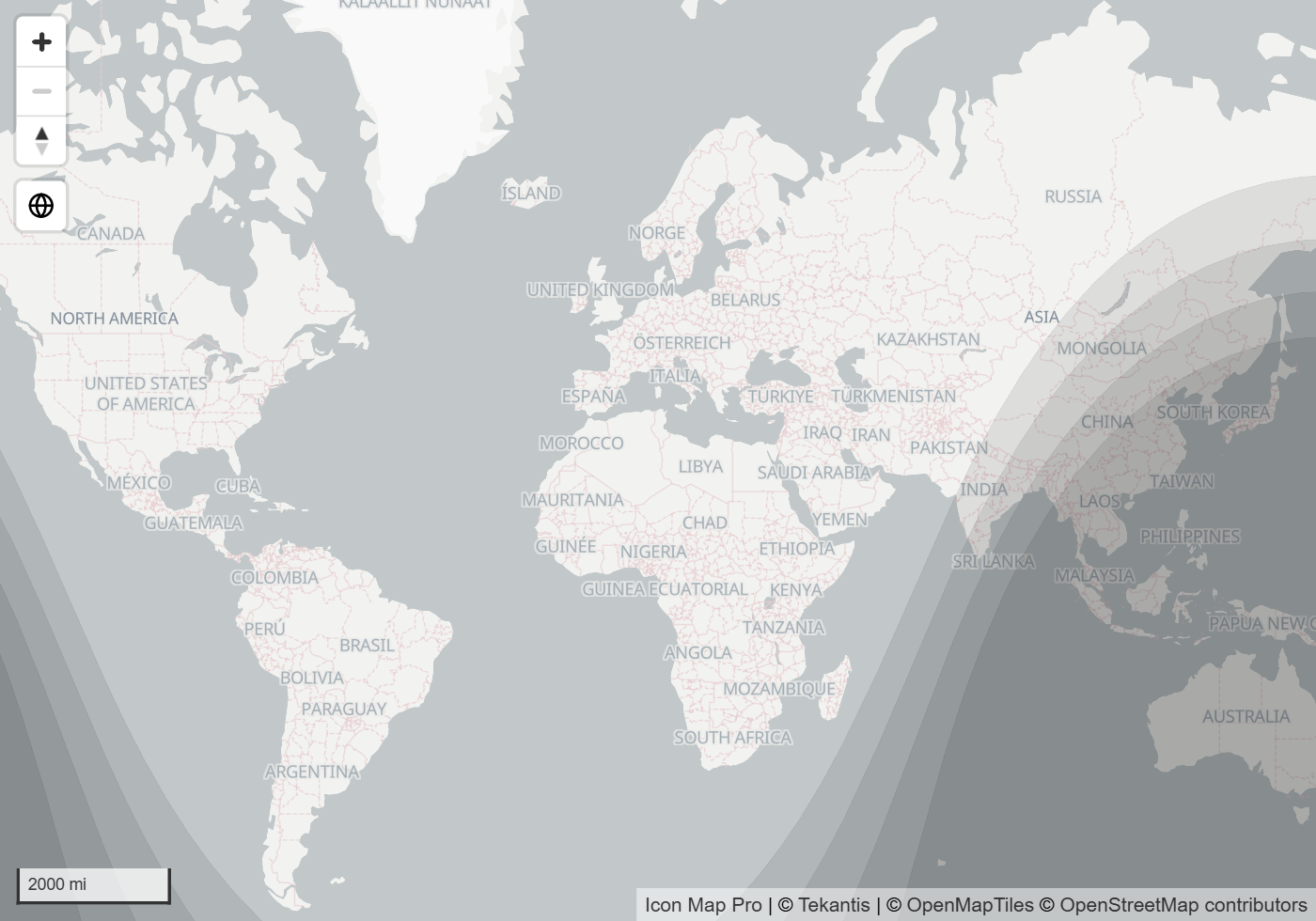
Format pane > Reference Layers > Daylight Terminator - Configuration
| Setting | What it does | Default |
|---|---|---|
| Transparency | 0 is solid, 100 is invisible | 70 |
| Z Index | Drawing order, 0 to 1000. Higher is nearer the viewer | 450 |
| Terminator Color | Color of the shading | #000000 |
| Terminator Style | Single draws one hard edge between day and night. Banded draws civil, nautical and astronomical twilight as softer steps | Banded on new maps. Single on maps made in earlier versions, until you choose |
| Bands | Number of twilight steps between the day and night edge and full night, 1 to 36. 4 gives civil, nautical and astronomical twilight. More bands give a smoother transition. Shown for Banded | 4 |
In the Layer Manager
Select Weather, Traffic or Day and night in the Layer Manager to change its main settings.
| Layer | Settings |
|---|---|
| Weather | Provider, Layer, Transparency, OpenWeatherMap API key |
| Traffic | Layer, Azure Maps key |
| Day and night | Style, Bands, Color with its transparency |
These three layers have no hide button in the Layer Manager. Remove the layer to take it off the map.
Tips and limits
- Weather and traffic are live. They show current conditions, not the conditions at the time of your data.
- With the default Z-Index values, weather and traffic are drawn under your data layers and the daylight terminator is drawn over them. Change Z Index to move them.
- If a weather or traffic layer does not appear, check that its key is entered under API Keys & Authentication.