
API keys, authentication and the proxy
Some basemaps and layers come from services that need a key or a sign-in. This page covers where those credentials go, how they are stored, and what the Icon Map proxy does when a server does not allow Power BI to read it.
Enter an API key
- Select the visual and open Format pane > API Keys & Authentication > API Keys.
- Paste the key into the box for the provider.
- Choose the provider as the basemap or turn on the layer that uses it.
On a map that uses the Basemaps dialog you can also type the Azure Maps, Mappable and Ordnance Survey keys in the dialog when you add one of those basemaps. They are saved to the same settings when you select Apply changes.
API Keys
| Setting | Used for | Default |
|---|---|---|
| Azure Maps | Azure Maps basemaps | Empty |
| Mappable | Mappable basemaps | Empty |
| Ordnance Survey | Ordnance Survey basemaps | Empty |
| Open Weather Map | The Weather reference layer | Empty |
| Google Maps, Mapbox, Map Tiler | Basemaps that are part of the Legacy engine. See the documentation for 1.1.0.9 and earlier | Empty |
The group starts with the note "See ArcGIS Authentication section for ArcGIS API Key". ArcGIS has its own group, described next.
Which provider needs which key is covered in Other basemap providers and Weather, traffic and daylight. Icon Map basemaps need no key.
ArcGIS Authentication
The ArcGIS Authentication group sets how the map connects to ArcGIS Online or ArcGIS Enterprise. The full guide, with steps for each method, is Connect to ArcGIS. In summary:
| Authentication Type | Who signs in | What is saved in the report |
|---|---|---|
| API Key | Nobody | The API key |
| OAuth2 (Client ID & Secret) | Nobody. An app registered in your ArcGIS organization connects | The Client ID, and the Client Secret in protected form |
| Username & Password | Each person, in a Power BI sign-in window | Nothing. The session is kept in the visual's local storage on that person's device |
| Sign in with ArcGIS | Each person, in a browser tab | Nothing. The session is kept in the visual's local storage on that person's device |
With Sign in with ArcGIS, the ArcGIS sign-in page opens in a browser tab. A relay at api.iconmap.ai passes the sign-in result back to the visual, and the visual then exchanges it for a token directly with your portal. The token is not sent to Icon Map.
Send Credential As sets how the credential travels to ArcGIS: URL Parameter (Default) or Authorization Header (Bearer). Leave it on URL Parameter unless your server rejects it. ArcGIS Enterprise 11.5 and later may reject newer API keys on the URL with "Invalid Token". Those servers need the Authorization Header option and must allow the Authorization header in their CORS settings.
With no credential, ArcGIS content is read as public content.
How credentials are stored
- API keys are saved in the report as ordinary settings. Anyone who can edit the report can read them, and the visual sends each key to its own provider when it requests tiles. Restrict keys at the provider where you can, for example to the services the map uses.
- The ArcGIS Client Secret is saved in protected form and shown as dots after you enter it.
- Sessions from a personal ArcGIS sign-in are kept in the visual's local storage on the reader's device, not in the report. This needs your Power BI tenant to allow local storage for custom visuals.
- The Icon Map license key, where one is used, is saved in the report in Icon Map Pro > License Key (for non-user based licensing). See License keys and activation.
The proxy
Why a proxy exists
Power BI runs every custom visual in a sandboxed frame. A web server must explicitly allow requests from that frame, through CORS headers, before the visual can read its response. Most public map services do. Some servers do not, typically ArcGIS Enterprise servers and some tile, GeoJSON and WFS servers. A layer from such a server stays blank, even though the same link opens in a browser.
The fix that keeps everything in your control is to allow CORS on your server. When you cannot, the Icon Map proxy can fetch the resource on the visual's behalf and return it with the headers Power BI needs.
The proxy is a relay service run by Icon Map at proxy.icon-map.com. It is off by default. It requires an Icon Map license key, and proxied requests may consume additional usage credits.
When the proxy is used
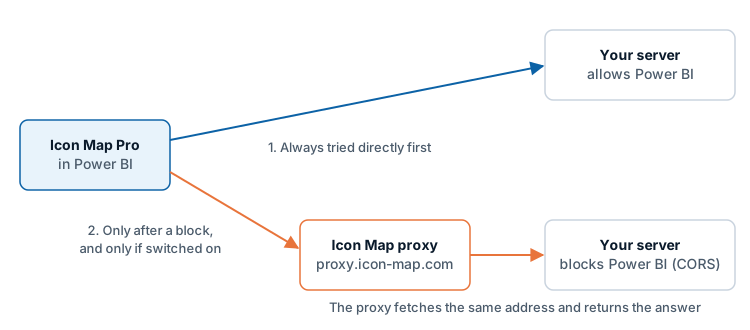
The setting is named Use proxy when required, and it works the way the name says:
- Every server is tried directly first.
- Only a server that is found not to allow Power BI is fetched through the proxy. That applies to the request that found the block and to later requests to that server in the same session. Map tiles and images follow the same rule.
- Servers that allow Power BI are never proxied, even with the switch on.
The switch appears in these places:
| Where | Applies to | When it is shown |
|---|---|---|
| API Keys & Authentication > ArcGIS Authentication > Use proxy when required | Every ArcGIS request the map makes, including ArcGIS basemaps and elevation | Always |
| The configuration group of a file layer added by link (GeoJSON, KML, CSV, WFS), as a data layer or a reference layer | That layer's link | After the link has been found blocked, or when the switch is already on |
| The configuration group of a raster reference layer | That layer's tiles | After the link has been found blocked, or when the switch is already on |
| Use CORS Proxy in a WMS reference layer's group | That WMS layer | Always |
When ArcGIS servers have been found blocked, the explanation under the ArcGIS switch names them: "These ArcGIS servers blocked requests from Power BI: ...". The Browse ArcGIS dialog offers the same choice with a Use the CORS proxy button.
Use CORS Proxy on a WMS reference layer is an older switch and behaves differently: when it is on, every request for that WMS layer goes through the proxy, without a direct attempt first.
There is no proxy switch for basemaps from your own tile server, WMS or style link. Tiles from a blocked server are proxied only when the ArcGIS switch is on or a layer has opted that server in.
What is sent to the proxy
Nothing is sent to the proxy unless a proxy switch is on, with one exception described under "WMS layers that use OAuth 2.0" below.
To open a session, the visual sends:
- the Icon Map license key from the Icon Map Pro card
- the environment the report is running in (for example Power BI Desktop, the Power BI service or Power BI Embedded)
- the product name
- the optional Reference from the Icon Map Pro card
- the visual's instance ID and a session ID
The proxy answers with a short-lived session token, which the visual reuses until shortly before it expires.
For each proxied request, the visual sends:
- the full address of the resource, including its query string. A token or key that is part of the address travels with it
- the session token
- any extra request headers the server needs, for example an authorization header
The proxy makes the request to your server and passes the response back, including binary content such as tiles. For a WMS layer, if a session cannot be opened, the visual sends the license key and the session details with each request instead of a session token.
What this means:
- The proxy service sees the address of each proxied request, any credential attached to it, and the response.
- The rows of your Power BI data are not sent by this mechanism. Only layer and tile requests are. If you build a layer's link or filter from your data with conditional formatting, the values in that link are part of the address.
- Your server must be reachable from the internet for the proxy to fetch from it. The proxy cannot reach a server that is only available inside your network.
WMS layers that use OAuth 2.0
When a WMS reference layer has its Authentication Type set to OAuth 2.0, the visual requests the access token through the Icon Map proxy service, whether or not Use CORS Proxy is on. That request contains the OAuth2 URL, client ID, client secret and scope you entered for the layer, together with the license key and the session details listed above. See Raster tiles, WMTS and WMS.
Turn the proxy off everywhere
Turn on Icon Map Pro > Customization > Airgapped Environment. The map then makes no calls to Icon Map services, including the proxy. Every proxy switch is shown off and disabled, with the note "Not available: Airgapped Environment is on, so the map makes no calls to Icon Map services, including the proxy."
See Power BI Report Server (on-premises).
Tips and limits
- Prefer fixing CORS on your own server. It avoids the proxy, the license key requirement and the extra hop.
- A link that opens in a browser but not in the map is the usual sign of a CORS block. See Troubleshooting.
- The proxy does not make a private server public. It forwards the credentials your map already uses.
- If your network restricts outbound traffic, allow the provider and Icon Map addresses listed in Supported environments and limits.