
Connect to ArcGIS
Public ArcGIS content needs no setup. For content that is private to you or your organization, tell the map how to authenticate. One setting covers every ArcGIS layer and basemap in the visual.
The settings are in Format pane > API Keys & Authentication > ArcGIS Authentication.
Choose an authentication type
| Authentication Type | Who signs in | What the map can see | Use it when |
|---|---|---|---|
| API Key | Nobody. The key is saved in the report | Only what the key grants | Readers have no ArcGIS account |
| OAuth2 (Client ID & Secret) | Nobody. The app credential is saved in the report | Content shared with the owner of the app, and public content | Readers have no ArcGIS account and you use app credentials |
| Username & Password | Each person, in a sign-in window on the map | Everything that person can see in ArcGIS | Readers have ArcGIS accounts and should see only what they are allowed to |
With no credential at all (API Key selected and the key left empty), the map reads public content.
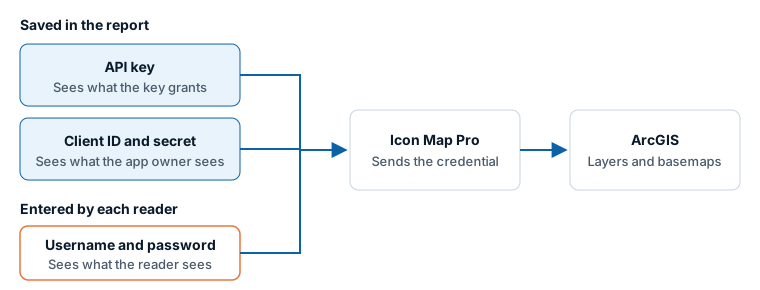
An API key or client secret saved in a report gives everyone who can open the report the access that the credential has. Grant it only the items the report needs.
API key
- Create an API key in ArcGIS and grant it the items and services the report uses. To use ArcGIS basemaps, grant it basemaps as well.
- Set Authentication Type to API Key and paste the key into API Key.
API keys expire. When a key expires, create a new one and paste it in.
OAuth2 (Client ID & Secret)
- Create OAuth 2.0 developer credentials in ArcGIS. When ArcGIS asks for a redirect URL, enter
https://app.powerbi.com. - Set Authentication Type to OAuth2 (Client ID & Secret).
- Enter the Portal URL if you do not use ArcGIS Online, then the Client ID and Client Secret.
The client secret is stored encrypted in the report and shown as dots once entered. The app credential sees only content that is shared with the owner of the app, or that is public.
Username & Password
Set Authentication Type to Username & Password and enter the Portal URL if you do not use ArcGIS Online. No user name or password is saved in the report.
Each person who opens the report sees a Sign in to ArcGIS window the first time the map needs ArcGIS content, and enters their own ArcGIS user name and password.
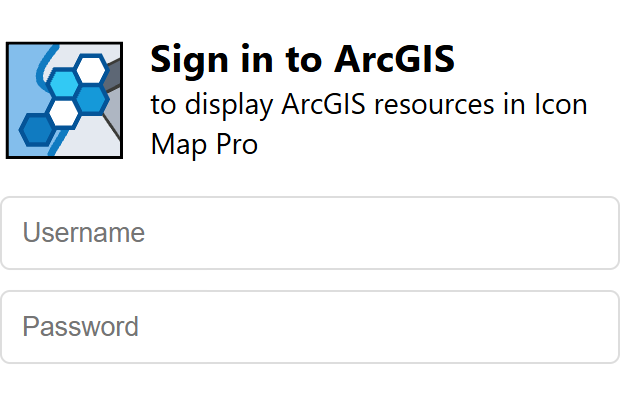
The sign-in lasts two weeks where the browser is allowed to remember it. Remembering it relies on the local storage setting for custom visuals in the Power BI admin portal. If your tenant has that setting off, readers are asked to sign in more often.
How the credential is sent
Send Credential As decides how the token or key travels to ArcGIS.
- URL Parameter (Default) adds it to the address of each request. Leave it on this unless your server rejects it.
- Authorization Header (Bearer) sends it as a request header. ArcGIS Enterprise 11.5 and later may reject newer API keys (starting
AAPT) on the URL with "Invalid Token". Those servers need this option, and must allow the Authorization header in their CORS settings.
Settings
Format pane > API Keys & Authentication > ArcGIS Authentication
| Setting | What it does | Default |
|---|---|---|
| Authentication Type | API Key, OAuth2 (Client ID & Secret) or Username & Password | API Key |
| Send Credential As | URL Parameter (Default) or Authorization Header (Bearer) | URL Parameter (Default) |
| API Key | The ArcGIS API key. Shown for API Key | Empty |
| Portal URL | The address of your ArcGIS portal. Shown for OAuth2 (Client ID & Secret) and Username & Password | https://www.arcgis.com |
| Client ID | The client ID of your app. Shown for OAuth2 (Client ID & Secret) | Empty |
| Client Secret | The client secret of your app. Shown for OAuth2 (Client ID & Secret) | Empty |
Tips and limits
- A Power BI visual can only read a server that allows it (CORS). ArcGIS Online does. An ArcGIS Enterprise server must be set up to allow requests from Power BI before its layers can be drawn.
- A WMS layer hosted in ArcGIS uses the same credential. Set its Authentication Type to ArcGIS. See Raster tiles, WMTS and WMS.