
License keys and activation
A user license bought through Microsoft AppSource needs no key. Every other license type is a key that you add to the report. This page covers both, and what to do when the map shows a license message.
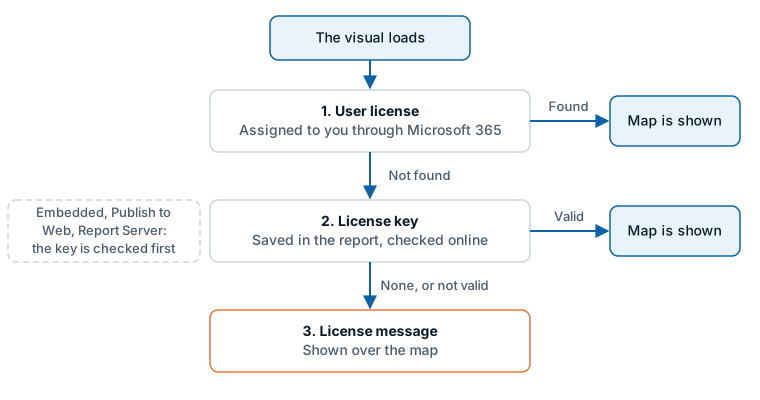
Do you need a license key?
| Your license | Key needed? |
|---|---|
| Per user, bought through Microsoft AppSource | No. Power BI tells the visual that you have a license |
| Usage-based, capacity, enterprise or Report Server | Yes |
| Power BI Embedded, Publish to web, GCC and regional clouds | Yes. Microsoft cannot provide user licenses there |
| Developer license or publish trial | Yes. The sign-up form applies it for you |
License keys let Icon Map Pro be licensed in ways Microsoft's per user licensing does not support: usage-based, capacity and enterprise licenses, and environments such as Power BI Report Server and GCC tenants. They also give you a record of usage against each key.
Activate a user license
User licenses are validated through Microsoft 365. There is no key to enter.
- Buy the license in AppSource. See Purchasing. The purchaser is assigned a license automatically.
- Assign licenses to other people or groups in the Microsoft 365 admin center under Billing > Licenses. Select the Icon Map Pro row, then Assign licenses.
- Refresh the report. In the Power BI service press F5. In Power BI Desktop, close and reopen it.
A license is usually active within a few minutes. It can take up to 30 minutes, and you may need to exit Power BI Desktop and reopen your report.
If the license is not picked up, check in the admin center that it is assigned to you. If you bought it yourself you were given access to the admin center automatically. Otherwise ask the purchaser or your tenant administrator.
A Microsoft issue prevents some users from being assigned licenses. In the Microsoft 365 admin center, open Your Products. You may need Change Billing Account to select the billing account the licenses were bought from. If Assigned Licenses shows "Not Available", contact support@icon-map.com and explain the situation. You may also need to raise a Microsoft support ticket.

Find your license key
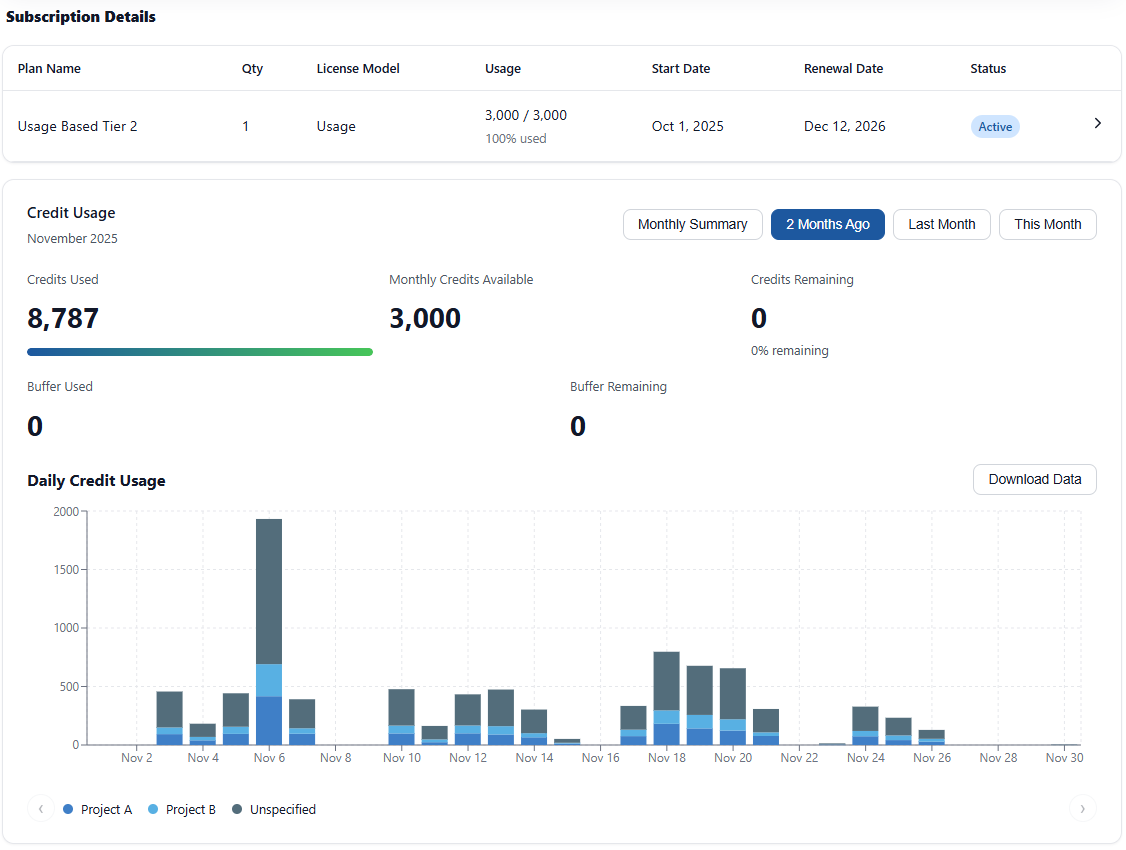
When you buy a license that uses a key, you get access to the Icon Map customer portal. In the portal you can view your subscriptions, see each license's type, limits and validity, find your license key and track usage.
- Sign in to the Icon Map portal.
- Go to Subscriptions.
- Open the subscription.
- Find the key in the License Details section.
Add a license key to a visual
- Select the Icon Map Pro visual. It needs at least one field before the card in the next step appears.
- Open Format pane > Icon Map Pro.
- Paste the key into License Key (for non-user based licensing).
The visual checks the key straight away. If the map does not appear, move to another report page and back.
You can also paste the key into the Enter license key box on the license message and select Apply Key. It saves the key to the same setting.
Power BI keeps each visual separate, so a key entered this way applies to one visual. Enter it again for each Icon Map Pro visual you add, or use a theme file, described below, to apply it to the whole report.
Tag usage with a reference
Reference, under the license key, is optional. Whatever you enter, such as a project code, a business unit or a report name, is recorded with the usage of that visual and is available as a filter in the Icon Map portal. It is useful when several reports or teams share one license.
Apply a license key with a theme file
A Power BI theme file can carry your license key, so that every Icon Map Pro and Icon Map Slicer visual in a report reads it automatically. This is the recommended approach when you have many visuals or reports.
Download a theme from the portal
- Open the Icon Map portal and go to Subscriptions.
- Select the license key you want to use.
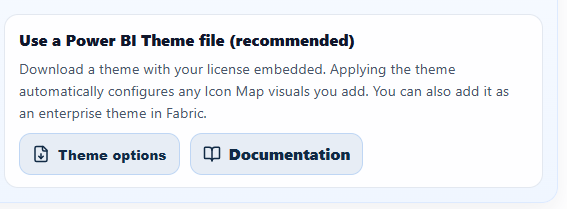
- In License Details, select Theme options under "Use a Power BI Theme file (recommended)".
- Choose one of:
- Download your theme: downloads a ready-to-import
.jsontheme file. - Add to your existing company theme: upload your existing theme
.jsonand download a copy with the Icon Map license key added.
- Download your theme: downloads a ready-to-import
Import the theme into Power BI Desktop
- Open your report in Power BI Desktop.
- Go to View > Themes > Browse for themes.
- Select the downloaded theme
.jsonfile.
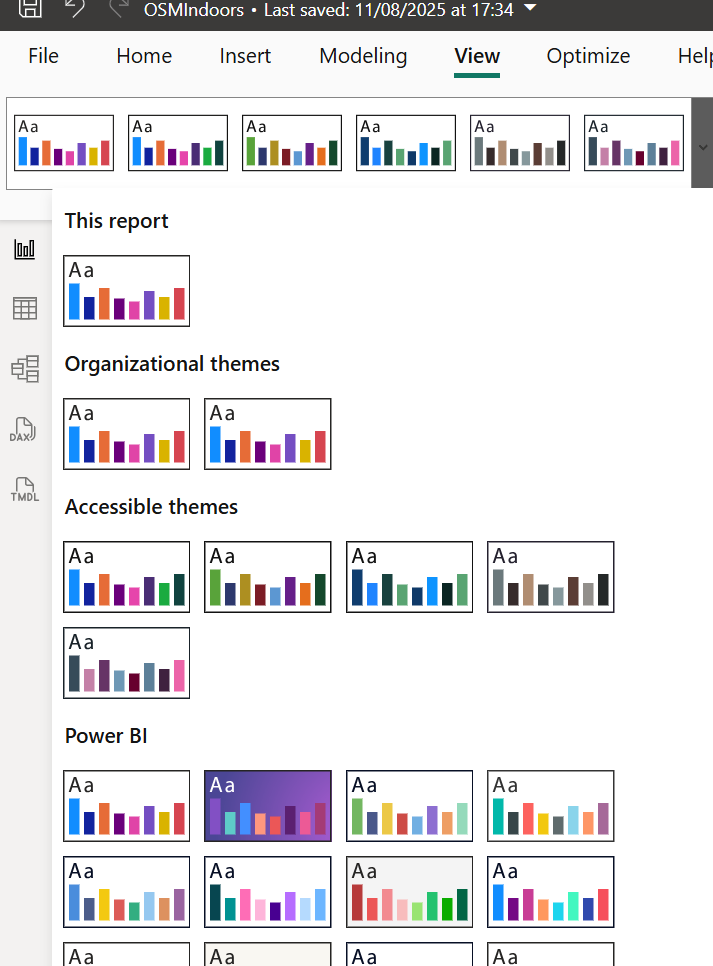
Icon Map visuals in the report now read the license key from the theme.
Make the theme available across your organization
- Sign in to Microsoft Fabric or the Power BI service.
- Open the Admin portal.
- Go to Organizational themes and select Add theme.
- Upload the theme
.jsonfile and give it a clear name, for example "Icon Map license". - Enable it for the theme gallery.
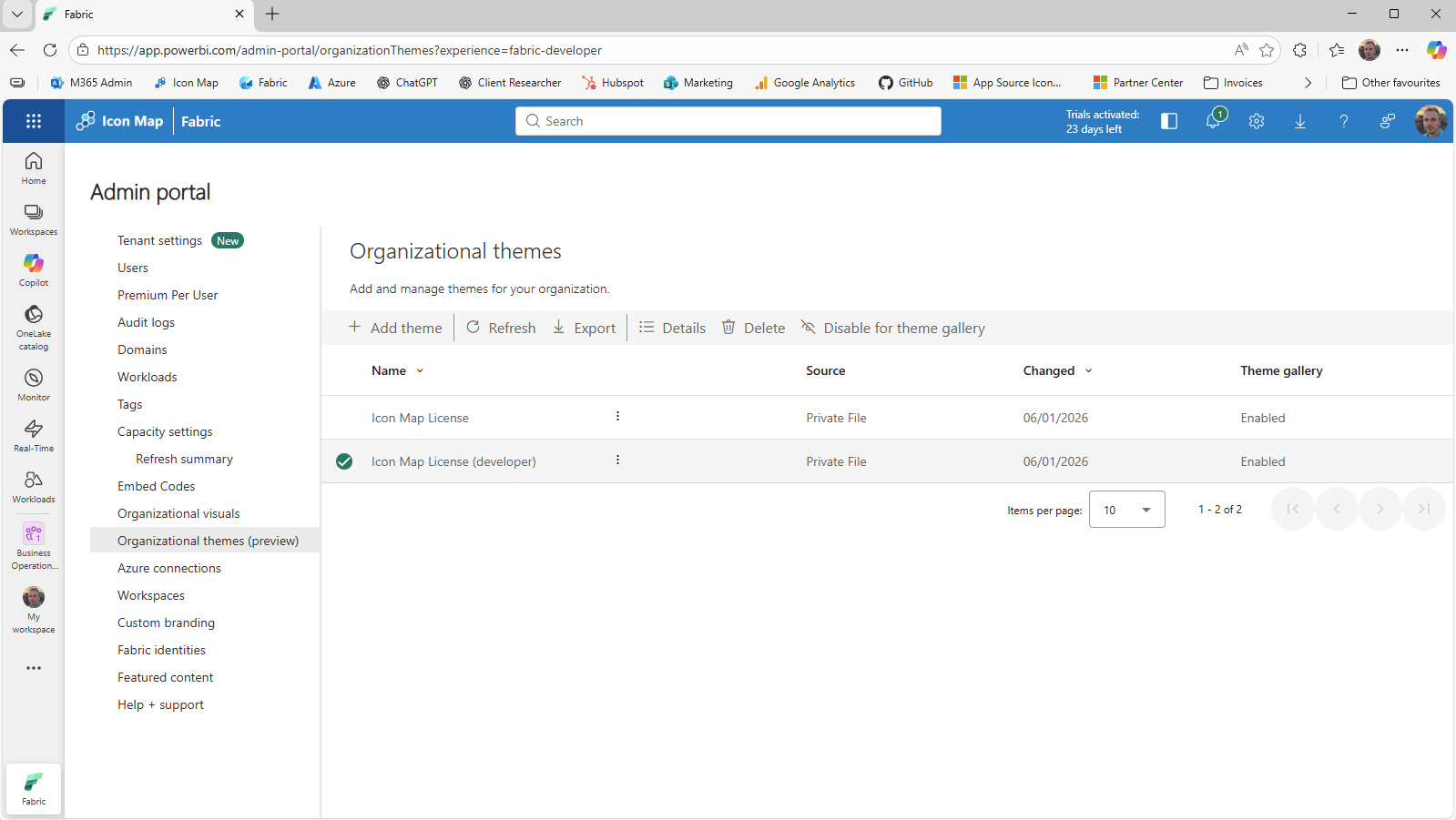
People can then pick the theme from the theme gallery without importing a file.
How the visual checks for a license
Each time it loads, the visual looks for a license in this order:
- A user license. The visual asks Power BI whether the signed-in user has an Icon Map Pro license from AppSource.
- A license key. If there is no user license, the key in the report is validated online with the Icon Map licensing service.
- Neither. A license message is shown over the map.
In Power BI Embedded, Publish to web and Power BI Report Server, the key is checked first, because Power BI cannot provide user licenses there.
The check runs again when the key changes and when you switch between editing and reading a report.
Validating a key needs network access to validate.iconmappro.com and validate2.iconmappro.com. For a network with no internet access, contact Icon Map for an air-gapped license key. See Power BI Report Server (on-premises).
License messages
An unlicensed map shows a message over the map. While you edit a report, the message offers the Get FREE Developer License button, the Enter license key box with an Apply Key button, and links to contact support and to buy a license.
| Message | What it means | What to do |
|---|---|---|
| "A license is required to use Icon Map Pro" | No user license and no key, while editing | Select Get FREE Developer License, enter a key and select Apply Key, or buy a license |
| "No license configured" | No user license and no key, while reading | Ask the report owner to assign you a license or to add a license key to the report |
| "Invalid License Key" | The key is not recognized | Check the key and enter it again |
| "Icon Map Pro not supported with current license" | The key is for another product, or does not cover the environment the report is running in. The message names the environment | Use a key that covers Icon Map Pro in that environment. See License types |
| "Unsupported Environment" | The report uses a developer license outside Power BI Desktop and report editing | Request a publish trial or buy a license. See Free trial and developer license |
| "Your Icon Map trial has expired" | The trial is over | Select Extend Trial, or buy a license |
| "Your 6 month free Icon Map developer license has now expired" | The developer license is over | Buy a license |
| "No valid subscriptions found" | The key has no active subscription | Renew the subscription in the portal, or contact support |
| "Unable to validate license" | The licensing service could not be reached after several attempts | Check your network connection and that the validation addresses are allowed. If it persists, contact support@icon-map.com |
Tips and limits
- The Icon Map Pro card only appears once the visual has at least one field.
- Instance, under Reference, is a read-only ID for the visual. Support may ask for it.
- A license assigned to you can need a restart of Power BI Desktop, or signing out of and back in to the Power BI service, before it is picked up.
- Buy licenses in the tenant the report is deployed to. See the Purchasing FAQ.