
Free trial and developer license
You can build with Icon Map Pro for free. A developer license unlocks every feature while you create reports, and a publish trial lets you share them for two weeks before you buy.
What you get
| Developer license | Publish trial | |
|---|---|---|
| Cost | Free | Free |
| Length | Up to 6 months | 2 weeks |
| Where it is valid | Power BI Desktop, and when editing a report in the Power BI service | Adds the Power BI service for readers, Power BI Embedded and Publish to web |
| Features | All of Icon Map Pro | All of Icon Map Pro |
The developer license also covers Icon Map Slicer.
Get a developer license
You need a work email address that belongs to a Microsoft 365 account.
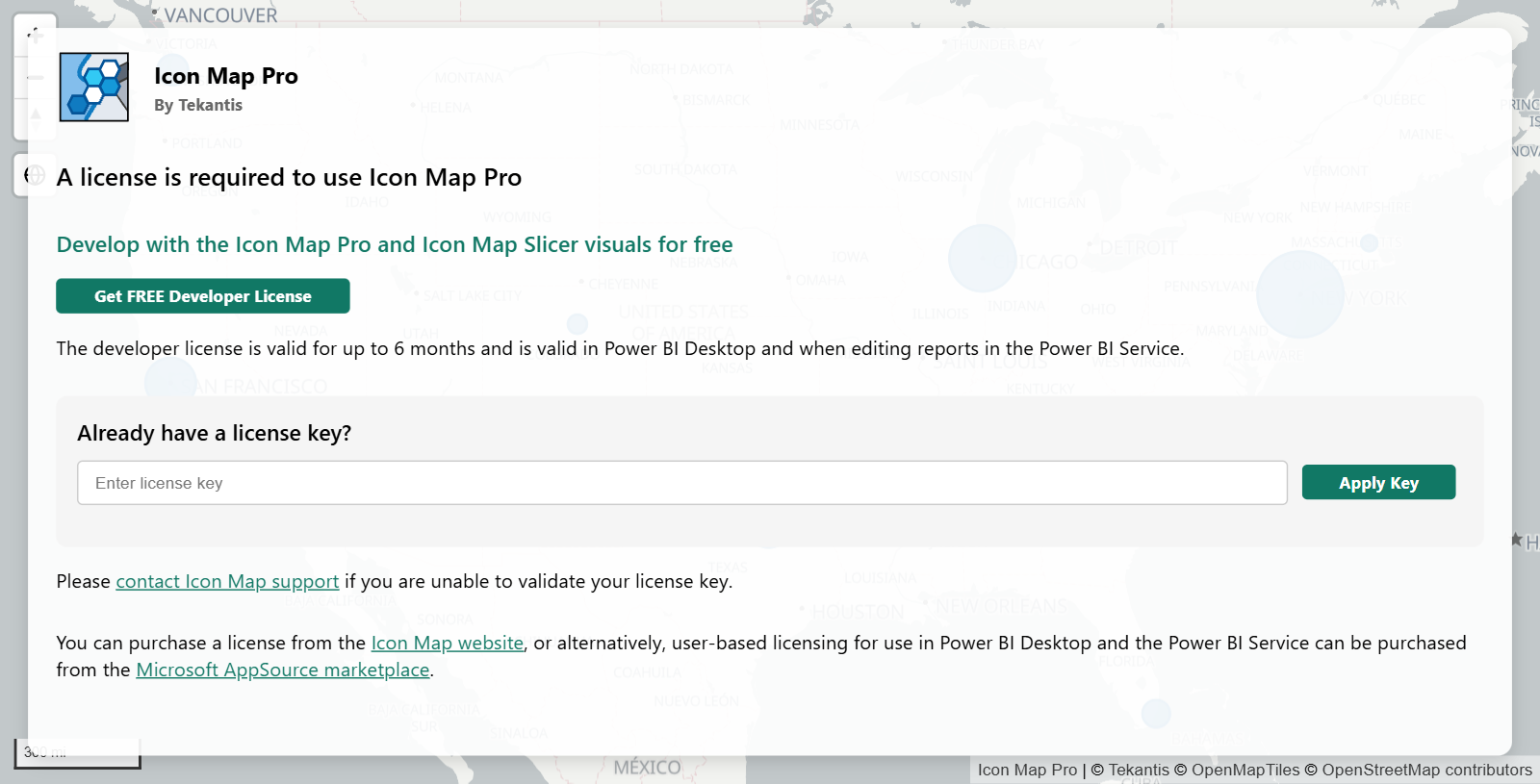
- Add Icon Map Pro to a report. A message over the map says a license is required.
- Select Get FREE Developer License.
- Fill in Work Email Address, Full Name, Job Title and Reason for Trial (at least 10 characters), then select Register for Developer License.
- Check your email for a 6-digit verification code. Enter it and select Verify.
- Select Apply License Key. The key is saved in the report and the map appears.
You can also sign up by creating an account in the Icon Map customer portal.
The key is saved in Format pane > Icon Map Pro > License Key (for non-user based licensing). Each Icon Map Pro visual holds its own key. To license every visual in a report at once, use a theme file. See License keys and activation.
If you already have an active developer license, the form does not create another. It tells you when the current one ends and emails the key to you again.
Share a report during your evaluation
A report licensed with a developer key shows readers an "Unsupported Environment" message in the Power BI service, Power BI Embedded and Publish to web. To let people view it before you buy, request a publish trial.
- Open the report in Power BI Desktop, or edit it in the Power BI service.
- On the "Unsupported Environment" message, select Request Publish Trial.
- Enter your email address and, if you want, a reason. Select Request 2-Week Publish Trial.
- Enter the verification code sent to your email and select Verify & Activate Trial.
The trial lasts two weeks and enables the Power BI service, Power BI Embedded and Publish to web. The Request Publish Trial button is offered in Power BI Desktop and in the Power BI service.
When a trial or developer license ends
| Message on the map | What it means | What to do |
|---|---|---|
| "Your Icon Map trial has expired" | The trial period is over | Select Extend Trial to request an extension. You are asked for a reason, an estimated number of users and a purchase time scale |
| "Your 6 month free Icon Map developer license has now expired" | The developer license is over | Buy a user license from Microsoft AppSource or a license from the Icon Map website |
See Purchasing when you are ready to buy.
Tips and limits
- The developer license is for building and testing. Report readers need a user license, a paid license key or a publish trial.
- If the sign-up form says it could not verify your email domain, use a work email address that is associated with a Microsoft 365 account.
- If the form cannot reach the licensing service, check your network connection. Your network must allow
validate.iconmappro.com. See Supported environments and limits. - For help, contact support@icon-map.com.