
Power BI Report Server (on-premises)
Icon Map Pro works on Power BI Report Server, on-premises, and in networks with restricted or no internet access. This page covers what to configure in Power BI and in the visual.
Which setup do you need?
| Your environment | What to do |
|---|---|
| Report Server, and every machine has internet access | Nothing special. Allow the addresses in Supported environments and limits and use a license key |
| Report Server or Power BI Desktop with restricted or no internet access | Follow Set up an air-gapped environment |
| You want the Icon Map basemaps and icon library without internet access | Also follow Host the Icon Map basemaps yourself |
Power BI Report Server
Icon Map Pro is compatible with Power BI Report Server, including on-premises environments. It has been tested with the May 2025 (Update) and January 2026 versions of Power BI Report Server.
Where the server and the machines of report authors and readers have unrestricted internet access, no extra configuration is needed.
Licensing on Report Server
Microsoft does not support user licenses for Power BI Report Server, so the visual needs a license key there. Use the usage-based license, or contact sales@icon-map.com for other options. The usage-based license needs an internet connection, so for an air-gapped server contact sales for an air-gapped license key.
User licenses still work in Power BI Desktop for report authors who have internet access.
See License keys and activation for where to enter the key.
Set up an air-gapped environment
Without internet access, Power BI tries to reach Microsoft AppSource to validate and download custom visuals, fails, and can show custom visuals as blank space. These steps stop that and tell Icon Map Pro not to call its own online services.
- Set the environment variable. On the Report Server, and on every machine that edits reports in Power BI Desktop, create an environment variable named
PBI_userFavoriteResourcePackagesEnabledwith the value0. Microsoft's steps are in Troubleshoot custom visuals in Power BI Report Server. - Import the visual from a file. In Power BI Desktop, add Icon Map Pro with Import a visual from a file, not Get more visuals. The visual is then stored inside the .pbix file. If a report already uses the AppSource version, import the file version into it again. Download the visual from the release notes.
- Change the Report Server setting. Connect to the report server with SQL Server Management Studio, open the server properties, and under Advanced set the user-defined property
EnableCDNVisualstoFalse. Restart Power BI Report Server. This prevents a delay while the server tries and fails to reach AppSource. - Turn on Airgapped Environment. In the Format pane, open Icon Map Pro > Customization and turn on Airgapped Environment.
- Enter an air-gapped license key. Contact sales@icon-map.com for a key that works without an internet connection, and enter it in Icon Map Pro > License Key (for non-user based licensing).
- Choose a basemap you can reach. Use your own map server, no basemap, or the self-hosted Icon Map basemaps described below.
What Airgapped Environment does
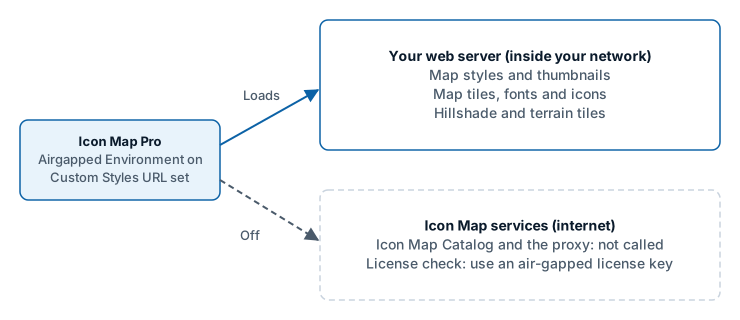
Airgapped Environment stops the visual from calling Icon Map services it cannot reach.
- The Catalog (Preview) card is hidden. Icon Map Catalog layers need internet access.
- The list of Icon Map basemap styles is not downloaded from Icon Map. It is loaded from your Custom Styles URL if you set one. With no Custom Styles URL there is no Icon Map style list.
The setting does not license the visual. You still need a license key.
Other providers keep working in an air-gapped network as long as the visual can reach them and they allow requests from Power BI (CORS). That includes ArcGIS Enterprise on your own portal, your own tile server, a WMS server and a vector style link.
Basemaps without internet access
Without internet access the visual cannot load the Icon Map basemaps, the icon library or the Icon Map Catalog, because they are hosted on Icon Map servers. Use your own map server or no basemap, or host the Icon Map basemaps yourself: see Self-hosted basemaps.