
Click, lasso and circle select
Click items to select them one at a time, draw a lasso around a group, or drag a circle out from a point. Whatever you select filters the other visuals on the report page.
Click to select
| To do this | Do this |
|---|---|
| Select one item | Click it. |
| Add to the selection | Hold Ctrl or Shift and click another item. |
| Remove items from the selection | Hold Ctrl or Shift and click an item that is already selected. |
| Clear the selection | Click an empty part of the map, or use the Clear All Selections button. See Clear the selection. |
Removing the last selected item with Ctrl or Shift clears the selection, so the other visuals show all their rows again.
The pointer changes to a hand over anything you can select. Which layers can be selected is listed in What can be selected.
Dragging the map is not a click. If the pointer moves more than a few pixels between pressing and releasing the mouse button, the map pans and nothing is selected.
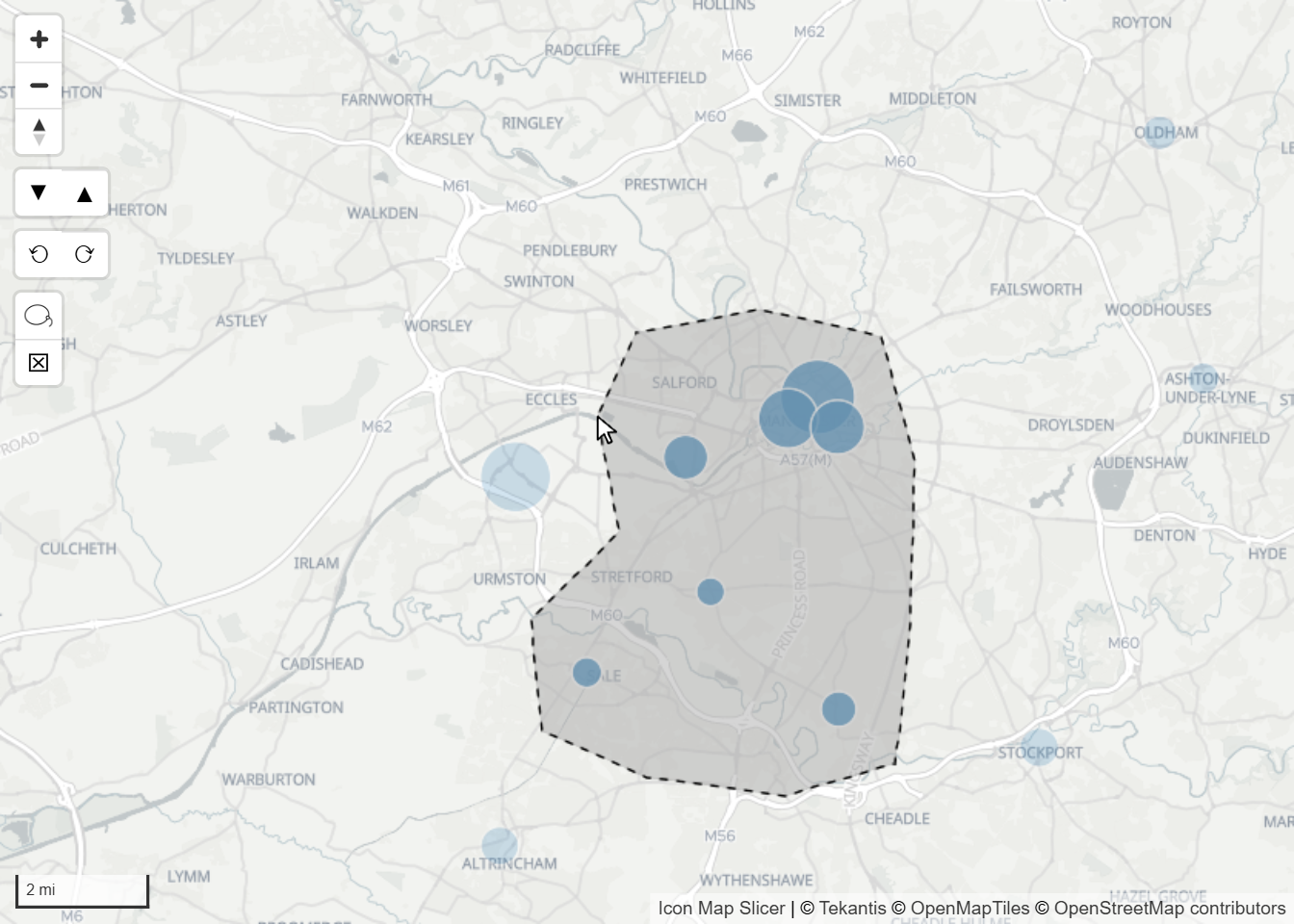
Select an area with the lasso
- Switch the tool on: Format pane > Selection > User Selection > Lasso.
- On the map, select the Lasso Select Tool button.
- Drag a shape around the items you want. The map does not pan or zoom while the tool is on.
- Release the mouse button. Everything inside the shape is selected, and the tool switches itself off.
Hold Ctrl or Shift while you draw to add to the current selection.
Select within a circle
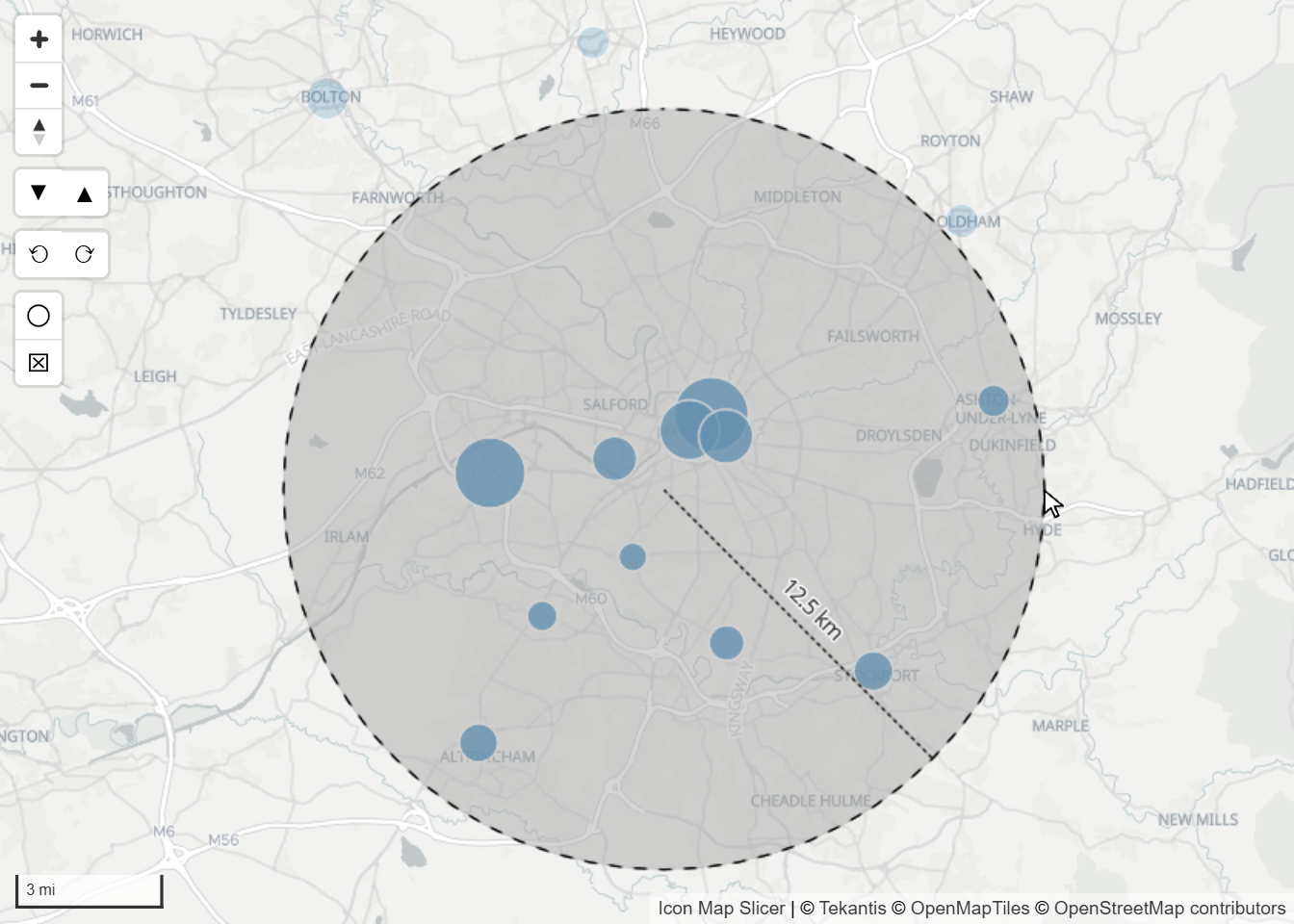
- Switch the tool on: Format pane > Selection > User Selection > Circle Select.
- On the map, select the Circle Select Tool button.
- Press the mouse button where the center should be, and drag outward. A label shows the radius as you drag.
- Release the mouse button. Everything inside the circle is selected, and the tool switches itself off.
Hold Ctrl or Shift while you drag to add to the current selection.
Circle Select Units sets the units of the radius label:
| Circle Select Units | The radius is shown in |
|---|---|
| Metric (default) | Kilometers, or meters for a short radius |
| Imperial | Miles, or feet for a short radius |
| Nautical | Nautical miles, or meters for a short radius |
Which items the lasso and the circle select
Both tools look only at items drawn in the current view of the map. Zoom out first if what you want to select is off screen.
Lasso Mode decides which lines and shapes count. It applies to the lasso and to circle select.
| Lasso Mode | Selects |
|---|---|
| Intersect or Contain (default) | Lines and shapes that touch the area or lie inside it. |
| Fully Contain | Only lines and shapes that lie entirely inside the area. |
A point is selected when it is inside the area, in either mode.
Settings
All in Format pane > Selection > User Selection.
| Setting | What it does | Default |
|---|---|---|
| Circle Select | Adds the Circle Select Tool button to the map. | Off |
| Circle Select Units | Metric, Imperial or Nautical. Shown when Circle Select is on. | Metric |
| Lasso | Adds the Lasso Select Tool button to the map. | Off |
| Lasso Mode | Intersect or Contain or Fully Contain. Shown when Lasso, Circle Select or Isochrone Select is on. Travel time uses it too: see Select by travel time. | Intersect or Contain |
| Fill | Fill color of the area while you draw. Shared with circle select and travel time. | #AAAAAA |
| Outline | Outline color of the area. Shared with circle select and travel time. | #000000 |
The buttons sit in the top left corner of the map with the other selection buttons. Their size follows Control Size on the User Interface card. See Map controls.
Clicks on ArcGIS reference layers
Reference layers cannot be selected, but an ArcGIS reference layer can open its ArcGIS pop-up when a feature is clicked. Switch on Pop-up on Click for the layer. The pop-up does not select anything or filter the page. It does not open while the lasso tool is in use. See ArcGIS layers.
Tips and limits
To select everything inside a shape that is already on the map, such as a region, use Select everything inside a shape instead of drawing round it.
The lasso and circle select leave out items on layers whose Selectable setting is No, as clicks do.
Drawing an area that holds exactly the items already selected keeps them selected. Only a click takes items out.
Select Mode does not apply to the lasso or circle select. They use Lasso Mode.
Each tool switches itself off after one use. Select its button again for another selection.