
Daylight terminator
The daylight terminator shades the part of the world where the sun has set. It shows the present moment and moves with the sun while the report is open. It needs no data and no key.
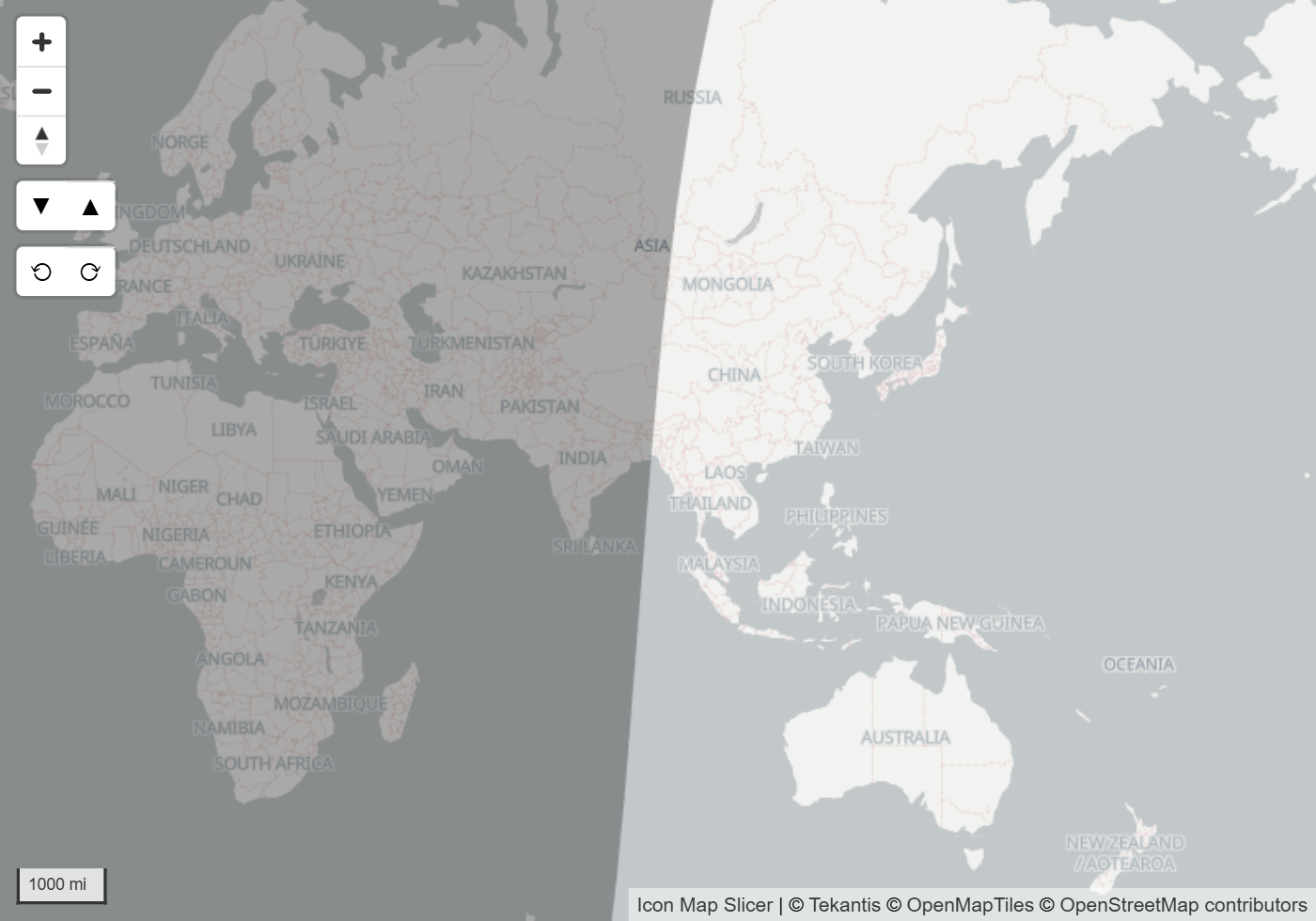
Add the daylight terminator
- In the Format pane, open the Layer Manager card and switch on Open Layer Manager.
- Select Add a layer, then Reference layer, then Day and night.
- Choose the color and its transparency if you want to, select Add to map, then Apply changes.
You can also switch it on in the Format pane: open Reference Layers and switch on Daylight Terminator. The switch is in the group's heading.
Settings
Format pane > Reference Layers > Daylight Terminator
| Setting | What it does | Default |
|---|---|---|
| Transparency | 0 is solid, 100 is invisible | 70 |
| Z Index | Drawing order, 0 to 1000. Higher is nearer the viewer | 450 |
| Terminator Color | Color of the shading | #000000 |
In the Layer Manager, select Day and night to change its Color and transparency.
Tips and limits
The shading always shows the current time. It is drawn as one edge between day and night, with no twilight bands.
A change to Terminator Color or Transparency shows on the map straight away.
With the default Z Index of 450 the shading is drawn over your data layers and map labels, and under data labels. Lower Z Index to draw it under your data.