
Security and certification
This page is for administrators and security reviewers. It explains what stays inside the visual, which services Icon Map Slicer connects to and what it sends them, and why the visual is not certified by Microsoft.
Summary
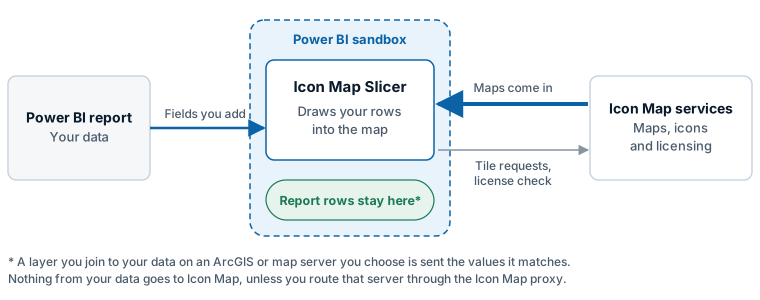
- Icon Map Slicer runs inside Power BI's custom visual sandbox, in the browser or in Power BI Desktop. Power BI gives it only the fields you add to it.
- It draws your data inside the visual. Nothing from your report data is sent to Icon Map.
- When a reader selects items, it filters the report through Power BI's own filter interface. The filter stays inside Power BI.
- It loads basemaps, and any layers you link to, from external services. That is what a map needs, and it is the reason the visual cannot be certified.
- A server you connect to your data, such as an ArcGIS layer joined to it, receives the values it needs to match. You choose those servers.
- It sends feature usage telemetry that contains no report data, which you can turn off.
- The JavaScript libraries it uses are packaged inside the visual. None are loaded from the internet at run time.
Your report data
- Icon Map Slicer draws your rows itself, inside the visual. It has no geocoding service that your rows are sent to: you supply coordinates, shapes or values that match features.
- Travel time areas, routes and flow lines are worked out inside the visual. For travel times it downloads road data. The point a reader clicks is not sent anywhere.
- Nothing from your report data is sent to Icon Map's services: not to the basemaps, the license check, telemetry or the Icon Map Catalog.
- The Search control looks up places in an index the visual downloads. It searches for what a reader types, not for your data.
- When you join an ArcGIS feature layer to your data through the Feature Reference field, the visual asks that ArcGIS server for the features that match. The values it matches are sent to that server as part of the query.
- A link you build from your data with conditional formatting, such as a file link or a filter value, is sent to the server that link points to, as part of the request.
- Selection, filtering, tooltips and the right-click menu go through Power BI's own interfaces.
What the visual is allowed to do
Power BI runs every custom visual in a sandbox: a separate frame that cannot read the report page, the other visuals on it or your Power BI sign-in. Power BI passes the visual only the fields you add to it, and the visual hands selections, filters and tooltips back through Power BI.
Power BI also grants a custom visual only the privileges it declares. Icon Map Slicer declares three:
| Privilege | Why |
|---|---|
| Web access | To load basemaps, tiles, files and services, check license keys and send telemetry |
| Local storage | Optional. To remember a person's ArcGIS sign-in on their own device. Respected when an administrator turns local storage off for custom visuals |
Microsoft Entra sign-in, for https://api.iconmap.ai |
Only for organizations that use Icon Map for Fabric. To sign you in to your organization's Icon Map catalog in Microsoft Fabric with your Power BI account |
External services
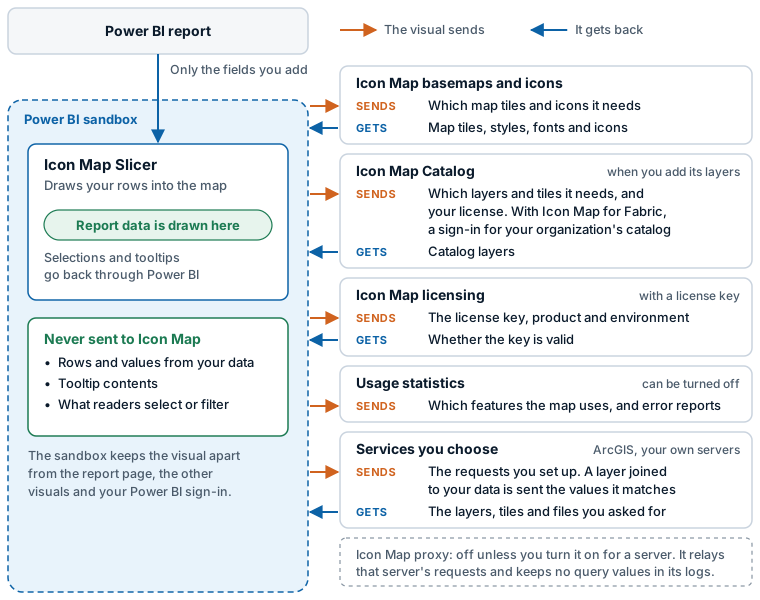
Each service is contacted only when the feature that uses it is in use. The addresses are listed, for firewall rules, in Supported environments and limits.
| What | Service | When |
|---|---|---|
| Icon Map basemaps: the list of styles, the styles, map tiles, fonts, hillshade and terrain | Icon Map (styles.iconmappro.com) |
An Icon Map basemap, hillshade, terrain or map labels are in use |
| Icon library images | Icon Map | Icons from the icon library are in use |
| Place search | Icon Map (styles.iconmappro.com) |
The Search control is on. It downloads a place index |
| Road data for travel time selection | Icon Map (styles.iconmappro.com) |
Isochrone Select is on and a reader uses it. The visual downloads road data and works out the area itself |
| Icon Map Catalog search: finding datasets and reading their details | Icon Map (catalogapi.icon-map.com) |
You browse the Icon Map Catalog or use its layers |
| Icon Map Catalog layers: tiles and data | Icon Map (catalog.icon-map.com) |
Catalog layers are in use |
| Your organization's Icon Map catalog | Icon Map (api.iconmap.ai) |
Only with Icon Map for Fabric, when you browse your organization's catalog |
| License key validation | Icon Map (validate.iconmappro.com, validate2.iconmappro.com) |
The report uses a license key |
| ArcGIS Online or ArcGIS Enterprise | ArcGIS | The map uses ArcGIS. Your ArcGIS credential is sent to ArcGIS |
| The Icon Map proxy | Icon Map (proxy.icon-map.com) |
Only when a proxy option is on. See the next section |
| Your own raster, vector, WMS, WFS and style servers | The server in the link you enter | You add a basemap or layer from a link |
| Images, GeoJSON, KML and other files by link | The server in the link | You add an image or file layer from a link |
| Telemetry | Azure Application Insights, UK South | Unless Opt out of telemetry is on |
Airgapped Environment stops the Icon Map Catalog and the proxy. Without a Custom Styles URL, it also stops the visual reading the list of Icon Map styles: the map then draws a fallback style. It does not stop telemetry: turn on Opt out of telemetry for that.
See Power BI Report Server (on-premises).
The proxy
The Icon Map proxy is off by default. When you switch it on for a server that does not allow Power BI to read it, the visual's requests to that server, and any credential attached to them, pass through a relay run by Icon Map, which passes back the response. Its logs keep the site and path of each request, not the query or what was sent. The proxy is never used when Airgapped Environment is on, or when your Icon Map license rules it out.
ArcGIS sign-in and the proxy describes exactly when the proxy is used and what is sent to it.
Credentials
- An ArcGIS API key, credentials entered for a WMS layer and the Icon Map license key are saved in the report as settings. Treat a report that contains them accordingly.
- An ArcGIS client secret is saved in protected form.
- Personal ArcGIS sign-ins are kept in the visual's local storage on the reader's device, not in the report. The ArcGIS sign-in window names Icon Map Slicer as the application asking for access.
See ArcGIS sign-in and the proxy and Connect to ArcGIS.
License checks
- User licenses are checked by Power BI. The visual asks Power BI which Icon Map Slicer plans the signed-in user has. Nothing is sent to Icon Map for this.
- License keys are validated online with the Icon Map licensing service. A visual licensed by key also records usage with that service when it loads data: the key, the environment it is running in, the product, the optional Reference, the visual's instance ID and a session ID. Usage-based licenses are measured this way. Use of Icon Map Catalog layers is recorded against the license.
- Air-gapped license keys are accepted by the visual itself when the licensing service cannot be reached, so they work without a connection.
Telemetry
Icon Map Slicer sends feature usage telemetry to Azure Application Insights in the UK South region. It is used to understand which features are used and to diagnose errors.
- What is sent. When a map first draws, a list of the features it uses, not your data: the type of basemap and the Icon Map style, whether hillshade, terrain and sky are on, which reference layers and data layers are on, the image source, the number of shape levels, and for Icon Map Catalog layers their name, ID, access type and visibility.
- What each event carries. The visual's instance ID, its version, the product, the environment it is running in, and whether the report is being edited or read. Where the report uses a license key, the key and the optional Reference are included, so that support can match events to a license.
- Errors. Errors such as a failed license validation are sent as exceptions. Before an error is sent, quoted text, numbers and web addresses are removed from its message, so it cannot carry a value from your report.
- What is not collected. Automatic tracking of page views and network requests is turned off. Only the events above are sent. No data from your report is included, and nothing about what readers select.
- Opt out. Turn on Format pane > Icon Map Slicer > Feedback > Opt out of telemetry. Telemetry does not start until the visual has read this setting, so a report that opts out sends nothing at all.
- Detailed telemetry. Additional diagnostic events are sent only while Detailed telemetry for support is on. They describe problems, such as a cell ID that cannot be read, without the values involved. Leave it off unless support asks for it.
Certification by Microsoft
Icon Map Slicer cannot be certified by Microsoft. One of the requirements for a certified visual is that it does not access any external services:
Accessing external services or resources. For example, no HTTP/S or WebSocket requests can go out of Power BI to any services.
Background maps are too large to store inside a visual, so they have to be served from an external source. The full criteria are in the Microsoft documentation on certified visuals.
Uncertified visuals are not permitted in my organization
When you publish a report to the Power BI service, you may see this message in place of the visual:

It means uncertified visuals are not permitted in your Power BI or Microsoft Fabric tenant. An administrator can make an exception for a specific visual by adding it as an organizational visual, which can then be used across the organization. See Microsoft's guidance on organizational visuals.
Code security reviews
We are happy to support code security reviews. We can release the source code under NDA for your organization's IT security team to review. Contact support@icon-map.com.