
Commercial data in Fabric
Commercial datasets are licensed from third-party data providers and sold in the Icon Map data store. In Icon Map for Fabric you can buy one from the catalog, pay by card without leaving Fabric, and use it from the catalog straight away: the catalog layer draws what you bought.
Commercial datasets are not part of any plan. For how the store works, what you can buy and what the data license allows, see Buying commercial data.
Preview before you buy
Every commercial dataset in the catalog shows a sample area in full detail, with nothing outside it, so you can judge the data before you buy. The preview uses no credits.
Buy a dataset
Only account owners and license managers can buy. Anyone else can prepare a quote and send it to them.
- In an Icon Map item, open Add a catalog layer and find the dataset. Commercial datasets carry the Commercial badge.
- Select Add. The Commercial dataset message explains that it is purchased separately from your Icon Map license, for the whole dataset or just the area you need.
- Select Ways to buy.
- 1. Choose what to buy:
- Whole dataset: all of the dataset, with every update during the license. Select Buy the whole dataset.
- Buy an area: choose areas by name or on the map, or draw a rectangle. The price depends on how much data is inside, and the smallest area sold is stated. If you choose several areas inside a larger one, the store may suggest buying the larger area instead.
- Talk to us, for more users, longer terms, other delivery or buying through a reseller or Microsoft.
- 2. Billing details shows the company, address and VAT number that go on the invoice, filled in from your Icon Map account. Check them, or add them the first time, and select Next.
- 3. Review and pay shows the data, the area, the term and the total, with any Icon Map plan discount. Read the data license and select the box to accept it. If your account has more than one license, choose the license the data is added to.
- Select Pay by card. A secure card form from Paddle, our payment provider, opens inside Fabric. Your card details go straight to Paddle and never reach Icon Map or Microsoft Fabric. If the form does not load, select Pay in a browser tab.
- 4. Done confirms Purchase complete. Your license for the data is set up within a minute. If you bought an area, Icon Map then prepares a file of just your area, kept privately by Icon Map. This usually takes a few minutes.
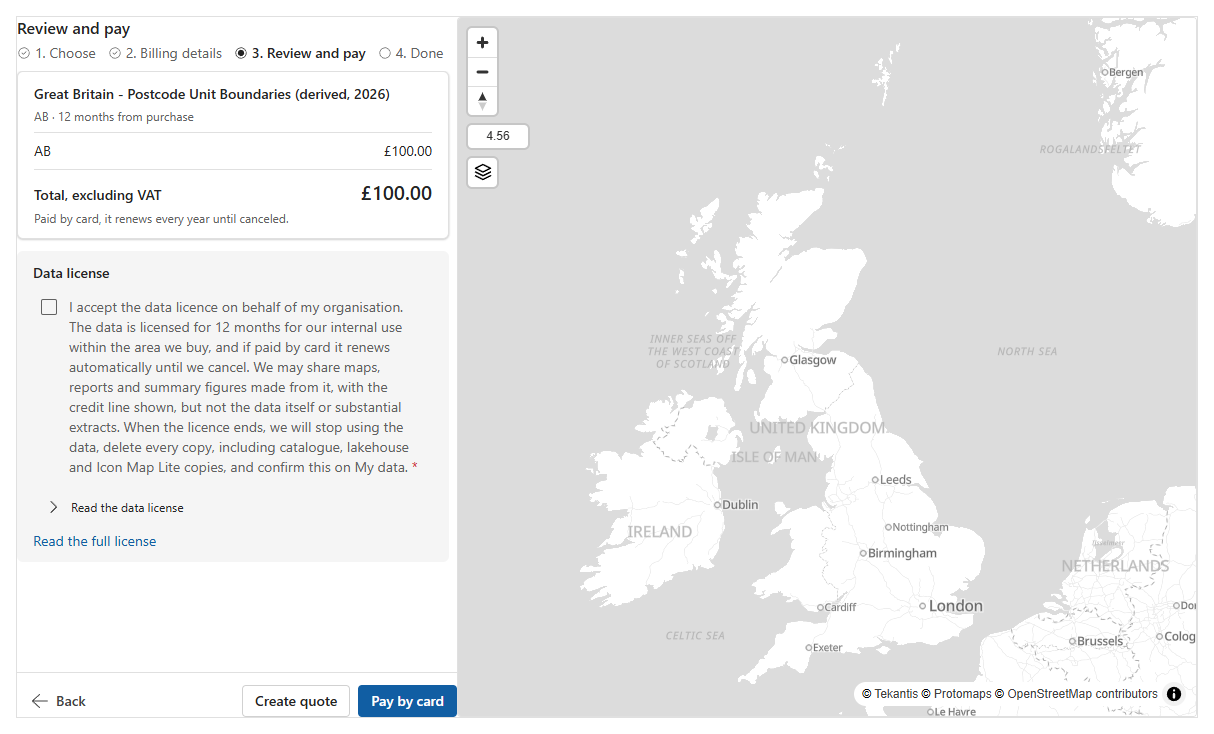
Where your account is set up to pay by invoice, Pay by invoice is also offered. It first shows what confirming does: your order is placed and the license starts straight away, the invoice goes to your billing email, and it is payable within 30 days. Select Confirm order to go ahead. If you are not the one who pays, select Create quote: the quote opens in the pane with Download quote and Copy link at the top, to send to an owner or license manager.
Paid by card, the data license renews every year until it is canceled. See Renewal and expiry.
Use the data in Fabric
Every purchase has one central version, kept by Icon Map: the whole dataset itself, or a file of just your area. Add it to a map from Add a catalog layer like any other catalog layer. The catalog shows what you bought, so its preview shows your area rather than the sample, and the layer draws it.
An area can be added once it is ready. While it is being prepared, usually for a few minutes after you pay, the catalog shows it as being prepared and My data shows Preparing your area.
Add it to your Organizational Catalog
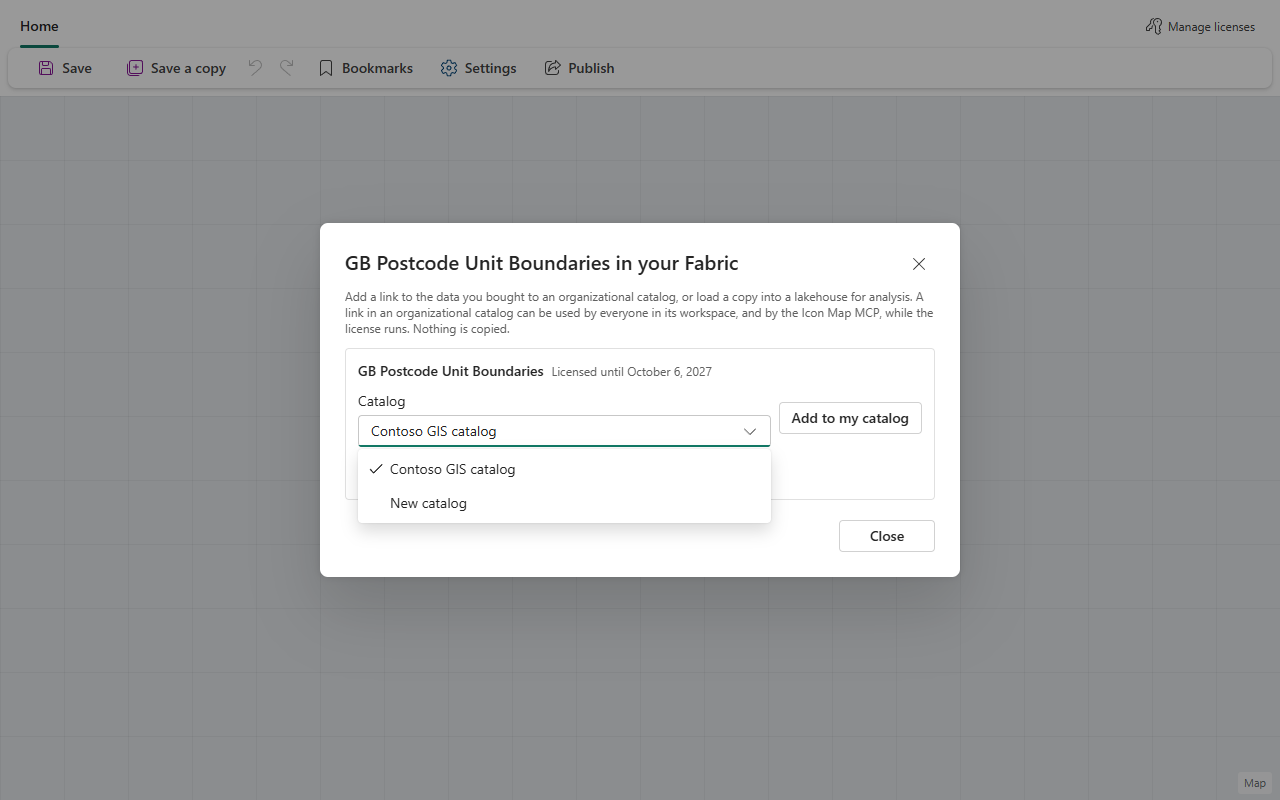
To make the dataset easy for your organization to find, add it to an Organizational Catalog. You can do this straight away from Use it in Fabric on the Done step, or later from the dataset in the catalog.
- Select Add to my catalog.
- Under Catalog, choose an existing Organizational Catalog, or choose New catalog and give it a name. A new catalog is created in the current workspace and shared with your organization.
- The dataset is added to the Organizational Catalog as a link to the version Icon Map keeps. Nothing is downloaded or copied into your OneLake.
A link always shows the latest release, with nothing to update. When the license ends it stops drawing the data by itself, so there is nothing to delete.
Use the data as a table
Commercial datasets are also listed under Add data > Icon Map Catalog Reference Data. With the dataset in your license, the preview shows your own rows and Use data adds them as a data source for charts, tables and slicers; without it, you see a sample of about 50 rows and Buy, which opens the same store as Ways to buy. See Icon Map Catalog Reference Data.
Download the file
Select Download the file to download the data as a Parquet file. You can do this straight away from Use it in Fabric on the Done step, or later from the dataset in the catalog.
- Select Download the file. The dialog shows Preparing the file while Icon Map gets the file ready. It is a file Icon Map has already prepared, so this usually takes seconds: for an area, the file it keeps for your area; for a whole dataset, the one file it prepares for each release (for a short while after a new release is published, the download waits until that file is ready). You can close the dialog while it waits: Fabric tells you when the download is ready.
- The file downloads through a link that is valid for 15 minutes. Fabric opens the link for you and your browser saves the file; if the link cannot be opened from Fabric, the dialog shows Open the download link instead.
The file is the same analysis format as every Parquet file you receive from the store: standard Parquet with each feature's shape as WKT in geometry_wkt (the column Icon Map binds to) and as WKB in geometry_wkb, its bounds in bbox_xmin, bbox_ymin, bbox_xmax and bbox_ymax (and longitude / latitude for points).
To use it in a lakehouse, upload the file to the lakehouse's Files folder, then select the file and choose Load to Tables: the lakehouse makes it a Delta table as it is, and maps bind to its geometry_wkt column. Nothing is copied into your OneLake by Icon Map: the download is your own file, in your own storage. When a new release of the data is published, download it again. When the license ends, delete the files you downloaded, and anything made from them, yourself, and confirm this on My data. Icon Map never deletes anything in your Fabric.
Only owners and license managers can add purchased data or download it. Anyone else sees "Ask your license owner or a license manager to add this data to your organizational catalog or download the file."
Which license the data belongs to
A purchased dataset belongs to one license on your account. It is shown on maps only where that license is the one covering the item. In a workspace covered by a different license, even one on the same account, the layer is not shown, and the map says that the data is held on a different license. To use the data there, assign the same license to that workspace, or buy the data for the other license.