
Buying Icon Map for Fabric
Usage plans are bought online in the Icon Map portal, by card or, where your account allows it, on invoice. Capacity plans and enterprise agreements are arranged with our sales team. Buying through Microsoft Marketplace is coming soon.
Choose how to buy
The Buy Icon Map for Fabric page on our website sets out the three routes.
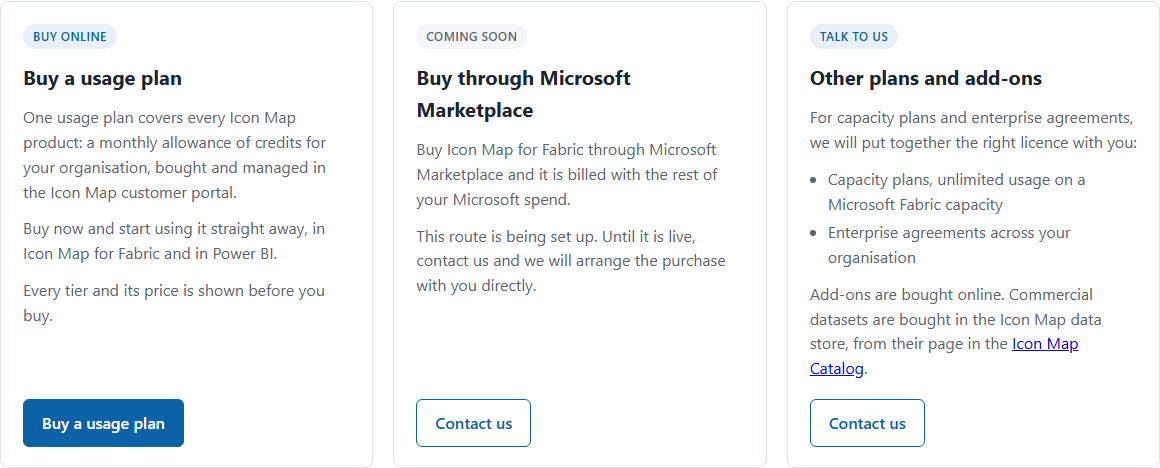
| Route | Use it for | What happens |
|---|---|---|
| Buy a usage plan | A monthly allowance of credits, shared with Icon Map Pro and Icon Map Slicer | Opens the pricing page in the Icon Map portal, where you choose a tier and pay |
| Buy through Microsoft Marketplace | Paying through your Microsoft account | Coming soon. Until it is live, select Contact us and we will arrange the purchase with you directly |
| Other plans and add-ons | Capacity plans, enterprise agreements and anything else | Select Contact us and our sales team will put together the right license with you |
Buy a usage plan
You need an Icon Map portal account to buy. If you do not have one, the portal creates one when you first sign in. See Accessing the portal. Account owners can buy; members cannot.
- Go to Buy in the Icon Map portal, or select Buy a usage plan on the website.
- Select Usage-Based.
- Choose Annual or Monthly billing, and check that Country shows the country you are billed in. Prices are shown in its currency and exclude VAT and sales tax.
- Find the tier you want. Tier 1 includes 1,000 credits a month, Tier 2 3,000 and Tier 3 5,000. Use Quantity to buy more than one of a tier.
- Optionally, select Include Extended Onboarding. See Extended Onboarding below.
- Select Buy.
- Sign in if you are asked to, then complete the checkout steps: Account, Billing details, Review and payment and Finish. The ORDER SUMMARY shows the plan and what happens When the credits run out.
- Accept the license and purchase terms, then pay. See Paying below.
- Select Finish to see your license details.
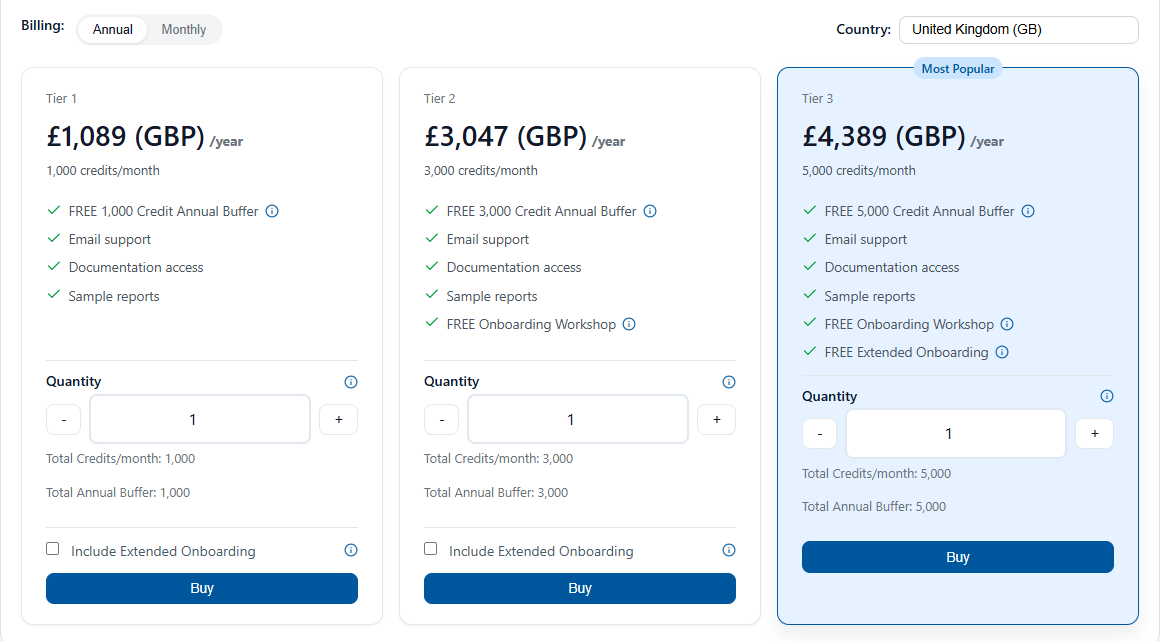
Annual plans include a free annual buffer of one month's credits, which is used automatically if you go over your allowance in a month. Monthly plans have no buffer. See Credits and credit modes.
A new license is not assigned anywhere, so Icon Map for Fabric does not use it yet. Once you have paid, assign it to your organization, a capacity or a workspace. See Assigning a license.
Extended Onboarding
Extended Onboarding is a one-off, fixed-scope onboarding session delivered remotely over Microsoft Teams. It extends the onboarding workshop included with Tier 2 and Tier 3 plans, and covers installation, activation and knowledge transfer.
- Select Include Extended Onboarding on an annual Tier 1 or Tier 2 plan. The one-off charge is shown when you select it.
- Tier 3 annual plans include Extended Onboarding free of charge.
- It must be used within six months of the license start date.
Paying
At Review and payment you can pay in one of these ways.
Pay by Card. Opens the checkout of Paddle, our payment provider. Enter your card details and complete the purchase. The license is active straight away.
Pay by Invoice. Available to approved business and public sector customers who cannot pay by card.
- If your account is already approved, Pay by Invoice opens Confirm invoice purchase. Optionally enter a Purchase order number (optional), then select Confirm. You receive an invoice from Paddle.
- If your account is not yet approved, Pay by Invoice opens Request invoice payment. Confirm the statements, give a Reason for paying by invoice, and select Request approval. We review the request and, once approved, you can complete the purchase with Pay by Invoice.
Request quote. Creates a quote you can pass to whoever approves the purchase. See Quotes and billing.
Your credit mode
A usage plan bought in the portal starts in Auto-upgrade: if you use your whole monthly allowance and any annual buffer, the plan moves up a tier so that your maps keep working. You can change this at any time after purchase to Fixed (hard stop) or Fixed plus overage. See Credits and credit modes.
Capacity plans and enterprise agreements
Capacity plans and enterprise agreements are not sold online. Select Enterprise on the portal's Buy page and select Contact Tekantis Sales, or email sales@tekantis.com.
- Capacity plans license one or more named Fabric capacities for unlimited use, with no credit allowance. Each plan covers capacities up to a stated size, for example F64. See Capacity plans.
- Enterprise agreements cover your whole organization, or a scope agreed with you, for unlimited use.
- We can also arrange a capacity or enterprise plan as a private plan in Microsoft AppSource, so that it is billed through your Microsoft account.
Once the agreement is in place, the license appears in your portal account and the owner assigns it, as for any other plan.
Microsoft Marketplace
Buying Icon Map for Fabric through Microsoft Marketplace is coming soon. Until it is live, contact us and we will arrange the purchase with you directly.
Buying through a partner or reseller
If you buy through a Microsoft CSP or another partner, the license still lives in an Icon Map portal account. The usual set-up is:
- Your organization's account has your own owner.
- Your partner is added to the account as a license manager, so they can assign licenses and choose credit modes for you, without seeing your billing.
Speak to your partner or to sales@tekantis.com about pricing and invoicing.