
Assigning a license
A license is used only where it has been assigned: your whole organization, a capacity or a workspace. Account owners and license managers assign licenses from Manage licenses in Icon Map for Fabric, or from the Icon Map portal.
Before you start
- You need the owner or license manager role on the Icon Map portal account that holds the license. See Account roles.
- Sign in to the portal once with your Microsoft work account, the one you use in Fabric. This lets Icon Map for Fabric recognize you as the owner or manager of the account's licenses.
- In Fabric you need edit rights on the Icon Map item you open Manage licenses from.
- Nothing is assigned automatically. This includes enterprise agreements. Until a license is assigned, Icon Map for Fabric does not use it.
Where you can assign from
| In Icon Map for Fabric | In the Icon Map portal | |
|---|---|---|
| The whole organization | Yes | Yes |
| A capacity | Yes | Remove only |
| A workspace | Yes | Remove only |
Capacities and workspaces are added from inside Fabric, where Icon Map can check them for you. The portal shows every assignment and can remove any of them.
Assign a license in Icon Map for Fabric
- Open an Icon Map item in a workspace you want to license.
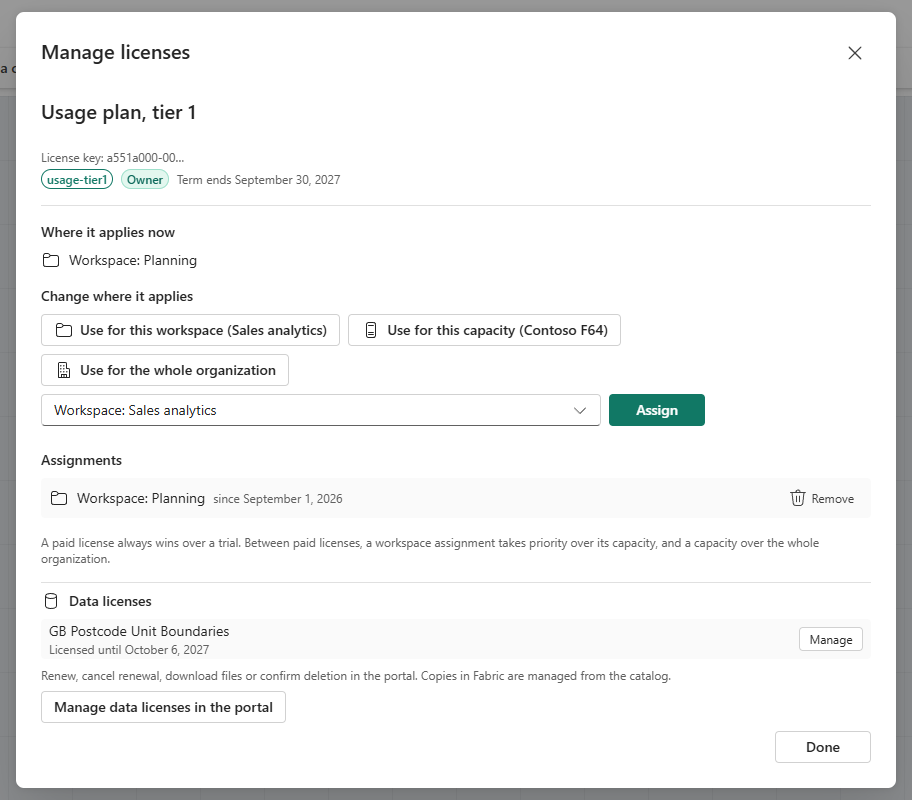
- Open Manage licenses. It is on the ribbon while you edit a map, and in the license message when the item is not licensed.
- If your account has more than one license, choose it under Choose a license. The header shows the plan, the license key, your role and when the term ends.
- Under Change where it applies, choose one of:
- Use for this workspace, which assigns the license to the workspace the item is in. The current workspace is already selected.
- Use for this capacity, which assigns it to the capacity the workspace runs on.
- Use for the whole organization, which assigns it to your Microsoft Entra tenant.
- Another capacity or workspace…, to pick a different one, then Assign.
- The assignment appears under Where it applies now and takes effect straight away for everyone using Icon Map there.
- Select Done.

Some agreements allow only some kinds of assignment, for example capacities and workspaces but not the whole organization. Manage licenses then shows "This license can be assigned to capacities and workspaces only. Contact Icon Map to change this."
The footer of the dialog reminds you how licenses combine: a paid license always wins over a trial, and between paid licenses a workspace assignment takes priority over its capacity, and a capacity over the whole organization. See Where a license applies.
Remove an assignment
Under Assignments, select Remove, then Remove now. Removing takes effect straight away for everyone using Icon Map there, so make sure another license covers them first if they still need it.
Assign or remove a license in the portal
- Sign in to the Icon Map portal. Your licenses are on the Home page.
- Open How to use this license under the license, and select Manage assignments. This opens Fabric License Configuration for that license.
- To license the whole organization, select Enable for the whole organization.
- To remove an assignment, select Remove on its row and confirm.
The table lists every assignment with Applies to (Whole organization, Capacity or Workspace), Name and Assigned. A license that is not assigned yet shows "Not assigned yet. Icon Map for Fabric will not use this license until it is assigned."
See Fabric License Configuration for the portal page in detail.
Capacity plans
A capacity plan licenses named Fabric capacities for unlimited use. It has some extra rules.
- Number and size. The plan states how many capacities it covers and their largest size, for example "This license covers 2 capacities of up to F64." A capacity of a larger size cannot be assigned. Power BI Premium capacities count by their Fabric equivalent, for example P1 as F64.
- One move a month. A capacity plan can move from one capacity to another once a month. Manage licenses tells you when the next move is available. If you need to move sooner, contact support@tekantis.com.
- A free correction. For 24 hours after you assign a capacity, you can change it without it counting as a move. Manage licenses shows the time until which you can still change it.
When people need a license
People who are not owners or license managers cannot assign licenses. When they open an unlicensed item they see Use a license, which explains that licenses are assigned by the license owner or license manager, and shows the workspace name and ID with copy buttons so they can pass them on.
They can also select Request access. This opens a short form, Request access to Icon Map for Fabric, with the tenant and workspace already filled in. Selecting Send request sends it:
- to the owner of the Icon Map account whose license covers your organization, with the account's other owners and Tekantis sales copied, and
- to Tekantis sales only, if no Icon Map account covers your organization yet.
The email includes a link to the license assignments in the portal. Workspaces and capacities are then added from Manage licenses in Fabric, as described above.
Licensed on another capacity
If your organization has a license that covers other capacities or workspaces, but not the one you are in, the item shows This workspace is not covered by your license, with the place the license is assigned to. Owners and license managers can select Manage licenses to add this workspace or capacity. Everyone else can select Request access, or work from a workspace that is covered. See License messages.