
Fabric License Configuration
Icon Map for Fabric needs no license key. Instead, a license applies to your whole organization or to the capacities and workspaces it is assigned to. The Fabric License Configuration page shows where each license applies.
Open the page
- Sign in to the Icon Map portal. Your licenses are on the Home page.
- Under the license, open How to use this license. The How to use in Fabric section lists where it is Currently assigned to.
- Select Manage assignments.
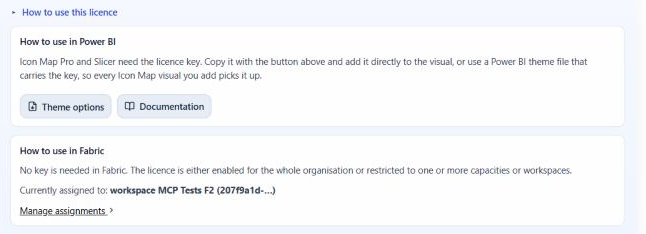 How to use this license on the portal's Home page.
:::
How to use this license on the portal's Home page.
:::
What the page shows
The table lists every place the license applies:
| Column | Shows |
|---|---|
| Applies to | Whole organization, Capacity or Workspace |
| Name | The name of the capacity or workspace |
| Assigned | When it was assigned |
A license that is not assigned anywhere shows "Not assigned yet. Icon Map for Fabric will not use this license until it is assigned." Nothing is assigned automatically when you buy.
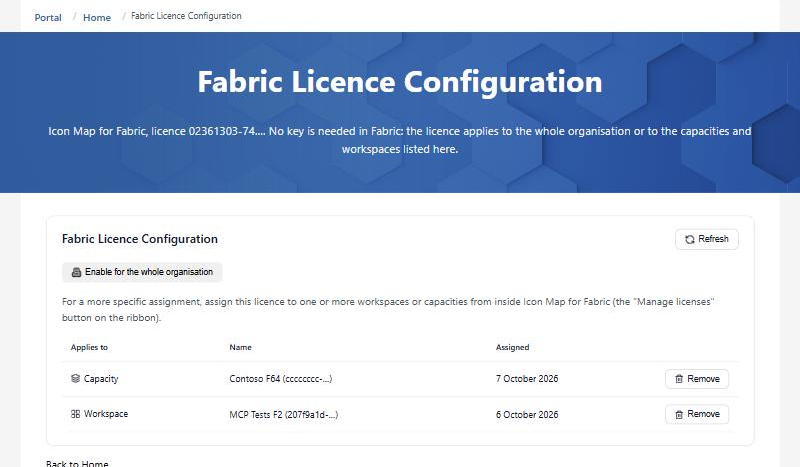 The Fabric License Configuration page with a capacity and a workspace assigned.
:::
The Fabric License Configuration page with a capacity and a workspace assigned.
:::
Change where a license applies
Account owners and license managers can change assignments. Everyone else sees who can.
- Enable for the whole organization assigns the license to your Microsoft Entra tenant, so that every capacity and workspace is covered.
- Remove takes an assignment away. Confirm, and Icon Map for Fabric there stops using the license straight away.
- Capacities and workspaces are added from inside Icon Map for Fabric, with Manage licenses on the ribbon, where Icon Map can check them. See Assigning a license.
Some agreements allow only some kinds of assignment. The page then says which, for example "Your agreement allows assignment to capacities and workspaces only. Contact us to change this."
Capacity plans
For a capacity plan the page shows how many capacities are assigned, for example "1 of 2 capacities assigned", with Remove this capacity on each. A capacity plan can move once a month. After a move, the page tells you when the next move is available. If you need to move sooner, contact support@tekantis.com.