
Credits and credit modes
A usage plan gives your organization a monthly allowance of credits. The credit mode decides what happens when the allowance, and any annual buffer, are used up: move up a tier, stop, or charge for the extra credits.
Capacity plans and enterprise agreements have no credit allowance, so this page applies to usage plans only.
Credits
Credits are drawn from one monthly allowance, shared by Icon Map for Fabric, Icon Map Pro and Icon Map Slicer.
- Icon Map for Fabric. Viewing and editing maps use credits at the standard rate. Premium features, such as live data feeds, building tilesets and exporting video, use credits at a higher rate, measured by how much of the feature is used.
- Icon Map Pro and Icon Map Slicer. Credits are counted when a visual loads on a report page, which starts a usage session.
- Icon Map Catalog. Each standard or premium catalog dataset uses credits once per session in which it is loaded: 0.25 credits for a standard dataset, and 0.5, 2 or 4 credits for a premium dataset, depending on its price band. Basic datasets use none. See Access tiers.
The full rules are in the purchase terms on the portal's Buy page. You can follow your usage under Credit Usage on the portal's Home page. See Subscriptions and usage.
The monthly allowance and the annual buffer
- The monthly allowance is the number of credits your plan includes each month, for example 3,000 on Tier 2. It resets at the start of each monthly period.
- The annual buffer comes with annual plans only. It is one month's allowance, available once across the year. If you go over your allowance in a month, the buffer is used automatically. Buffer you have used stays used for the rest of the year.
Your credit mode only comes into play when both the monthly allowance and whatever is left of the annual buffer are used up.
The credit modes
| Mode | When the allowance and buffer are used up | Who can choose it |
|---|---|---|
| Auto-upgrade | Your plan moves up to the next tier straight away, so that nothing stops. We invoice a prorated amount for the rest of the term. | Plans bought by card in the portal, and direct contracts |
| Fixed (hard stop) | Icon Map stops for everyone, until the allowance resets next month or you upgrade. | Every plan |
| Fixed plus overage | Everything keeps working. Credits beyond the allowance and the buffer are invoiced monthly in arrears at the published per-credit overage rate. | Plans bought in the portal, and plans bought on Microsoft Marketplace (AppSource) |
The overage rate for your plan is shown on the Credit mode card in the portal.
The default for each way of buying
| How the plan was bought | Default mode | Modes you can switch to |
|---|---|---|
| In the Icon Map portal (card or Paddle invoice) | Auto-upgrade | Fixed (hard stop), Fixed plus overage |
| Directly from Tekantis, on a contract | Fixed (hard stop) | Auto-upgrade |
| Microsoft Marketplace (AppSource) | Fixed plus overage (pay as you go) | Fixed (hard stop) |
Change the credit mode
Account owners and license managers can change the credit mode. Members can see it but not change it.
- Sign in to the Icon Map portal. Your subscriptions are listed on the Home page.
- Select the subscription to open its details. The current mode is shown in the Credit mode row.
- Select Buy additional credits. For a plan bought on Microsoft Marketplace, the Credit mode card is on the subscription details page itself.
- In the Credit mode card, select the mode you want. The change is saved and applies straight away.
The card explains what each mode does. In Fixed plus overage it also shows the overage rate, the annual buffer left and the estimated overage so far this month, which is invoiced on the 2nd of the next month.
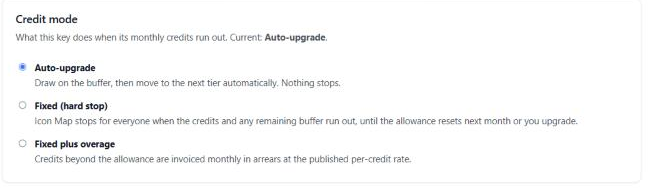
The Credit mode card in the Icon Map portal, with Auto-upgrade selected.
A credit mode can only be changed by a signed-in owner or license manager in the portal, or from the hard stop message in Fabric described below. It cannot be changed from a visual or with the license key.
What happens at a hard stop
When a license in Fixed (hard stop) runs out of credits and buffer, Icon Map for Fabric stops for everyone using that license, editors and viewers alike. Each Icon Map item shows a message that cannot be closed:
Monthly credit limit reached
You have reached your monthly credit limit. Your license is set to stop working when this happens. To continue, either upgrade your plan for more credits, or switch to pay as you go, where any credits over your allowance are charged as you use them.
The message also gives the date the allowance resets.
- Owners and license managers see two buttons. Upgrade plan takes you to buy more credits. Switch to pay as you go moves the license to Fixed plus overage straight away, so the map works again.
- Everyone else sees "Ask your license owner to upgrade or switch to pay as you go."
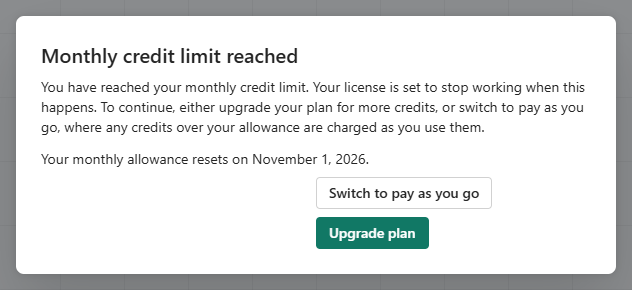
Nothing is lost at a hard stop. Your maps and data are untouched, and everything works again when the allowance resets, when the plan is upgraded, or when the mode is changed.
Switch to pay as you go is the same as choosing Fixed plus overage in the portal. It is not available for direct contracts, which cannot use overage. For those, upgrade the plan or contact sales@tekantis.com.