
Buying commercial data
Commercial datasets are licensed from third-party data providers and sold in the Icon Map data store. You can buy a whole dataset or just the area you need, for 12 months at a time, and use it in Icon Map for Fabric, in Icon Map Pro and Icon Map Slicer, or as a file.
What you can buy
| Option | What you get |
|---|---|
| Whole dataset | All of the dataset, with every update during the license |
| A region or an area | Only the part you need: named areas such as postcode areas or regions, or a rectangle you draw. The price depends on how much data is inside |
| Talk to us | More users, longer terms, other delivery, or buying through a reseller or Microsoft |
- License term. A data license lasts 12 months. Paid by card, it renews every year until you cancel it. See Renewal and expiry.
- Plan discount. Customers with any paid Icon Map plan get 30% off data store prices. Prices exclude VAT.
- The data license. Each dataset has its own license terms, shown in the store as What the license lets you do, and accepted when you pay.
Where to buy
You can buy from three places. They use the same store, prices and quotes.
| Where | How |
|---|---|
| icon-map.com | On the Explore pages, select a commercial dataset, then See prices and buy |
| Icon Map for Fabric | In Add a catalog layer, select Add on a commercial dataset, then Ways to buy. See Commercial data in Fabric |
| The Icon Map portal | Under Data store, open a quote or renew a dataset you already hold. See Data store and My data |
Only account owners and license managers can complete a purchase. Anyone can prepare a quote and pass it on.
Buy from the Explore pages
Go to Explore the catalog on icon-map.com and choose a region and theme.
Select a dataset with the Commercial badge. The map shows its sample area in full detail, and the panel shows the starting price and term, for example "From £39 · 12-month license".
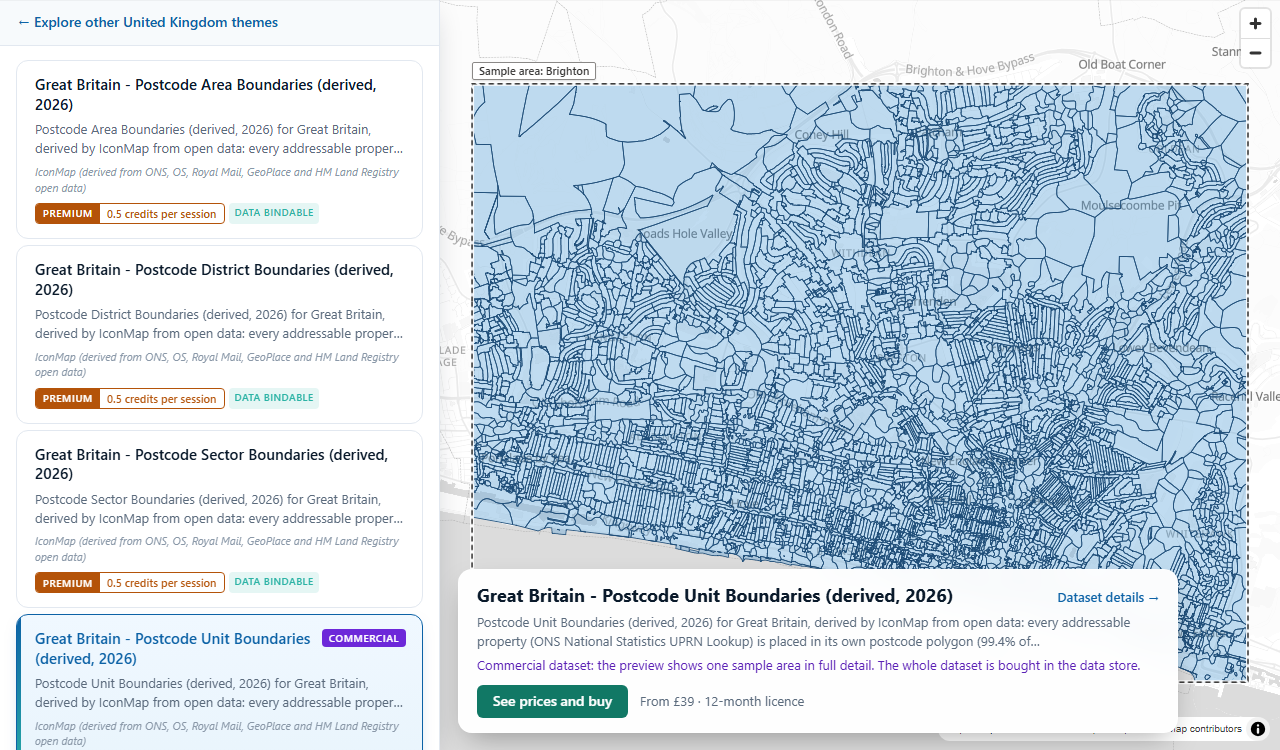
A commercial dataset on an Explore page, with its sample area Select See prices and buy. The store opens with the ways to buy.
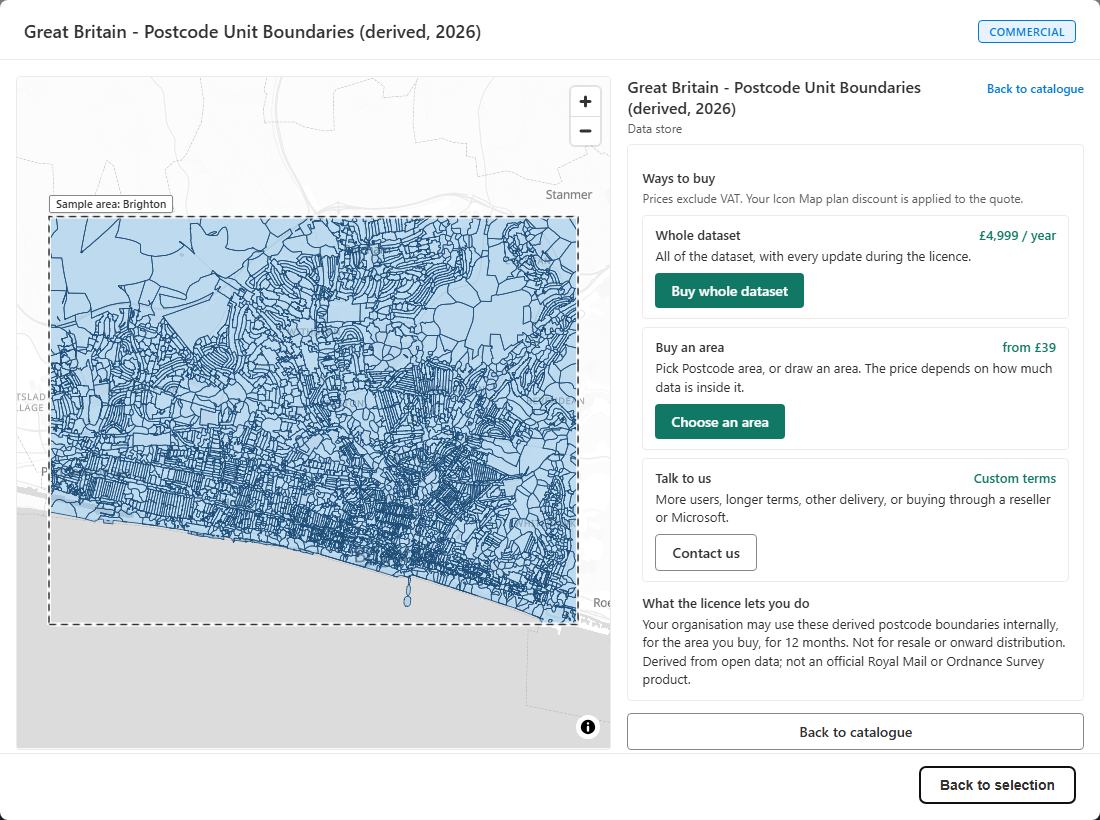
Ways to buy a commercial dataset To buy part of the dataset, select Choose an area. Click areas on the map, or use Draw an area, to add them under Your area. Each area's price is shown, with the total for the 12-month license.
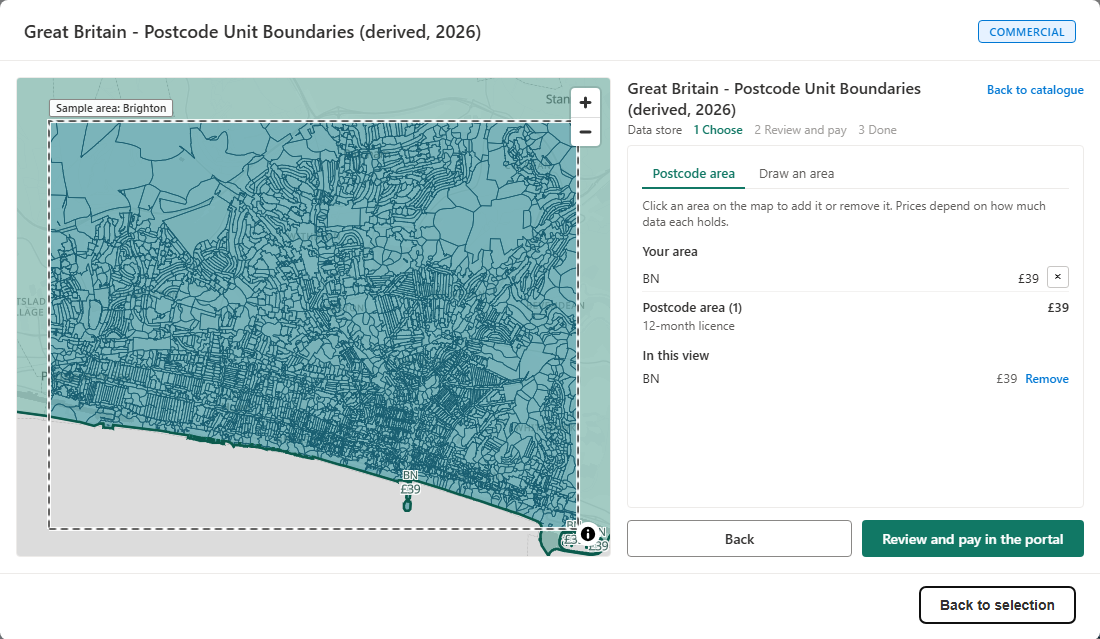
Choosing an area to buy Select the next step to review and pay:
- If you are signed in to the Icon Map portal, you review the quote and pay by card in place.
- If you are not signed in, select Review and pay in the portal. The portal signs you in and opens the same quote.
On Review and pay, check the data, area, term and total. If your account has more than one license, choose the license the data is added to under Add the data to which license?. Accept the data license, then pay by card, or select Pay by invoice where your account allows it: confirming places the order and starts the license straight away, and the invoice, sent to your billing email, is payable within 30 days.
The Done step confirms the purchase and links to Go to My data.
To leave the store at any time, select Back to selection.
How the data reaches your maps
Every purchase has one central version, kept by Icon Map:
- A whole dataset is used straight from the Icon Map Catalog.
- An area is prepared as a file of just your area, kept privately by Icon Map. For a short while after you pay, usually a few minutes, My data shows Preparing your area. Then it shows Ready.
You choose how to use the data after paying. All of these are included in the price.
| Use | Where | Notes |
|---|---|---|
| Use it from the Icon Map Catalog | Icon Map for Fabric, Icon Map Pro, Icon Map Slicer | Add the dataset from the catalog as usual. The catalog layer shows and draws what you bought: the whole dataset, or your area. Nothing is copied |
| Add to my catalog | Icon Map for Fabric | Adds a link to it in an existing or new Organizational Catalog, so your organization finds it there. It is a link, not a copy: there is nothing to update or delete. See Commercial data in Fabric |
| Download the file | Icon Map for Fabric | The data as a Parquet file, through a link that is valid for 15 minutes. To use it in a lakehouse, upload it to the lakehouse's Files and choose Load to Tables. See Commercial data in Fabric |
| Download a Parquet file or an Icon Map Lite file | Anywhere | From My data in the portal |
Every Parquet file you receive, for a whole dataset or an area, from a download or the license key, is the same analysis format: standard Parquet with each feature's shape as WKT in geometry_wkt (the column Icon Map binds to) and as WKB in geometry_wkb, its bounds in bbox_xmin, bbox_ymin, bbox_xmax and bbox_ymax (and longitude / latitude for points), ready to load as a Delta table as it is.
Power BI: in the current Icon Map Pro and Icon Map Slicer versions, a license key with one area purchase draws that area; a key with several area purchases, or with an area and a whole dataset, needs the next visual update to draw them all.
Use purchased data as a table
The central version carries the data as well as the map: the area you bought, or the whole dataset, row by row. In Icon Map for Fabric, Add data > Icon Map Catalog Reference Data lists commercial datasets: your own data if your license holds it, a sample of about 50 rows with Buy if it does not. Buying there or from Add a catalog layer is the same purchase. See Icon Map Catalog Reference Data. The data is read under your license, never from a public link. To use it in Power BI, download the file, load it into a lakehouse and connect to that, or read it with your license key: Parquet.Document(Web.Contents("https://catalogapi.icon-map.com/api/store/data/<catalogue item id>", [Headers = [#"x-api-key" = "<licence key>"]])) returns your area's or the whole dataset's Parquet while the license runs. It is the same analysis format as every other Parquet you receive: in Power BI, bind the map to geometry_wkt.
When a new release of the data is published, the version in the Icon Map Catalog updates by itself, and so does every link to it in your Organizational Catalog. Only copies need updating: for a downloaded file, My data shows Update available and you choose when to take it.
Copies live in your own storage. Icon Map never deletes them.