
Edit, reorder and remove layers
The list on the left of the Layer Manager is your map from top to bottom. Drag rows to change which layer draws over which, hide or remove a layer with the buttons on its row, and select a row to change its settings.
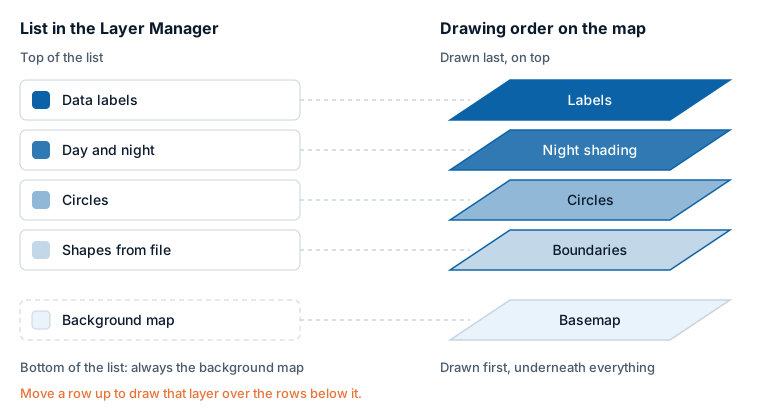
The quick path
- Reorder: drag a row by its grip, or use the Move up and Move down buttons on the row.
- Hide or show: select the eye button on the row. Shapes layers have one.
- Remove: select the bin button, Remove from the map.
- Edit: select the row. Its editor opens in the right column.
- Save: select Apply changes. Until then nothing in the report changes.
The list and the drawing order
The list under On the map shows every layer that is switched on, data layers and reference layers together, with the top-most first. A layer higher in the list is drawn over the layers below it. The Background map row is always last, because the basemap is drawn under everything.
The order comes from each layer's Z-Index setting, the same number you can see in the Format pane: a higher number is drawn on top. The list sorts the layers for you, so you do not need to work with the numbers.
What a row shows
From left to right:
| Part | What it is |
|---|---|
| Grip | Drag it to move the row. |
| Picture | A small picture of the layer type. |
| Name | The layer's name. A New badge marks layers added since the dialog opened. A warning icon marks a data layer that is on but draws nothing. |
| Detail line | Data layer or Reference layer, and where its shapes come from, for example "Reference layer · Uploaded file" or "Data layer · Built into the visual". For a layer that draws nothing, the reason replaces this line. |
| Move up, Move down | Move the row one place. |
| Eye | Hide or Show the layer. A hidden row is dimmed. |
| Bin | Remove from the map. |
Not every row has an eye or a bin: see "Which rows can be hidden or removed" below.
Layer names are worked out for you: the uploaded file's name, the name of a built-in boundary set such as "Countries", or the layer type. A layer that is waiting for its file gets a numbered name such as "File 2" or "Shapes 2", and its detail line reads "No file yet". A layer cannot be renamed or duplicated here.
Reorder layers
Use any of these:
- Drag a row by its grip and drop it on the row whose place it should take.
- Select Move up or Move down on the row.
- With the keyboard, move the focus to a row and press Alt+Up or Alt+Down.
Each move counts as one change in the footer. When you apply, the Layer Manager updates the Z-Index of the row you moved to fit between its new neighbors. If the neighbors' numbers leave no room, the rows below are renumbered as well. You will see the new numbers in the Format pane.
Circles and Images & icons are two rows, each with its own Z-Index, so moving one does not move the other. Labels on circles and images belong to the Data labels row, which stays above both.
Default order
A layer you have not moved sits where its default Z-Index puts it. From the top:
| Layer | Default Z-Index |
|---|---|
| Data labels | 950 |
| 3D columns | 500 |
| Day and night | 450 |
| Images & icons | 410 |
| Lines & flows | 409 |
| Circles | 405 |
| Cells, Heatmap, Shapes (from data) | 400 |
| Shapes from file | 365 |
| Shapes (from files) | 360 |
Where two layers have the same number, the list shows them in the order the map draws them.
Hide and show
The eye button hides a layer without removing it. The layer keeps its place and all its settings, and the row stays in the list, dimmed. Select the eye again to show it.
Remove
The bin button switches the layer off. Its settings are kept in the report.
Which rows can be hidden or removed
| Row | Hide and show | Remove |
|---|---|---|
| Circles, Images & icons | No | Yes. Each row removes only its own layer. |
| Heatmap, 3D columns, Cells, Lines & flows, Shapes (from data) | No | Yes |
| Data labels | No | Yes. This sets Display Label to No. |
| Shapes (from files) | Yes | The last layer only |
| Shapes from file | Yes | The last layer only |
| Day and night | No | Yes |
For the two types you can add several of, the layers are numbered in the order they were added, and only the highest-numbered one has a bin. Removing it reduces the count by one. A layer in the middle can be hidden but not removed, because the layers after it would take over its settings.
The Background map row
The last row names the basemap the map draws: a built-in theme such as "Light", None, the name of your uploaded .imbase file, or "Custom (no file yet)". Change opens the Background map page, described in Layer Manager.
Edit a layer
Select a row, or move the focus to it and press Enter or Space. The right column shows the layer's editor.
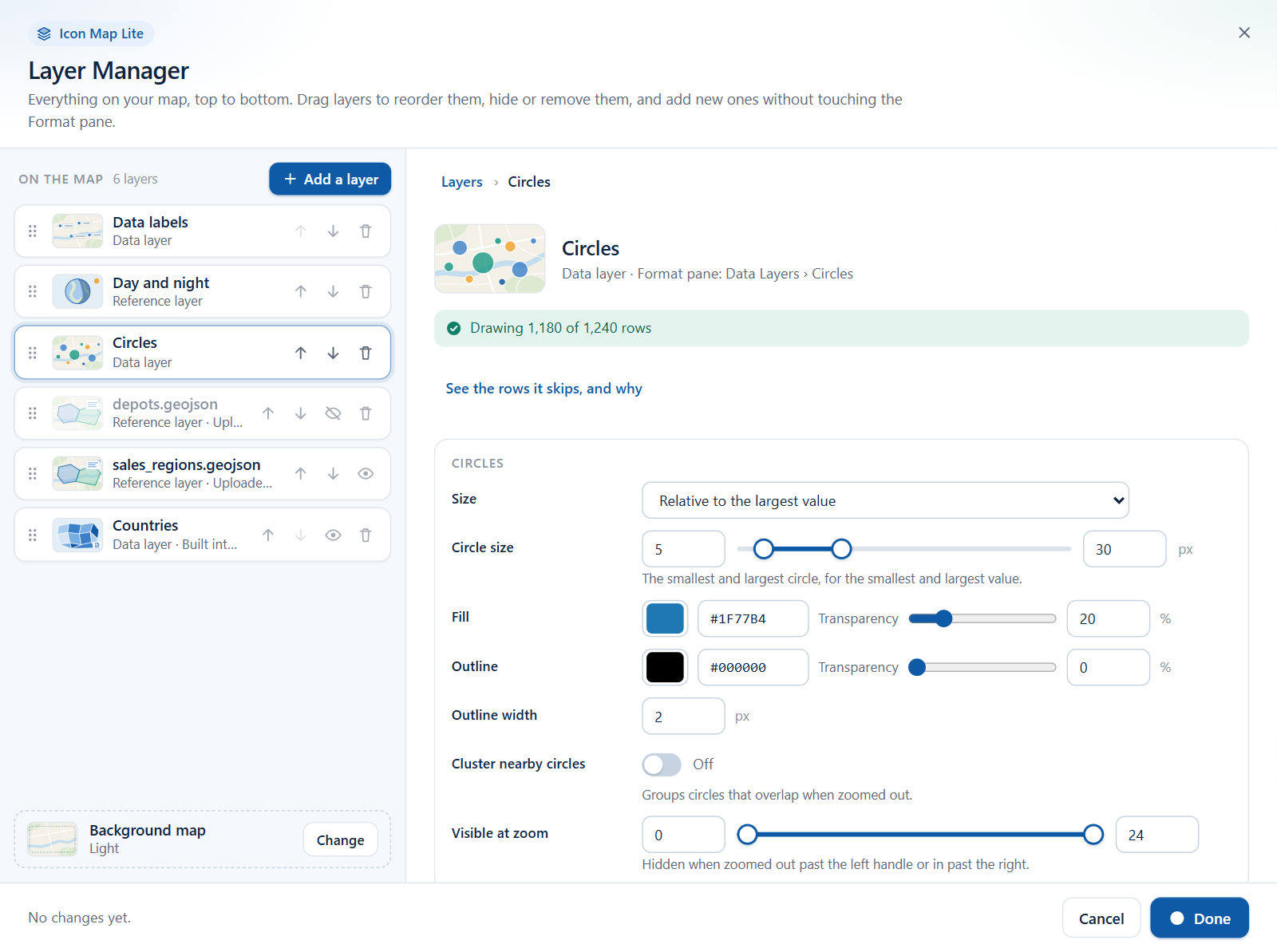
Every editor has the same shape:
- The heading - the layer's name, and below it a line that starts with where the layer comes from, then "Format pane:" followed by the place in the Format pane that holds all of the layer's settings. For a data layer such as Circles it reads "Data layer · Format pane: Data Layers › Circles". For an uploaded reference layer it reads "Uploaded file · Format pane: Reference Layers › Shapes from file › Layer 1".
- Row status (data layers) - "Drawing all 1,240 rows", "Drawing 1,180 of 1,240 rows", or an explanation of why the layer draws nothing. See Check your data.
- Replace the file or Change the shapes, for layers whose shapes come from an upload or a built-in set.
- The fields, in sections.
- A note naming the place in the Format pane for advanced options and conditional formatting.
Each field you change counts as one change in the footer. Select Layers in the trail above the heading, or press Esc, to return to the home view.
The controls
| Control | How it works |
|---|---|
| Switch | On or Off. |
| Number box | Type a value. It is kept within the allowed range. |
| Slider | Drag, or type in the box beside it. |
| Range slider | Two handles on one slider, with a box at each end, for a smallest and a largest value. |
| Color | A color picker with a box for the hex code (#RRGGBB). Some colors have a Transparency slider on the same row. |
| Dropdown | Choose one option. |
| Picker | Choose one of several tiles with a picture and a line of explanation. |
| Text box | Type. The value is taken when you press Enter or leave the box. |
Visible at zoom appears in most editors. It is a range slider from 0 to 24: the layer is hidden when the map is zoomed out past the left handle or in past the right handle.
Replace the file or change the shapes
Replace the file (Shapes from file) and Change the shapes (Shapes (from files)) run the add wizard again for the same layer. The title reads "Replace the source of" and the layer's name. The layer keeps its place in the list and its style; only its source changes.
- For Shapes from file, select Choose a file to upload another file. The upload window opens: see Windows that open on the way.
- For Shapes (from files), choose Built-in boundaries or Upload a file again. With built-in boundaries, select Add to map at the end and you return to the layer's editor.
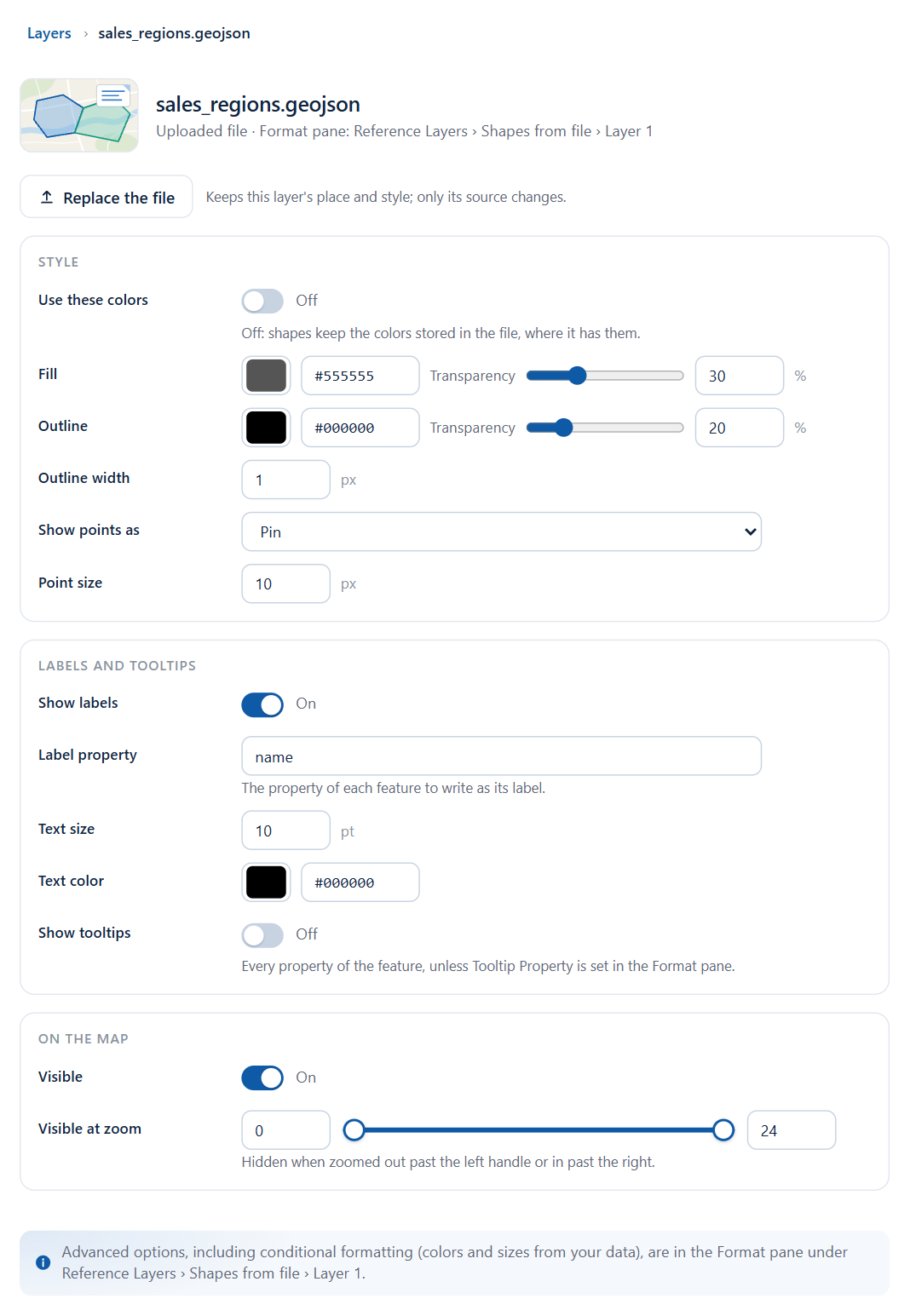
Editors for data layers
Circles
| Field | What it does | Default |
|---|---|---|
| Size | How the Circle Size field is used: Relative to the largest value, The value, in pixels or The value, in meters. | Relative to the largest value |
| Circle size | The smallest and largest circle, for the smallest and largest value, in pixels (0 to 100). Shown when Size is relative. | 5 to 30 |
| Fill and Transparency | Fill color and its transparency. | From the report theme, 20% |
| Outline and Transparency | Outline color and its transparency. | From the report theme, 0% |
| Outline width | 0 to 100 pixels. | 2 |
| Cluster nearby circles | Groups circles that overlap when zoomed out. | Off |
| Visible at zoom | Zoom range. | 0 to 24 |
Images and icons
| Field | What it does | Default |
|---|---|---|
| Images come from | An image URL or SVG in your data (the Image / WKT / GeoJSON field) or Text or emoji. | An image URL or SVG in your data |
| Text or emoji | Any text or emoji, drawn onto the marker. Shown for text or emoji. | Empty |
| Width | 0 to 1000 pixels. | 30 |
| Height | 0 to 1000 pixels. Not shown for text or emoji. | 30 |
| Background color | The marker's color. Shown for text or emoji. | #000000 |
| Text color | The color of the text. Shown for text or emoji. | #FFFFFF |
| Transparency | 0 to 100. | 0 |
| Cluster nearby images | Groups images that overlap when zoomed out. | Off |
| Visible at zoom | Zoom range. | 0 to 24 |
Icon Map Lite reads no images from the internet: an image in your data is an SVG or a data: URL. When circles and images are both on, each has its own row and its own editor. More in Images and icons.
Cluster order
When Cluster nearby circles or Cluster nearby images is on and a field is in Cluster Group, the Circles and Images & icons editors end with an Order of section, named after the field. A second Cluster Group field has a section of its own.
| Field | What it does | Default |
|---|---|---|
| Order | The order of the field's values in the cluster charts, the legend and the Format pane's color pickers. The same choices as Order in the Format pane. | As in the data |
| Direction | A to Z or Z to A, Ascending or Descending, or Largest first or Smallest first. Shown for the orders that have a direction. | A to Z, Ascending or Largest first |
| Values in order | The values in their order now, numbered, each with its color. Select Arrange by hand to start a custom order from it. With Custom, move a value with the arrows next to it. |
More in Cluster order.
Heatmap
| Field | What it does | Default |
|---|---|---|
| Radius | The radius of each point when zoomed out, and when zoomed in, in pixels (1 to 500). | 2 to 20 |
| Visible at zoom | Zoom range. | 0 to 24 |
More in Heatmap.
3D columns
| Field | What it does | Default |
|---|---|---|
| Shape | Square or Circle. | Square |
| Height | Relative to the largest value or The value, in meters. | Relative to the largest value |
| Column height | The height for the smallest and largest value, in meters (0 to 20,000). | 100 to 5000 |
| Width | 1 to 100,000 meters. | 100 |
| Color and Transparency | Column color and its transparency. | #1F77B4, 10% |
More in 3D columns.
Cells
| Section | Field | What it does | Default |
|---|---|---|---|
| Cells | Cells come from | The grid and the source, with the same options as Source in the Format pane: H3 from Longitude and latitude coordinates, H3 Indexes as ID (hex), H3 Indexes as ID (64bit integers), S2 from Longitude and latitude coordinates, S2 Cell IDs (64bit integers), S2 Cell tokens (hex), A5 from Longitude and latitude coordinates, A5 Cell IDs (64bit integers), Geohash from Longitude and latitude coordinates, Geohashes as ID, Custom shapes from Longitude and latitude coordinates. | H3 from Longitude and latitude coordinates |
| Cells | Aggregate values by | Sum, Count, Average, Minimum or Maximum. | Sum |
| Cells | Cell size | Fixed or Follows the zoom. | Fixed |
| Cells | Resolution | Higher is finer: H3 0 to 15, S2 and A5 0 to 30, Geohash 1 to 12. Shown when Cell size is fixed. | 3 |
| Colors | Low color, Mid color, High color | The colors for low, middle and high values. | #DEEBF7, #6BAED6, #08306B |
| Colors | Fill transparency | 0 to 100. | 10 |
| Colors | Outline and Transparency | Outline color and its transparency. | #000000, 10% |
| Colors | Outline width | 0 to 100 pixels. | 0 |
Custom shapes need a polygon file, which you upload in the Format pane. More in Cells: H3 hexagons and grids.
Lines & flows
| Field | What it does | Default |
|---|---|---|
| Style | A picker of six line styles: see below. | Straight lines |
| Color and Transparency | Line color and its transparency. | From the report theme, 20% |
| Width | 0 to 100 pixels. | 2 |
| Arrowheads | Shown when the style is Flow arcs or Flow tree. | On |
| Visible at zoom | Zoom range. | 0 to 24 |
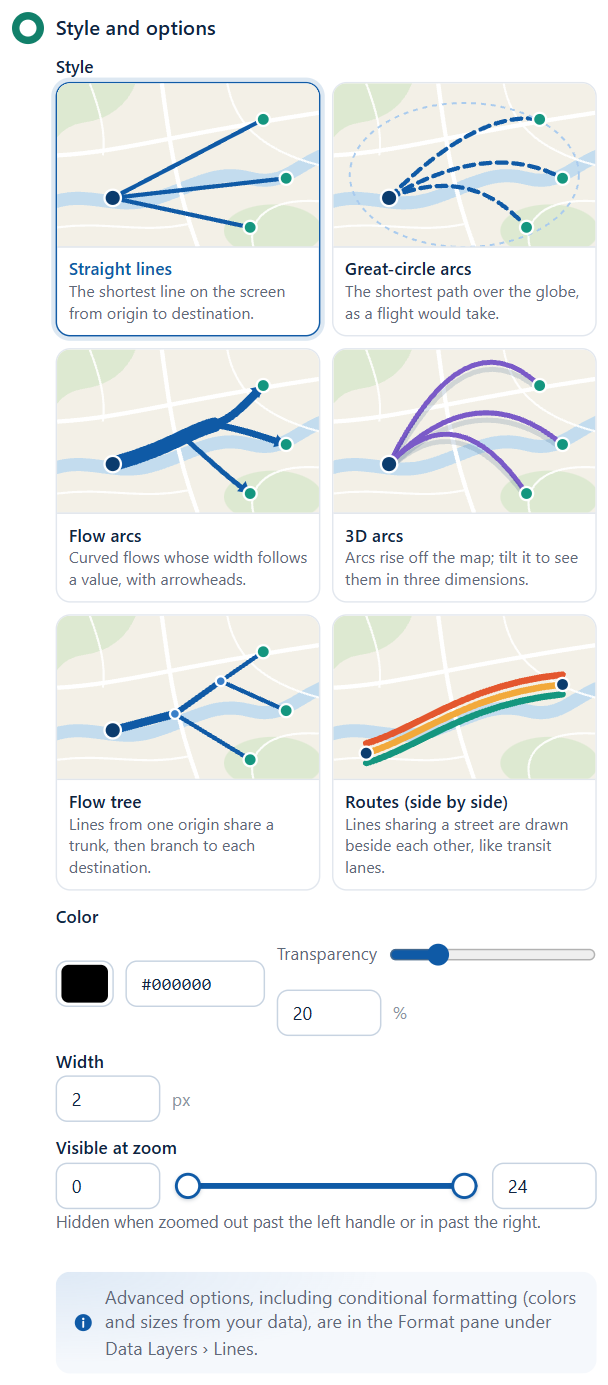
The Style picker sets the same setting as Line Shape in the Format pane. The names differ between the two places:
| Tile in the Layer Manager | What it draws | Line Shape in the Format pane |
|---|---|---|
| Straight lines | The shortest line on the screen from origin to destination. | Straight / Rhumb |
| Great-circle arcs | The shortest path over the globe, as a flight would take. | Shortest |
| Flow arcs | Curved flows whose width follows a value, with arrowheads. | Flow arcs |
| 3D arcs | Arcs rise off the map; tilt it to see them in three dimensions. | 3D Arcs |
| Flow tree | Lines from one origin share a trunk, then branch to each destination. | Flow Tree |
| Routes (side by side) | Lines sharing a street are drawn beside each other, like transit lanes. | Routes |
Each shape is described in Lines and Routes.
Shapes (from data)
| Field | What it does | Default |
|---|---|---|
| Fill and Transparency | Fill color and its transparency. | #1F77B4, 20% |
| Outline and Transparency | Outline color and its transparency. | #000000, 0% |
| Outline width | 0 to 100 pixels. | 2 |
| Show points as | Circle, Pin, Text or emoji or Image. | Circle |
| Point size | 0 to 500 pixels. | 5 |
| Visible at zoom | Zoom range. | 0 to 24 |
More in Shapes from data (WKT and GeoJSON).
Shapes (from files)
Change the shapes is available.
| Section | Field | What it does | Default |
|---|---|---|---|
| Source | Boundaries | Built-in boundaries only: Countries, Countries, split or States and provinces. Choosing another set also resets Property to match your data to that set's first property. | Countries |
| Source | Property to match your data | The property of each shape that holds the value in your Feature Reference field. For built-in boundaries, a dropdown of the set's properties with an example value. For an uploaded file, a dropdown of the file's properties with Any property (slower) first, or a text box you can leave empty to try every property. | The set's first property, or empty |
| Source | Hide shapes with no matching row | Draws only the shapes that match a row. | Off |
| Style | Fill and Transparency | Used when the layer has no color from your data. | #1F77B4, 1% |
| Style | Outline and Transparency | Outline color and its transparency. | #000000, 1% |
| Style | Outline width | 0 to 100 pixels. | 1 |
| On the map | Visible | Shows or hides the layer. | On |
| On the map | Visible at zoom | Zoom range. | 0 to 24 |
| On the map | Every property in the tooltip | Adds every property of the shape to its tooltip. | Off |
When the report uses the layers as drill-down levels, the row's detail line adds "drill-down level" and its number. More in Shapes from files and built-in boundaries.
Data labels
The Data labels row appears once labels are switched on in the Format pane (Format pane > Labels > Content > Display Label).
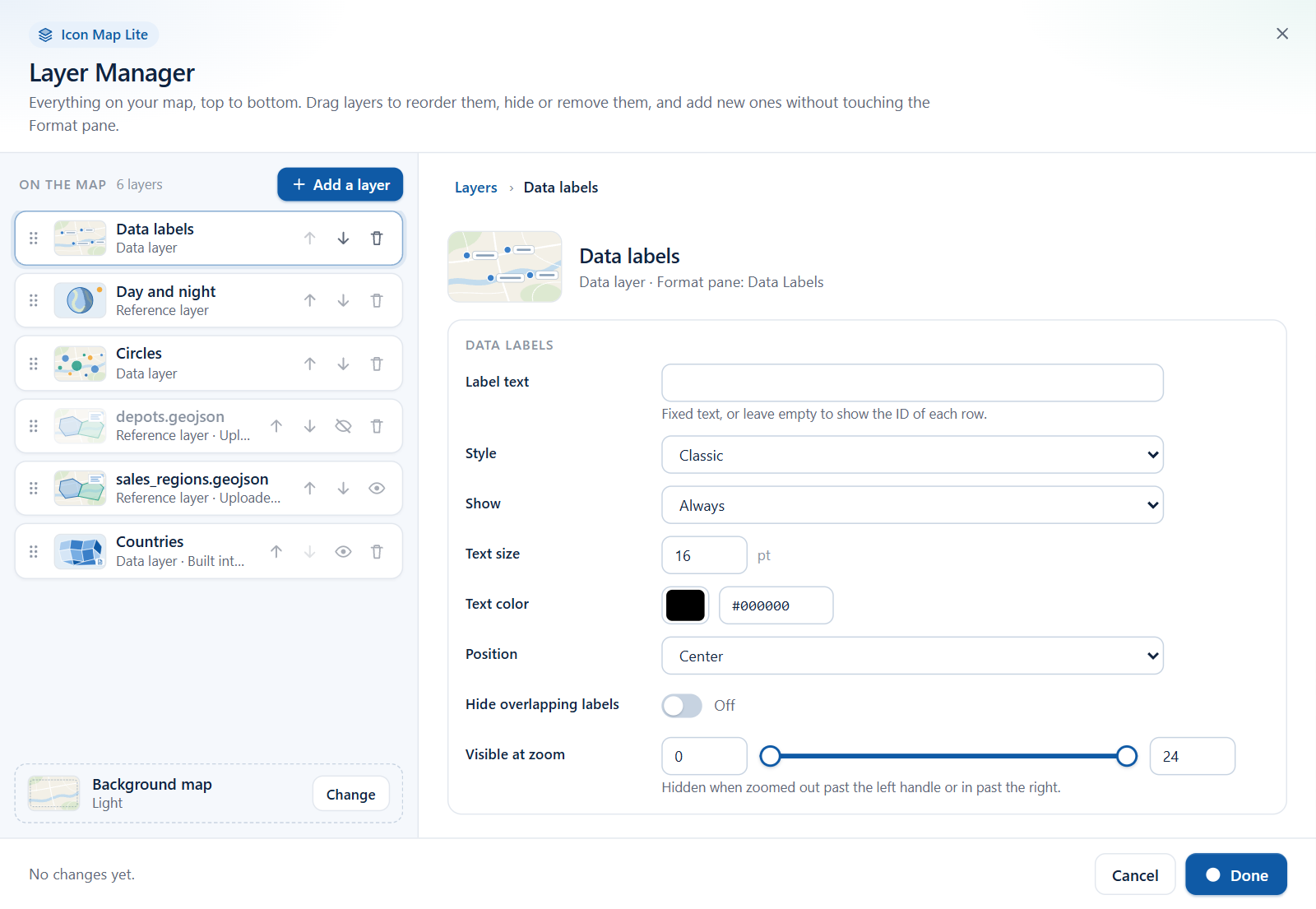
| Field | What it does | Default | Name in the Format pane |
|---|---|---|---|
| Label text | Fixed text, or leave it empty to show the ID of each row. To take the text from a field, use conditional formatting (fx) in the Format pane. | Empty | Label Text (Body Text for card styles) |
| Style | Classic, Halo text, Glass, Dark glass, Card, Pill or Neon. | Classic | Label Style |
| Show | Always, On mouse over or When selected. | Always | Label Visibility |
| Text size | 0 to 100 points. | 16 | Font Size (min zoom) |
| Text color | The color of the text. | #000000 | Text Color |
| Position | Above, Below, Left, Right or Center. | Center | Position (circles & images) |
| Hide overlapping labels | Hides labels that would collide. | Off | Avoid Overlapping |
| Visible at zoom | Zoom range. | 0 to 24 | Visible From Zoom, Visible To Zoom |
The editor heading gives the place in the Format pane as "Data Labels". The card is named Labels. More in Data labels.
Editors for reference layers
Shapes from file
Replace the file is available.
| Section | Field | What it does | Default |
|---|---|---|---|
| Style | Use these colors | On: the fill and outline below are used. Off: shapes keep the colors stored in the file, where it has them. | Off for the first layer, On for the others |
| Style | Fill and Transparency | Fill color and its transparency. | #555555, 30% |
| Style | Outline and Transparency | Outline color and its transparency. | #000000, 20% for the first layer, 0% for the others |
| Style | Outline width | 0 to 100 pixels. | 1 |
| Style | Show points as | Pin, Circle or Image. | Pin |
| Style | Point size | 0 to 200 pixels. | 10 |
| Labels and tooltips | Show labels | Labels each feature. | Off |
| Labels and tooltips | Label property | The property of each feature to write as its label. Shown when labels are on. | Empty |
| Labels and tooltips | Text size | 0 to 100 points. Shown when labels are on. | 10 |
| Labels and tooltips | Text color | Shown when labels are on. | #000000 |
| Labels and tooltips | Show tooltips | Shows every property of the feature, unless Tooltip Property is set in the Format pane. | Off |
| On the map | Visible | Shows or hides the layer. | On |
| On the map | Visible at zoom | Zoom range. | 0 to 24 |
More in Shapes from file and Labels on reference layers.
Day and night
| Field | What it does | Default |
|---|---|---|
| Color and Transparency | The night shading and its transparency. | #000000, 70% |
More in Day and night.
What stays in the Format pane
The editors show the settings most maps need. Everything else, and everything that takes its value from your data, is in the Format pane. Each editor's heading and closing note name the place.
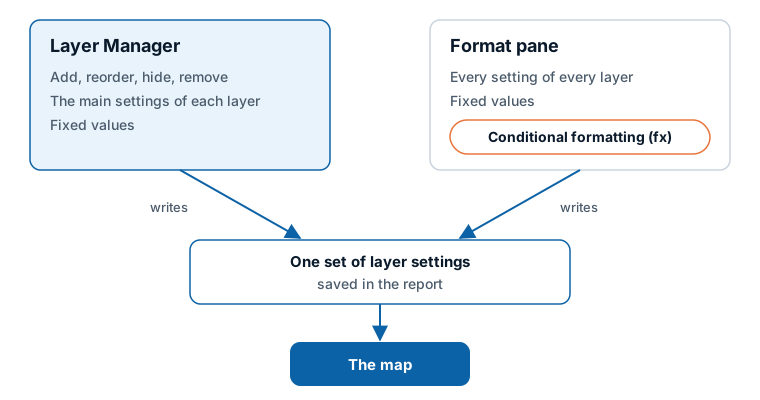
Conditional formatting (fx). The Layer Manager sets one fixed value for each setting: one fill color for all circles, one width for all lines. To color, size or switch things per row from a field or a measure, use the fx button beside the setting in the Format pane. If a setting already uses conditional formatting, change it in the Format pane. See Conditional formatting.
Advanced options. These are examples of what the editors leave to the Format pane:
| Layer | In the Format pane only |
|---|---|
| All layers | Conditional formatting, and the Z-Index number itself |
| Circles | Cluster appearance and behavior |
| Images & icons | Offsetting overlapping images |
| Heatmap | Weight, intensity and the advanced radius settings |
| Cells | The polygon file for custom shapes |
| Lines & flows | Dashes and animation, line symbols, images and circles at the ends of a line, 3D arc settings |
| Shapes (from data) | Extrusion in 3D |
| Shapes (from files) | Colors for shapes with no matching row, drill-down or multiple layers |
| Data labels | Switching labels on, title, image and footer, fonts, the label container, pointer and orientation |
| Shapes from file | Filtering the layer by your data, selecting with its polygons, detailed label settings |
For where each card and group is, see the Format pane map.
Where the editor's "Format pane:" line points
The line in each editor's heading uses short names. These are the cards they refer to:
| The editor says | Card in the Format pane |
|---|---|
| "Data Layers › ..." | Data Layers |
| "Reference Layers › Shapes from file › Layer 1" | Reference Layers, groups Shapes from file layer 1 - Configuration, - Formatting and - Labels |
| "Reference Layers › Daylight Terminator" | Reference Layers, group Daylight Terminator |
| "Data Labels" | Labels |
| "Background Layer" (the Background map page) | Background Layer |
Tips and limits
- Nothing changes in the report until you select Apply changes. Cancel discards the changes made since the dialog opened, except those saved before the upload window opened. See Windows that open on the way.
- Removing a layer keeps its settings. Hiding a layer keeps its place as well.
- For the types you can add several of, only the last layer can be removed.
- Layers cannot be renamed or duplicated in the Layer Manager.
- Colors are entered as six-digit hex codes, for example #1F77B4.