
Lines
The Lines layer draws a connection from an origin to a destination for every row of your data. Use it for flights, shipments, journeys, migration, network links and any other movement between two places.
What you need
Each row is one line. Add these fields to the visual:
| Field well | What to put in it |
|---|---|
| * ID (required) | A unique value for each line. |
| Longitude (X) | The origin longitude. |
| Latitude (Y) | The origin latitude. |
| Destination Longitude | The longitude of the point the line runs to. |
| Destination Latitude | The latitude of the point the line runs to. |
The four coordinate field wells take one numeric field each. Power BI summarizes them for each ID, so choose a summarization that returns the coordinate itself, such as Average.
Optional fields:
- Tooltips - the values shown when you point at a line.
- Circle Size - only if you want a circle at the ends of each line (see Circles at the ends).
These fields must be empty on a line's row, otherwise the row belongs to another layer and no line is drawn: Feature Reference, Image / WKT / GeoJSON, Heatmap Weight and Cell (H3/S2/A5/Geohash) Weight. See Combine several layers in one map.
There is no field well for the line's weight, color or route name. Set Weight for Flow, Color, Width and Route Name from your data with conditional formatting (fx).
Add a lines layer
- Add the five fields above to the visual.
- If the panel What kind of map are you making? is showing, select the Lines & flows tile. Otherwise, in the Format pane expand Data Layers and, in the Data Layers group, turn on Lines.
- In the Lines - Formatting group, choose a Line Shape.
- Set Color and Width, or the weight and width range for a flow shape.
New in 1.0.1.2 You can also add the layer in the Layer Manager: in the Format pane, expand Layer Manager, switch on Open Layer Manager and add a Lines & flows data layer. Selecting the tile in What kind of map are you making? turns the layer on and opens its editor in the Layer Manager. Conditional formatting stays in the Format pane. See Add a layer.
Line shapes
Format pane > Data Layers > Lines - Formatting > Line Shape decides how each line is drawn and which of the other settings apply. The list is always in this order:
| Line Shape | What it draws | Width comes from |
|---|---|---|
| Straight / Rhumb | A straight line on the flat map. | Width |
| Shortest | The great-circle path, the shortest route over the globe. | Width |
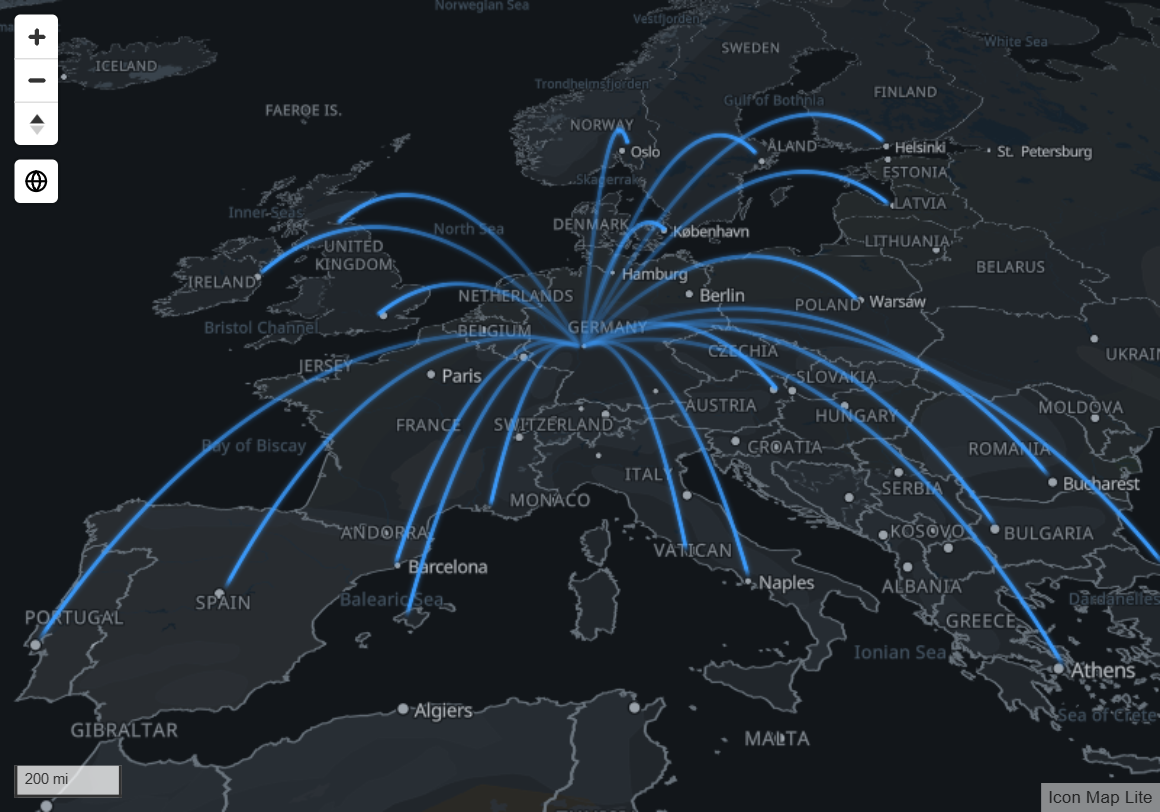
| 3D Arcs | Arcs that rise off the map. | Width |
| Flow arcs | One curved arrow for each row. | Weight for Flow |
| Flow Tree | Ribbons that share a trunk and split toward each destination. | Weight for Flow |
| Routes | Lines that share a street, drawn side by side. | Width |
Line Shape is one choice for the whole layer.
Straight / Rhumb
A straight line on the flat map between the origin and the destination: a line of constant compass direction, called a rhumb line. A line that crosses the 180 degree meridian is split into two parts.
Every row is its own line, so rows that share the same two points draw on top of each other. Straight lines support everything in the Lines card: per-row color and width, a gradient, dashes and dash animation, blur, line symbols, and images or circles at the ends.
Shortest
The great-circle path between the two points, as a flight would take. On a flat map the line curves toward the poles. On the globe it is the direct path. The line is drawn in one piece, including across the 180 degree meridian.
Shortest supports the same options as Straight / Rhumb. A row whose origin and destination are the same point draws nothing.
3D Arcs
Each row is an arc that follows the great-circle path and rises off the ground, highest in the middle. Longer arcs rise higher. From straight above, an arc looks like a Shortest line, so tilt the map to see the height. See View, zoom and projection for tilt.
Settings that apply only to 3D Arcs:
- Amplitude - how high the arcs rise. 10 is the default, 1 is almost flat, 50 is five times the default height. Accepts conditional formatting.
- Glow - a soft halo around each arc.
- Fade From Origin - each arc starts faint at the origin and reaches full strength at the destination, so the direction is clear.
- Taper From Origin - each arc starts narrow and widens to its destination.
- Comet Speed - a bright head with a fading tail travels along each arc from origin to destination. 0 turns the comets off. At speed 1 a trip takes 12.5 seconds, at speed 10 it takes 1.25 seconds.
With Color Type set to Gradient, every arc runs from Gradient Color 1 at the origin to Gradient Color 2 at the destination. 3D Arcs do not have dashes, blur or line symbols. Images and circles at the ends are still drawn. On the globe, the parts of an arc behind the Earth are hidden.
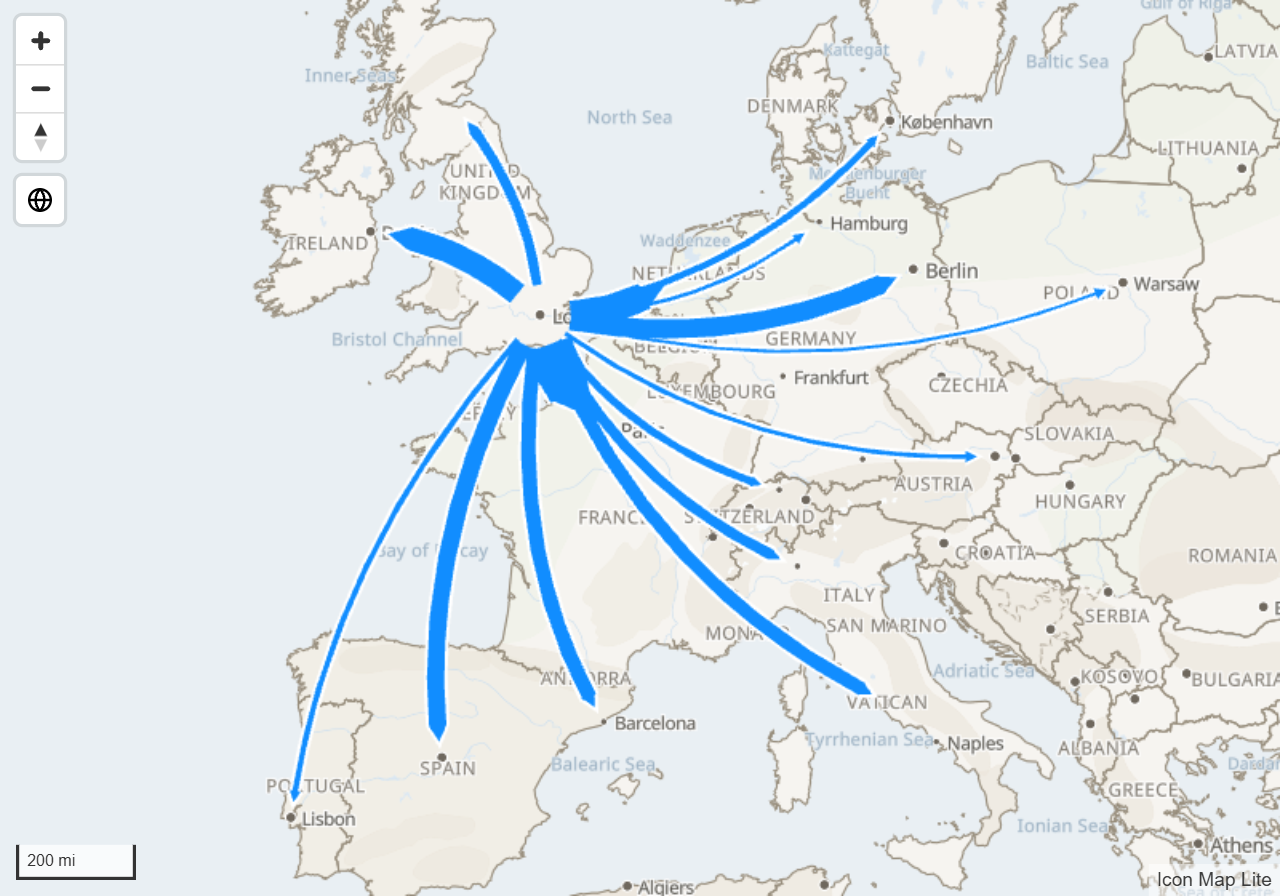
Flow arcs
One flat, curved arrow for each row. Nothing is merged, so every origin and destination pair is visible on its own. Arcs bow to the right of the direction of travel, so a flow from A to B and a flow from B to A separate into two arrows.
- Weight for Flow sets each arc's width, between Min Width and Max Width across all rows of the layer.
- Arc Curvature (%) is the height of the bow as a percentage of the distance between the two points.
- With Color Type set to Solid, each row takes its own Color. With Gradient, each arc is one flat color picked by its weight between Gradient Color 1 (a weight of 1 or less) and Gradient Color 2 (100 or more).
- Trim at Origin (px) and Trim at Destination (px) stop each arc short of its ends, by the same number of screen pixels at every zoom level. Use them to keep arrows clear of circles or icons at the ends.
- Arrowheads and Arrowhead Size control the head. The size applies to the widest arc and thinner arcs scale down.
- Taper From Origin starts each arc narrow and widens it toward the head.
- Outline Color and Outline Width draw a contrasting outline around the arc and its arrowhead.
- Label Position places the data label: None, Arc Midpoint or Destination.
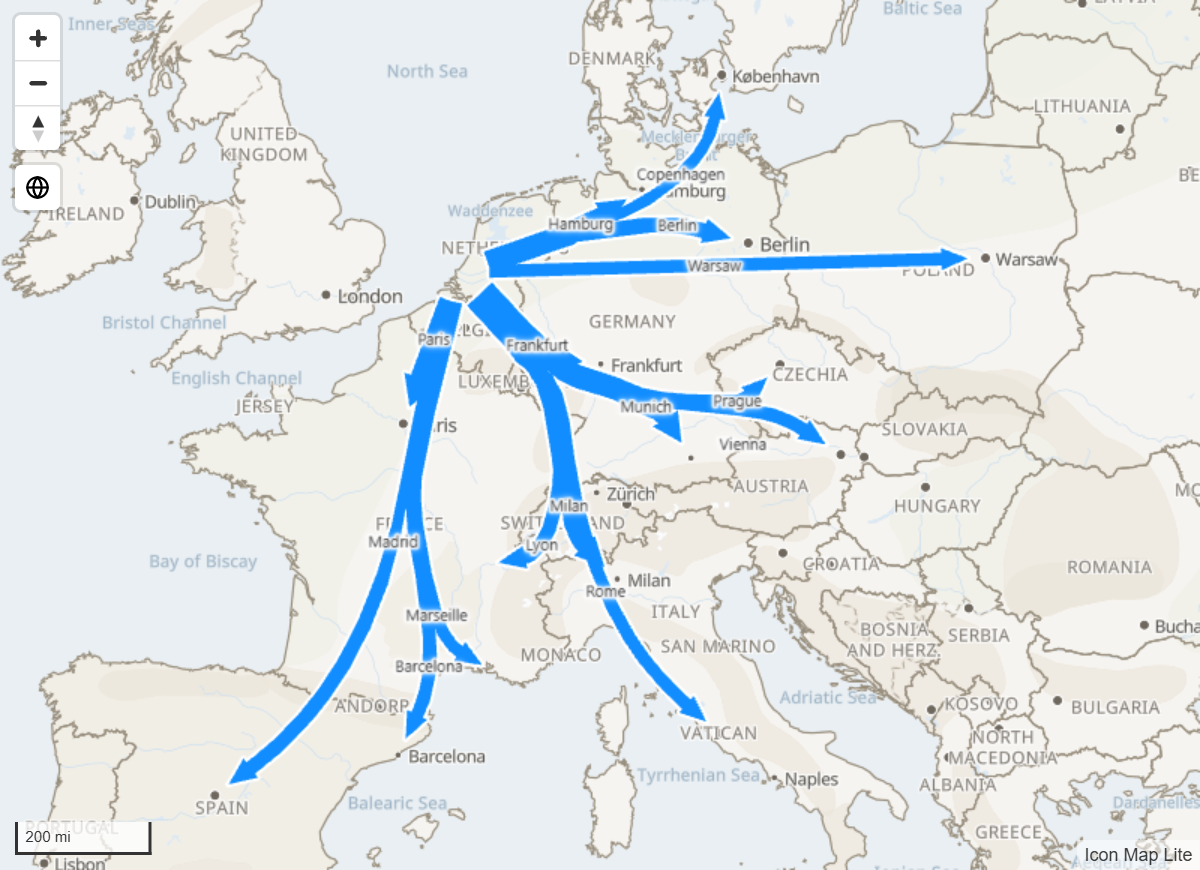
Flow Tree
One tree for each origin, drawn as ribbons. Destinations are grouped by direction. Every branch is a smooth curve whose width follows its flow, and where a branch splits, the smaller ribbons leave side by side and fill the width of the parent.
- Weight for Flow sets each row's flow. A branch carries the sum of the rows beneath it.
- The heaviest trunk on the map is Max Width and nothing is narrower than Min Width.
- Grouping decides how eagerly flows are joined: Bundled joins the most flows into shared trunks. Balanced keeps the trunks but lets branches leave earlier, so fewer double back. Fewest Crossings only joins flows next to each other in direction, which is the tidiest but bundles the least.
- A tree has one color. Every ribbon takes the Color of the first row of its origin, so use a conditional formatting rule that gives every row of an origin the same color.
- Trim at Origin (px), Trim at Destination (px), Taper From Origin, Arrowheads, Arrowhead Size, Outline Color and Outline Width work as they do for Flow arcs. The outline runs around the outside of each tree.
- Label Position is None, Midpoint or Destination. Midpoint places each destination's label halfway along its own final branch.
- Rows only share a tree when their origin coordinates are exactly the same.
Pointing at a destination's ribbon shows that row's tooltip. Pointing at a shared branch shows the same tooltip fields summarized over every row beneath it. Clicking a destination's ribbon selects its row, and clicking a shared branch selects every row beneath it.
Routes
Lines that share a street are drawn side by side, each in its own color, as on a bus or metro map. Routes has its own page: Routes.
Dashes and animation
For Straight / Rhumb and Shortest lines with Color Type set to Solid:
- Dash Array is a list of numbers separated by spaces or commas, read as dash, gap, dash, gap, in multiples of the line width. For example
2 4draws a dash two widths long followed by a gap four widths long. It needs at least two numbers. Use conditional formatting to give different lines different patterns. - Dash Animation Speed makes the dashes travel along the line. 0 is still. A negative value reverses the direction. The speed applies to the whole layer.
Dashes cannot be combined with a gradient. When Color Type is Gradient, the dash settings are replaced by a note.
Line symbols
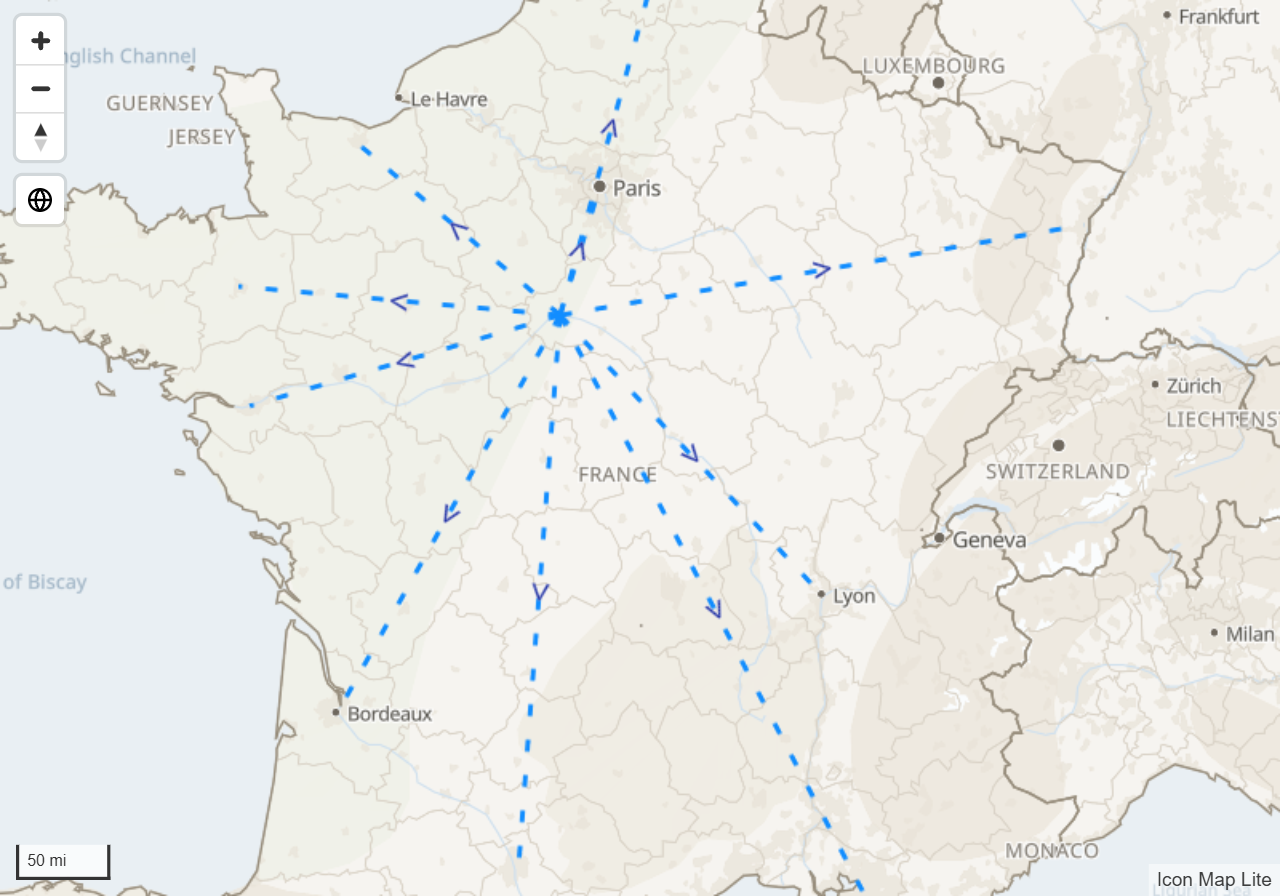
For Straight / Rhumb and Shortest lines you can draw text or a character along each line, for example an arrow that shows direction. Set Include Line Symbol (Straight / Shortest only) to Yes, then choose the Line Symbol Text, color and size.
- Line Symbol Repeat - Yes repeats the symbol at intervals along the line. The spacing depends on the zoom: at country scale a line may carry one symbol or none, and more appear as you zoom in. No draws it once at the center.
- Line Symbol Orientation - With Line Direction makes the text follow the line from origin to destination, so a plain arrow character such as
>points at the destination. Keep Upright flips text where needed so it is never upside down. - Symbol Halo Color, Symbol Halo Width and Symbol Halo Blur add an outline around the symbol.
The default symbol, ►, is not in Icon Map Lite's built-in font, so it is drawn upright beside the line rather than along it. When the symbol must point along the line, set Line Symbol Text to > or another plain character.
Images at the ends
Image at start and Image at end place an image at the origin or destination of each line, for example a plane or a ship. They are drawn for Straight / Rhumb, Shortest and 3D Arcs.
Each takes a data URI (data:image/...) or SVG text, and accepts conditional formatting, so the image can come from your data. A link to an image is not drawn, because Icon Map Lite downloads nothing. See Images and icons for how to put images in your data.
Each image has its own Image Height, Image Width, Image Rotation and Transparency. The rotation is fixed. It does not follow the direction of the line.
Circles at the ends
Include circle(s) at: draws a circle at the Start, the End or Both ends of each line. The circles are drawn by the Circles layer, so:
- Turn on the Circles layer. Until you do, the pane shows "Circle layer must be enabled for circle(s) to be displayed."
- Add a field to Circle Size.
The circles take the Circles layer's formatting, tooltips and zoom range. This works with every line shape.
Selection, tooltips and labels
- Selection - click a Straight / Rhumb, Shortest or 3D Arcs line to select its row and filter the other visuals on the report page. Hold Ctrl or Shift to add to the selection. On a Flow Tree, a destination's ribbon selects its row and a shared branch selects every row beneath it. On Routes, a click selects the whole route. Set Selectable to No to turn this off. See Select and filter with the map.
- Tooltips - pointing at a Straight / Rhumb, Shortest, 3D Arcs, Flow Tree or Routes line shows the fields in Tooltips. Set Include Tooltip to No to turn them off. See Tooltips.
- Labels - Straight / Rhumb, Shortest and 3D Arcs lines carry their data label at the midpoint. Flow arcs and Flow Tree use Label Position. See Data labels.
- Auto zoom - rows with Include in Auto Zoom set to Yes are included when the map zooms to fit your data.
Settings
All settings are in Format pane > Data Layers. The fx column shows which settings accept conditional formatting.
Lines - Configuration
| Setting | What it does | Default | fx |
|---|---|---|---|
| Include in Auto Zoom | Includes the lines when the map zooms to fit your data. | Yes | Yes |
| Include Tooltip | Shows tooltips on lines. | Yes | Yes |
| Selectable | Lets report users select lines. | Yes | Yes |
| Include circle(s) at: | None, Start, End or Both. Needs the Circles layer and a Circle Size field. | None | Yes |
| Image at start | Image at the origin: a data URI or SVG text. | Empty | Yes |
| Image Height, Image Width (start) | Size of the start image in pixels, 0 to 1000. | 30 | Yes |
| Image Rotation (start) | Rotation in degrees, 0 to 360. | 0 | Yes |
| Transparency (start) | Transparency of the start image, 0 to 100. | 0 | Yes |
| Image at end | Image at the destination: a data URI or SVG text. | Empty | Yes |
| Image Height, Image Width (end) | Size of the end image in pixels, 0 to 1000. | 30 | Yes |
| Image Rotation (end) | Rotation in degrees, 0 to 360. | 0 | Yes |
| Transparency (end) | Transparency of the end image, 0 to 100. | 0 | Yes |
| Minimum Zoom | The lines are hidden when the map is zoomed out past this level. -20 to 24. | 0 | |
| Maximum Zoom | The lines are hidden when the map is zoomed in past this level. -20 to 24. | 24 | |
| Z Index | Position in the drawing order. Layers with a higher value draw on top. 0 to 1000. | 409 | |
| EPSG | The coordinate system of your coordinates. See Coordinate systems. | 4326 |
The image settings are not shown for Flow Tree and Routes.
Lines - Formatting: shape, color and width
| Setting | What it does | Shown for | Default | fx |
|---|---|---|---|---|
| Line Shape | How each line is drawn. | All | Straight / Rhumb | |
| Color Type | Solid or Gradient. | Straight / Rhumb, Shortest, 3D Arcs, Flow arcs | Solid | |
| Gradient Color 1 | Color at the origin, or for the lightest weight. | Color Type is Gradient | #0000FF | |
| Gradient Color 2 | Color at the destination, or for the heaviest weight. | Color Type is Gradient | #FF0000 | |
| Color | Line color. | Whenever the gradient colors are not shown | Theme color | Yes |
| Transparency | 0 is solid, 100 is invisible. | All | 20 | Yes, except Flow arcs and Flow Tree |
| Width | Line width in pixels, 0 to 100. | Straight / Rhumb, Shortest, 3D Arcs, Routes | 2 | Yes |
| Weight for Flow | The value each row carries. | Flow arcs, Flow Tree | 10 | Yes |
| Min Width | Width of the lightest flow, 0 to 100. | Flow arcs, Flow Tree | 2 | |
| Max Width | Width of the heaviest flow, 1 to 100. | Flow arcs, Flow Tree | 30 | |
| Line Blur | Blur applied to the line, 0 to 100. | Straight / Rhumb, Shortest | 0 | Yes |
Lines - Formatting: flow arcs and flow trees
| Setting | What it does | Shown for | Default |
|---|---|---|---|
| Grouping | Bundled, Balanced or Fewest Crossings. | Flow Tree | Bundled |
| Arc Curvature (%) | Bow height as a percentage of the distance, 0 to 50. | Flow arcs | 18 |
| Trim at Origin (px) | Stops each flow this many screen pixels short of its origin, 0 to 100. | Flow arcs, Flow Tree | 20 |
| Trim at Destination (px) | Stops each flow this many screen pixels short of its destination, 0 to 100. | Flow arcs, Flow Tree | 12 |
| Taper From Origin | Starts narrow and widens toward the destination. | Flow arcs, Flow Tree, 3D Arcs | Off |
| Arrowheads | Draws an arrowhead at the destination. | Flow arcs, Flow Tree | On |
| Arrowhead Size | Size on the widest flow, 6 to 100. Thinner flows scale down. | Flow arcs, Flow Tree | 26 |
| Outline Color | Color of the outline around flows and arrowheads. | Flow arcs, Flow Tree | #FFFFFF |
| Outline Width | Width of the outline, 0 to 20. 0 turns it off. | Flow arcs, Flow Tree | 2 |
| Label Position | None, Midpoint (Arc Midpoint for Flow arcs) or Destination. | Flow arcs, Flow Tree | Midpoint |
Lines - Formatting: 3D arcs
| Setting | What it does | Default | fx |
|---|---|---|---|
| Amplitude | How high the arcs rise, 1 to 50. | 10 | Yes |
| Glow | A soft halo around each arc. | On | |
| Fade From Origin | Arcs start faint and strengthen toward the destination. | On | |
| Comet Speed | Speed of the comets along each arc, 0 to 10. 0 turns them off. | 0 |
Lines - Formatting: dashes and symbols
These are shown for Straight / Rhumb and Shortest.
| Setting | What it does | Default | fx |
|---|---|---|---|
| Dash Array | Dash pattern, for example 2 4. Needs Color Type set to Solid. |
Empty | Yes |
| Dash Animation Speed | Makes the dashes travel, -100 to 100. Applies to the whole layer. | 0 | |
| Include Line Symbol (Straight / Shortest only) | Draws text along the line. | No | Yes |
| Line Symbol Text | The text or character to draw. Use > for an arrow that follows the line. |
► | Yes |
| Line Symbol Color | Color of the symbol. | Theme color | Yes |
| Line Symbol Size | Size of the symbol, 1 to 100. | 20 | Yes |
| Line Symbol Repeat | Repeats the symbol at intervals along the line. The spacing depends on the zoom. | Yes | Yes |
| Line Symbol Orientation | Keep Upright or With Line Direction. | With Line Direction | |
| Symbol Halo Color | Color of the outline around the symbol. | #FFFFFF | Yes |
| Symbol Halo Width | Width of the halo, 0 to 100. | 0 | Yes |
| Symbol Halo Blur | Blur of the halo, 0 to 100. | 0 | Yes |
The Routes settings (Route Name, Merge Distance (m), Route Outline Color, Route Outline Width, Route Badges) are described on the Routes page.
Coordinate systems
By default the coordinates are longitude and latitude in decimal degrees (EPSG 4326). If your data uses a projected coordinate system, such as British National Grid, enter its EPSG number in EPSG, for example 27700. Enter the number only. Put the X value in Longitude (X) and Destination Longitude, and the Y value in Latitude (Y) and Destination Latitude.
EPSG applies to every line shape.
Circles at the ends of lines use the Circles layer's own EPSG setting.
Tips and limits
- A map has one Lines layer. Every line row is drawn by it.
- A row needs all four coordinates. A row with a blank coordinate is skipped.
- Minimum Zoom and Maximum Zoom apply to Straight / Rhumb, Shortest, Flow Tree and Routes lines.
- Destination Latitude and Destination Longitude are easy to swap. If no lines appear, check that the latitudes are between -90 and 90.
- Thin lines are easier to click than they look: each Straight / Rhumb and Shortest line has a slightly wider, invisible area that takes clicks and tooltips.
- The visual receives 30,000 rows by default. See Data rows and limits.
- To show lines and other layers together, for example stores as circles and deliveries as lines, see Combine several layers in one map.