
Lite, Pro and Slicer
Icon Map has three visuals for Power BI. Icon Map Pro and Icon Map Slicer are the most capable, and the ones to use whenever you can. Icon Map Lite is for reports where a certified visual is a hard requirement, and it gives up everything that needs a network connection to meet that requirement.
Which one to use
Use Icon Map Pro for the most capable mapping visual for Power BI: detailed basemaps for the whole planet from Icon Map and other providers, ArcGIS layers, WMS and tile layers, the Icon Map Catalog, weather and traffic, 3D terrain, and the Layer Manager and Basemaps dialogs. See the Icon Map Pro documentation.
Use Icon Map Slicer when you want detailed mapping and want the map to drive the report as a slicer: select by click, lasso or circle, everything inside a shape, or everything within a travel time, and filter the report page to the area the map shows. It shares much of Icon Map Pro's mapping: detailed basemaps for the whole planet from Icon Map and other providers, ArcGIS layers, WMS and tile layers, the Icon Map Catalog, 3D terrain, and the Layer Manager and Basemaps dialogs. See the Icon Map Slicer documentation.
Use Icon Map Lite only when your organization requires a certified visual and you cannot get an exception, for example because your tenant allows certified visuals only. Icon Map Lite is built to meet Microsoft's certification requirements, the central one being that a visual makes no network requests. Everything it draws is inside the visual or stored in the report.
If you are not sure whether you need a certified visual, ask your Power BI administrator before you build with Lite. A Power BI administrator can allow Icon Map Pro or Icon Map Slicer as an organizational visual. Questions about which product suits you go to sales@tekantis.com.
What Icon Map Lite has
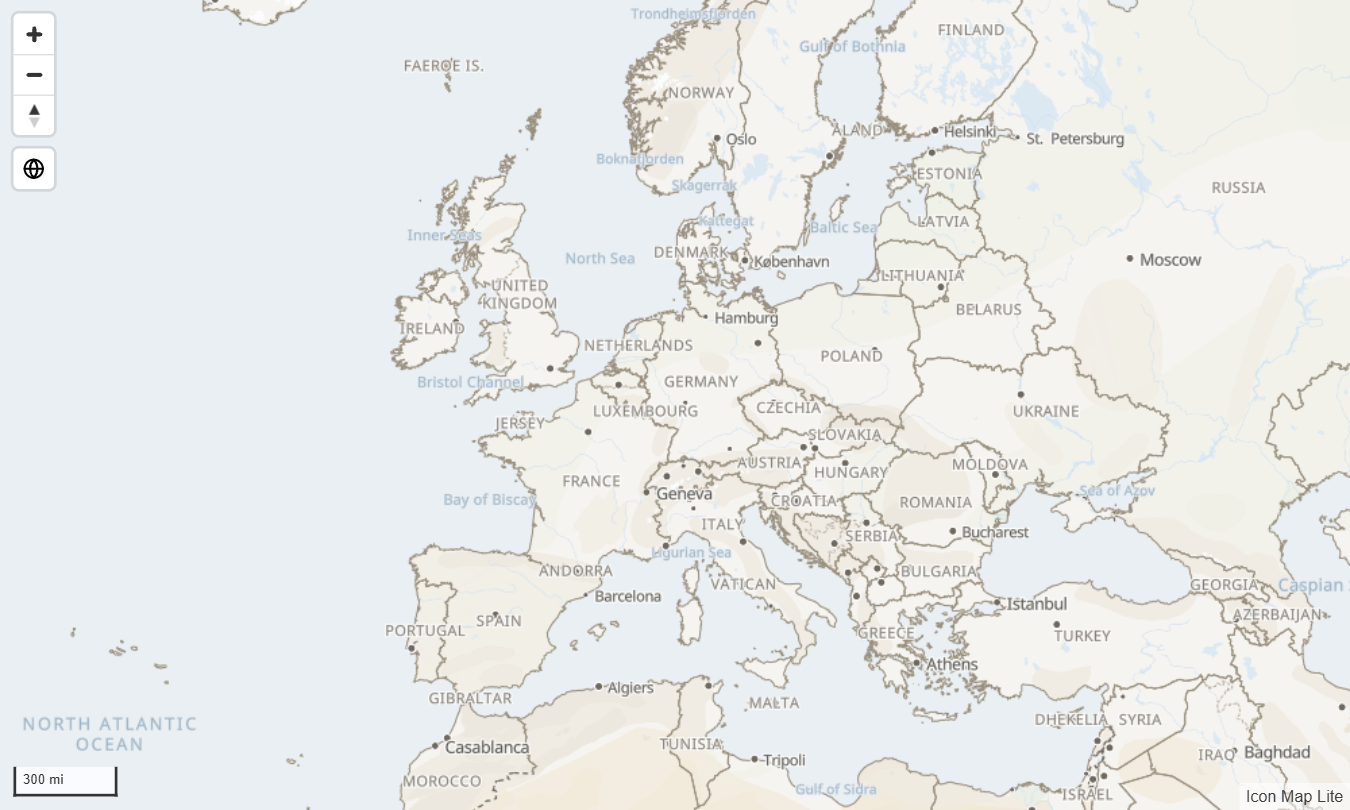
- A world map built into the visual. A vector map in seven themes, from world scale down to country scale (zoom levels 0 to 3), with place names that follow the report's language. Beyond zoom 3 the map stops adding detail, while your data stays sharp. See The background map.
- Street-level detail for one area, as an upload. A custom basemap is an
.imbasefile of up to 25 MB, made with the Basemap Builder and stored in the report. Over central London, one file at full street detail covers roughly 425 to 1,300 square kilometers, depending on the map source. See Custom basemaps (.imbase). - The data layers. Circles, images and text badges, clusters, heatmaps, H3, S2, A5 and Geohash cells, 3D columns, lines and flows, routes, and shapes from your data. See Data layers overview.
- Shapes without a link. Built-in boundaries for countries, states and provinces, and boundary files you upload: GeoJSON, TopoJSON, KML, zipped shapefiles, IMDF and PMTiles archives of up to 25 MB. See Shapes from files and built-in boundaries and Reference layers overview.
- Filtering like a slicer. Selecting on the map by click, lasso or radius filters the report page, and the filter stays when readers select in another visual. The map can also filter other visuals to the area it shows. See Select and filter with the map and Filter by the map's location.
- Keyboard and high contrast support. Readers can move between items and select them with the keyboard, and the map follows Windows high contrast colors.
What Icon Map Lite does not do
Because it makes no network requests, Icon Map Lite has none of the features that read from a server or a link:
| Not in Icon Map Lite | Use instead |
|---|---|
| Detailed basemaps for the whole planet | Icon Map Pro or Icon Map Slicer. In Lite, upload a custom basemap for one area |
| Basemaps from ArcGIS or your own tile server | Icon Map Pro or Icon Map Slicer |
| Basemaps from Azure Maps or Ordnance Survey | Icon Map Pro |
| ArcGIS layers and web maps | Icon Map Pro or Icon Map Slicer |
| The Icon Map Catalog | Icon Map Pro or Icon Map Slicer. In Lite, use the built-in boundaries or upload a file |
| WMS and raster tile layers | Icon Map Pro or Icon Map Slicer |
| Vector tiles and boundary files read from a link | Icon Map Pro or Icon Map Slicer. In Lite, upload the file |
| Images read from a link, and the icon library | Icon Map Pro or Icon Map Slicer. In Lite, use text, emoji or images held in your data |
| Weather and traffic | Icon Map Pro |
| Place names drawn above your data | Icon Map Pro or Icon Map Slicer |
| 3D terrain, hillshade and 3D buildings | Icon Map Pro or Icon Map Slicer |
| Place search on the map | Icon Map Pro or Icon Map Slicer |
Other differences:
- Cross-highlighting. Other visuals filter Icon Map Lite, but cannot highlight items in it.
- Day and night shading always shows the present moment. There is no field to set the time.
- Shapes from files take their colors from conditional formatting (fx). There is no Feature Weight field.
Where each one works
| Environment | Icon Map Lite | Icon Map Pro and Icon Map Slicer |
|---|---|---|
| Power BI Desktop | Yes | Yes |
| The Power BI service | Yes | Yes |
| Power BI Report Server | No | Yes |
| Publish to web | No | Yes |
| Power BI Embedded | No | Yes |
| Government clouds such as GCC, and other sovereign clouds | No | Yes |
Icon Map Lite is licensed per user through Microsoft AppSource, and Power BI has to tell the visual which licenses the viewer holds. The environments marked No cannot do that. Icon Map Pro and Icon Map Slicer are licensed differently and work in all of them. See Supported environments and privacy.
Licenses
The three visuals are licensed separately. An Icon Map Lite license does not cover Icon Map Pro or Icon Map Slicer, and their licenses do not cover Icon Map Lite. See How Icon Map Lite is licensed.
They are separate visuals, so a report built with Lite does not change product by itself. The formatting options are closely related, so a report built with Lite is familiar ground in Pro and Slicer.