
Combine several layers in one map
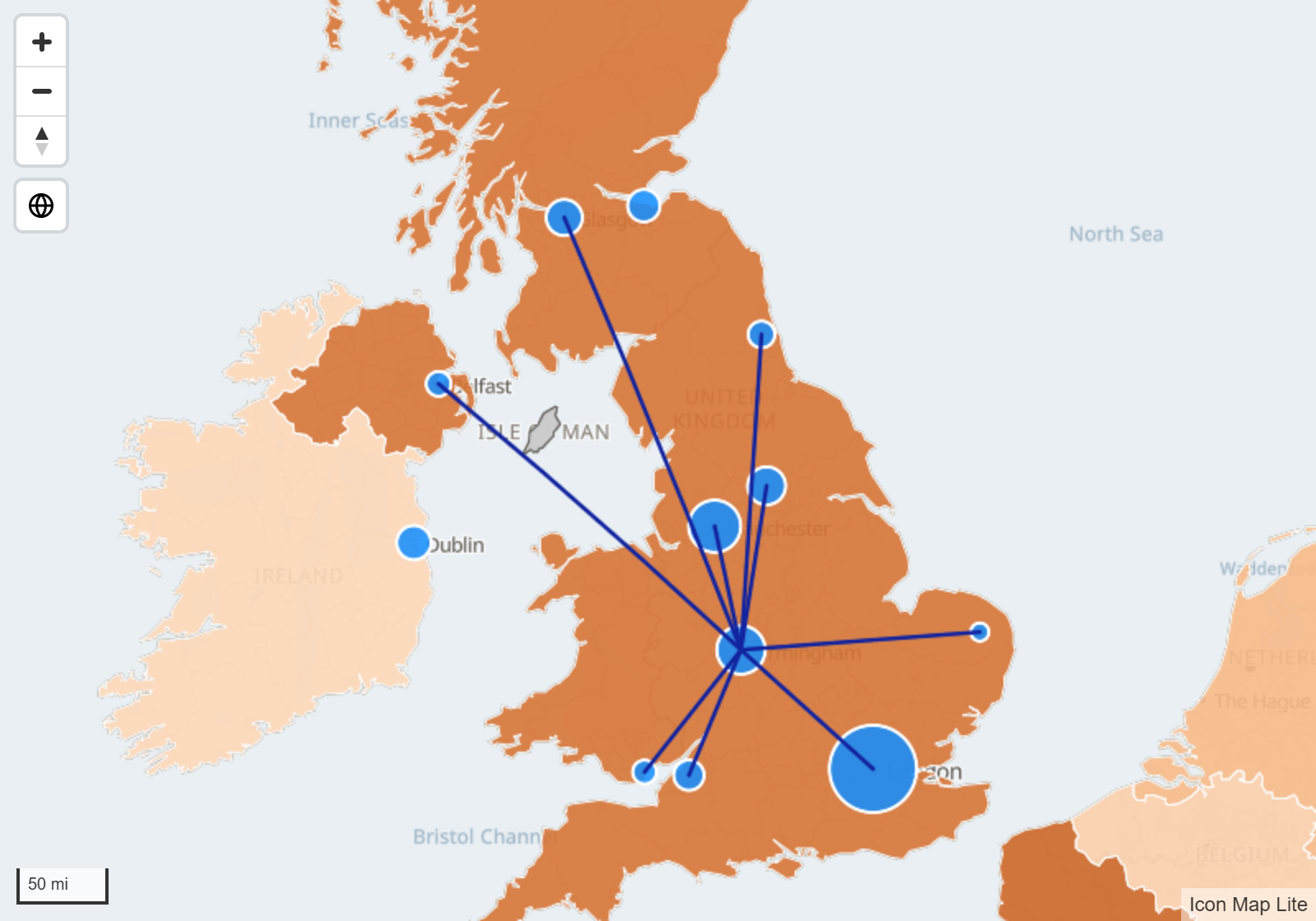
One Icon Map Lite visual can draw several data layers at once, for example stores as circles, deliveries as lines and sales regions as shapes. All of them come from one table. This page explains how each row finds its layer, how to build that table, and what to check when a layer draws nothing.
The rule
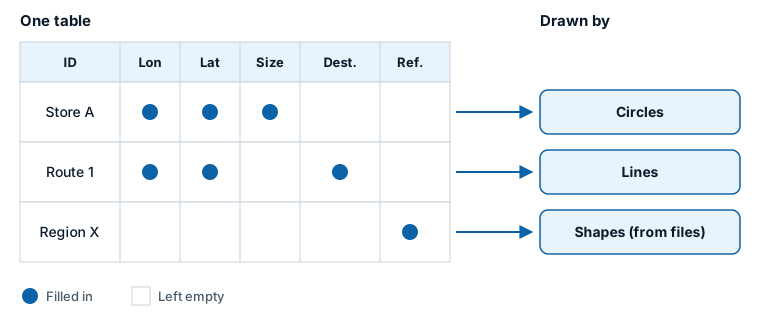
A row is drawn by the layer whose fields it fills in.
There is one set of field wells, and every data layer reads it. The visual looks at each row and asks which fields have a value:
- A row with a longitude, a latitude and a circle size is a circle.
- A row with a longitude, a latitude and a destination is a line.
- A row with only a feature reference is a shape from a file or a built-in boundary.
Two more things must be true for a row to be drawn:
- The fields of other layers are empty on that row. A store row that also has a destination is no longer a circle. It is treated as a line.
- The layer is turned on. A row that fits a layer which is turned off is not drawn.
So to show several layer types on one map, keep them in one table, give each row only the fields for its own layer, and leave the others empty.
Empty and blank
A field is empty on a row when:
- It is null in the data, or a measure returns
BLANK(). - It is a text value with nothing in it, or only spaces. Tables that come from CSV files, Excel or Power Query often hold empty text instead of null. Icon Map Lite treats both the same way.
- No field has been added to that field well at all.
Zero is a value, not blank. A row with a Circle Size of 0 still has a circle size.
If you add a column such as Sales to Circle Size, every row that has a Sales value gets a circle size, including the rows you meant as lines or shapes. Use a column that is blank on those rows, or a measure that returns blank for them. See Measures that are blank for other rows.
What each layer needs
Every layer needs * ID (required). "Cell Weight" in this table is the Cell (H3/S2/A5/Geohash) Weight field well, and "Destination" means both Destination Longitude and Destination Latitude.
| Layer | Fill in | Leave empty |
|---|---|---|
| Circles | Longitude (X), Latitude (Y), Circle Size | Destination, Image / WKT / GeoJSON, Feature Reference, Heatmap Weight, Cell Weight |
| Images and icons | Longitude (X), Latitude (Y), and an image in Image / WKT / GeoJSON (or nothing there when Image Source is Text or emoji) | Destination, Feature Reference, Heatmap Weight, Cell Weight, Circle Size |
| Heatmap | Longitude (X), Latitude (Y), Heatmap Weight | Destination, Circle Size, Image / WKT / GeoJSON, Feature Reference, Cell Weight |
| 3D columns | Longitude (X), Latitude (Y), Column Height | Destination, Circle Size, Image / WKT / GeoJSON, Feature Reference, Cell Weight, Heatmap Weight |
| Cells from coordinates | Longitude (X), Latitude (Y), Cell Weight | Destination, Circle Size, Heatmap Weight, Image / WKT / GeoJSON, Feature Reference |
| Cells from cell IDs | Cell Weight (the ID is the cell ID) | Longitude (X), Latitude (Y), and the fields in the row above |
| Lines and Routes | Longitude (X), Latitude (Y), Destination | Feature Reference, Image / WKT / GeoJSON, Heatmap Weight, Cell Weight |
| Shapes from data | Image / WKT / GeoJSON | Longitude (X), Latitude (Y), Destination, Heatmap Weight, Cell Weight, Feature Reference, Circle Size |
| Shapes from files | Feature Reference | Image / WKT / GeoJSON, Longitude (X), Latitude (Y), Destination, Heatmap Weight, Cell Weight, Circle Size |
Points worth knowing:
- Tooltips and Cluster Group never decide which layer a row goes to. Fill them in on any row.
- Lines with circles. A line row may have a Circle Size. With Include circle(s) at: set in the Lines settings, circles are drawn at the ends of the line.
- Circle or column. A row with a Circle Size is never drawn as a column. Give column rows a Column Height and no Circle Size, and give circle rows a Circle Size and no Column Height.
- Images and shapes share a field well. A row with an image and coordinates is an image. A row with WKT or GeoJSON text and no coordinates is a shape.
A worked example: stores and deliveries
You want stores as circles sized by sales, and deliveries as lines from a depot to each store. The table needs one row for each store and one row for each delivery:
| ID | Type | Longitude | Latitude | Destination Longitude | Destination Latitude | Size |
|---|---|---|---|---|---|---|
| Store Leeds | Store | -1.549 | 53.801 | 120 | ||
| Store York | Store | -1.081 | 53.959 | 85 | ||
| Delivery 1001 | Delivery | -1.356 | 53.683 | -1.549 | 53.801 | |
| Delivery 1002 | Delivery | -1.356 | 53.683 | -1.081 | 53.959 |
- The store rows fill in the coordinates and Size, and leave the destination empty. Circles draws them.
- The delivery rows fill in the coordinates and the destination, and leave Size empty. Lines draws them.
Add the fields to the visual, each column to the field well of the same name, with Size in Circle Size. Then, in the Format pane, expand Data Layers and turn on Circles and Lines.
New in 1.0.1.2 You can add both layers in the Layer Manager instead. See Add a layer.
To add regions as a third layer, add a row for each region that fills in only the feature reference, and add that column to Feature Reference:
| ID | Type | Longitude | Latitude | Destination Longitude | Destination Latitude | Size | Region code |
|---|---|---|---|---|---|---|---|
| Region North | Region | E12000001 |
Then turn on Shapes from files and upload the file of regions. If your third layer is countries, states or provinces, choose one of the built-in boundary sets instead and put the country or state code in Feature Reference.
Build the table
In most models the stores, deliveries and regions are separate tables. Power BI needs them as one table for the visual, so combine them. Give every row a unique ID: if a store and a delivery could share an ID, add a prefix.
Power Query: append the tables
Give the columns the same names in each query, then use Append Queries as New. Columns that a query does not have are filled with null, which is what the map needs.
let
    StoreRows = Table.SelectColumns(Stores, {"ID", "Type", "Longitude", "Latitude", "Size"}),
    DeliveryRows = Table.SelectColumns(
        Deliveries,
        {"ID", "Type", "Longitude", "Latitude", "Destination Longitude", "Destination Latitude"}
    ),
    MapItems = Table.Combine({StoreRows, DeliveryRows})
in
    MapItems
DAX: a calculated table with UNION
UNION stacks tables whose columns are in the same order. Use BLANK() for the columns a row type does not use.
Map Items =
UNION (
    SELECTCOLUMNS (
        Stores,
        "ID", "Store " & Stores[Name],
        "Type", "Store",
        "Longitude", Stores[Longitude],
        "Latitude", Stores[Latitude],
        "Destination Longitude", BLANK (),
        "Destination Latitude", BLANK (),
        "Size", Stores[Sales]
    ),
    SELECTCOLUMNS (
        Deliveries,
        "ID", "Delivery " & Deliveries[Delivery No],
        "Type", "Delivery",
        "Longitude", Deliveries[Depot Longitude],
        "Latitude", Deliveries[Depot Latitude],
        "Destination Longitude", Deliveries[Store Longitude],
        "Destination Latitude", Deliveries[Store Latitude],
        "Size", BLANK ()
    )
)
Measures that are blank for other rows
When the value for a field well comes from a column that has a value on every row, wrap it in a measure that returns blank for the rows of other layers. IF with no third argument returns BLANK():
Store Size =
IF (
    SELECTEDVALUE ( 'Map Items'[Type] ) = "Store",
    SUM ( 'Map Items'[Sales] )
)
Put the measure in Circle Size in place of the column. Store rows get a size and are drawn as circles. Delivery rows get a blank and are drawn as lines. The same pattern works for any field well, for example a destination that is blank unless the row is a delivery:
Delivery Destination Longitude =
IF (
    SELECTEDVALUE ( 'Map Items'[Type] ) = "Delivery",
    AVERAGE ( 'Map Items'[Destination Longitude] )
)
Choose layers with a slicer
Because the layer follows the data, a slicer can turn layers on and off for report users. Add a slicer on the Type column of the example table. Selecting Store shows only the circles, and selecting Delivery shows only the lines, because the other rows are filtered out before they reach the map.
Check what each layer draws
New in 1.0.1.2 The Layer Manager shows how your rows were shared out. Open it from Format pane > Layer Manager > Open Layer Manager.
- The Your data panel lists the rows and the fields you have added, and says whether every row is drawn or how many rows reach no layer. When the map has something to report, such as a file it cannot read, it also shows notes from the map.
- For a layer that draws nothing, an explanation shows example rows grouped by the fields they fill in, and how to fix them.
- When two layers compete for the same rows, the explanation includes a DAX measure template that is blank on the rows of one layer.
The Diagnostics card and Show Data Configuration Summary are gone in 1.0.1.2: the Layer Manager replaces them. See Check your data.
When no row reaches any turned-on layer while you are editing, the map shows the What kind of map are you making? guide. It lists each layer type with the fields it needs and marks the ones your fields already fit. Its Combining layers tile links to this page. See Choose a layer type.
Common mistakes
| What you see | Likely cause | Fix |
|---|---|---|
| Circles is on but nothing is drawn | Every row also has a destination, so the rows are lines. | Leave the destination blank on circle rows, or turn on Lines if lines are what you want. |
| Lines is on but nothing is drawn | The rows have a Feature Reference, an image or WKT value, a Heatmap Weight or a cell weight. | Make those fields blank on line rows. |
| Shapes are drawn but the circles have gone | A column in Feature Reference has a value on the circle rows too. | Use a column or measure that is blank on circle rows. |
| Shapes from files draws nothing | The shape rows also have coordinates or a Circle Size. | Leave them blank on shape rows. |
| Images draw nothing | The image values are links, or the rows also have a Circle Size. | Use data URIs or SVG text, and leave Circle Size blank. See Images and icons. |
| Rows meant as columns are not drawn as columns | They also have a Circle Size. | Leave Circle Size blank on column rows. |
| One layer type is missing | The layer is not turned on. | Turn it on under Data Layers in the Format pane. |
| Rows of two types merge into one | Two rows share an ID, so Power BI groups them into one row with the fields of both. | Make the IDs unique, for example with a prefix for each type. |
| A blank was expected but the row has a value | The field holds 0, or a column with a value on every row. | Return BLANK() from a measure for those rows. |
Tips and limits
- The drawing order of the layers is set by each layer's Z Index. See Data layers overview.
- All layers share the visual's row limit. See Data rows and limits.
- A map that needs context rather than data, such as a boundary outline or the day and night shading, does not need rows at all. Use a reference layer.