
Labels on reference layers
A file reference layer can name its own features: the region on each polygon, the road along each line, the site at each point. The text comes from a property of the file, and each of the five file layers has its own label settings.
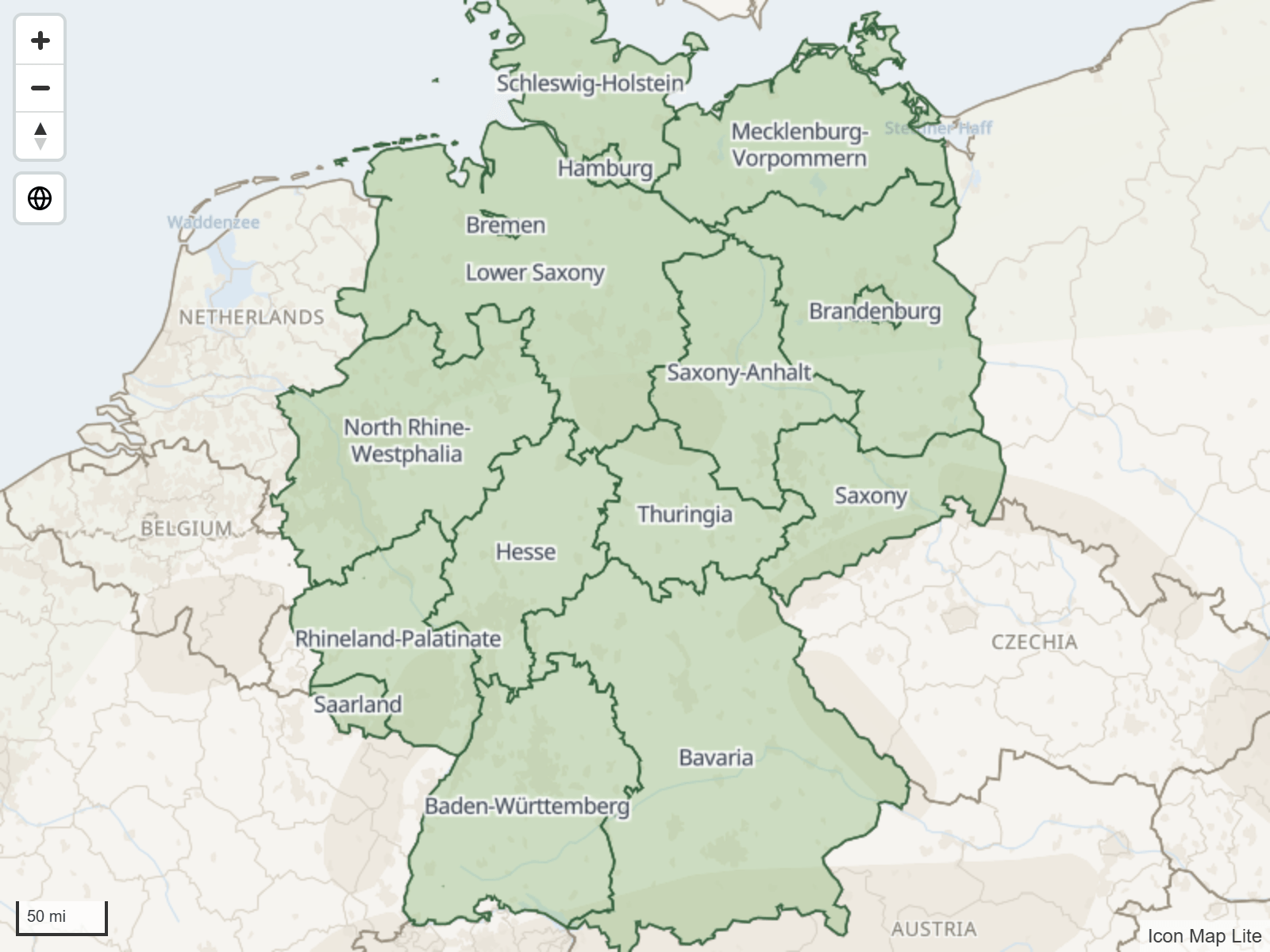
These labels belong to file layers. Labels for the rows of your data are set separately: see Data labels.
Reference labels are drawn as map text with a halo: an outline in a second color that keeps the text readable over the map. They use the Noto Sans font that is built into the visual.
Turn labels on
- Select the map, open Format pane > Reference Layers, and choose the layer in Shapes from file > Apply settings to.
- In Shapes from file layer {n} - Configuration, switch on Show Labels.
- Set Label Property Name to the property that holds the text. It lists the properties of the uploaded file.
- A Shapes from file layer {n} - Labels group appears below the layer's Formatting group. Style the labels there.
The labels group appears only when Show Labels is on and Label Property Name is set.
Label Property Name takes conditional formatting (fx), so a measure can switch the labels between two properties, for example a name and a code.
Place the labels
Position
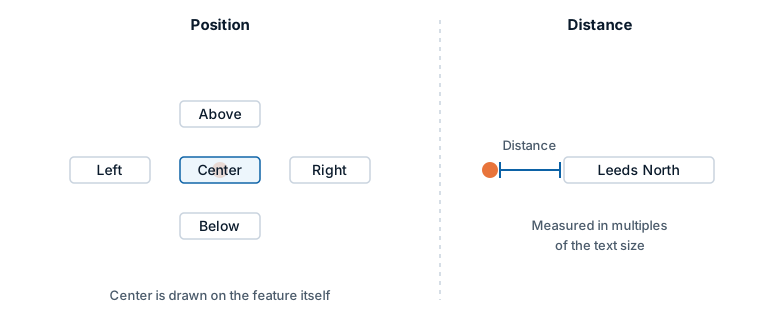
Position sets where a label sits relative to its feature: Center, Above, Below, Left or Right. On a polygon the label is placed inside the shape, so Center is usually the right choice. For the other positions, Distance sets how far the label sits from its feature, in multiples of the text size.
Labels along lines
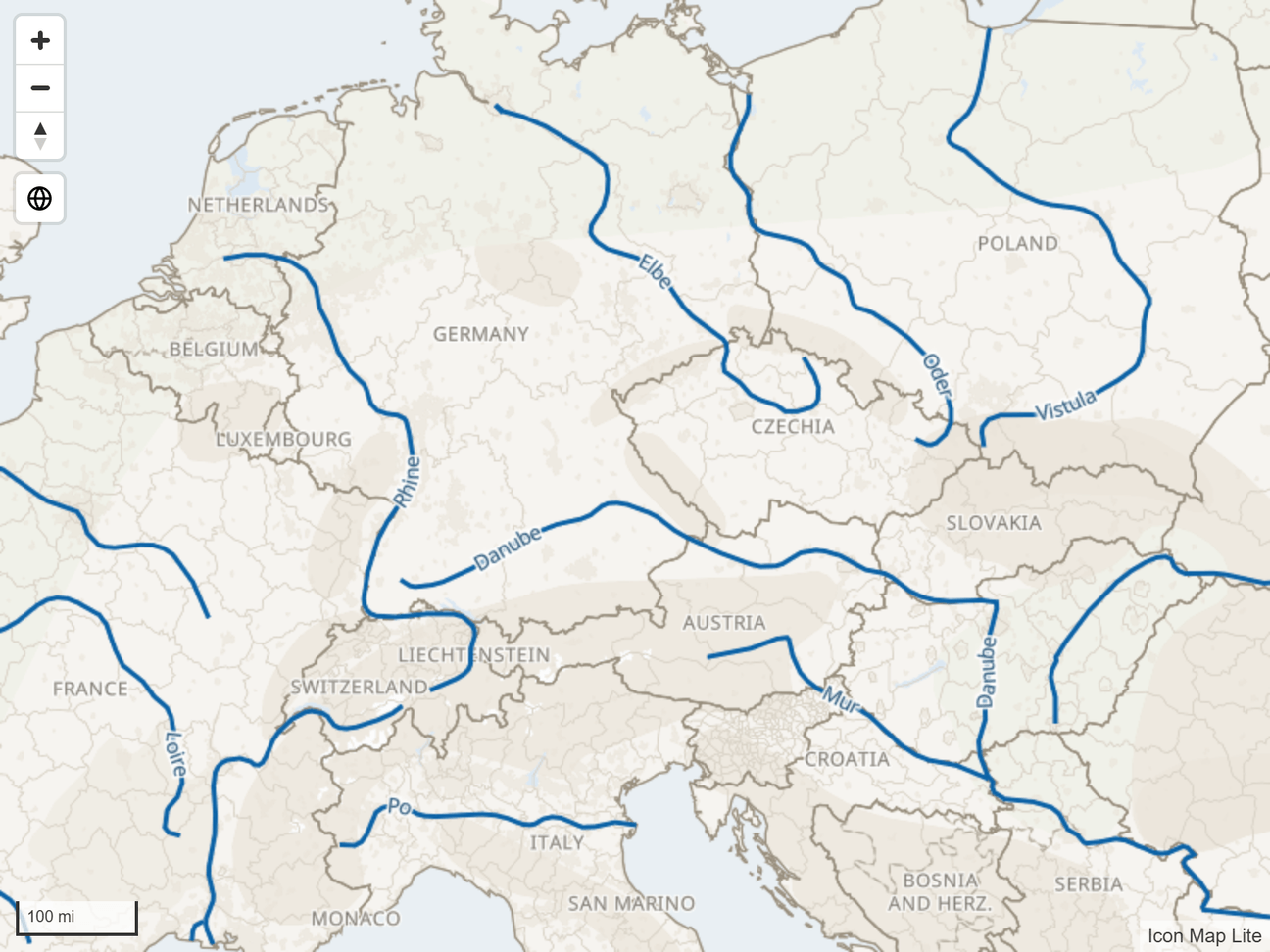
Labels Follow Lines is on by default. Each label on a line curves along it and repeats down the length of the line, the way a river or a road is named on a map. Switch it off to give each line one upright label at its middle.
Labels Follow Lines works best on simple, smooth lines. On very detailed geometry, few labels may be placed.
Crowded maps
Hide Overlapping Labels is on by default: a label that would land on top of another is dropped. Switch it off to draw every label.
With Hide Overlapping Labels on, some labels are missing where they would collide, for example on neighboring regions when the map is zoomed out. Zoom in, or switch it off, to see them.
Maximum Width wraps long labels. It is measured in multiples of the text size.
Zoom range
Labels have a zoom range of their own, set with Min Zoom Level and Max Zoom Level. Use it to show labels only once the reader has zoomed in far enough to read them. Switch on Use Min/Max Zoom from Parent Layer to make the labels appear and disappear with the shapes they name instead.
Settings
Format pane > Reference Layers > Shapes from file layer {n} - Labels
| Setting | What it does | Default |
|---|---|---|
| Text Size | Size of the text, 4 to 60 | 10 |
| Text Color | Color of the text | #000000 |
| Halo Color | Color of the outline around the text | #FFFFFF |
| Halo Width | Width of the outline, 0 to 20 | 1 |
| Transparency | 0 is solid, 100 is invisible | 0 |
| Position | Center, Above, Below, Left or Right | Center |
| Distance | How far the label sits from its feature, 0 to 10, in multiples of the text size. Shown when Position is not Center | 1 |
| Maximum Width | Longer labels wrap. 1 to 60, in multiples of the text size | 10 |
| Hide Overlapping Labels | On: a label that would land on top of another is dropped. Off: every label is drawn | On |
| Labels Follow Lines | On: a label on a line curves along it and repeats. Off: a line takes one upright label at its middle | On |
| Use Min/Max Zoom from Parent Layer | On: labels appear and disappear with the shapes they name | Off |
| Min Zoom Level, Max Zoom Level | The zoom range of the labels, -20 to 24. Shown when Use Min/Max Zoom from Parent Layer is off | 0, 24 |
| Z-Index | Drawing order of the labels, 0 to 10000. Higher is nearer the viewer | 370 |
Tips and limits
- The labels follow the layer's filter. If Property to Filter and Filter Value hide a feature, its label is hidden too.
- Each layer's labels have their own Z-Index, separate from the layer's shapes. With the default of 370, the labels of one file layer are drawn above the shapes of the other file layers. Raise it above 405 to draw the labels over your circles as well.
- Labels work the same way for uploaded GeoJSON, KML, TopoJSON and shapefile files and for PMTiles archives.
- For labels drawn as cards, with titles, images and pointers, label your data instead. See Data labels.