
You are reading the Icon Map Lite documentation for version 1.0.1.2, which has not been released yet. Go to the latest version (1.0.1.1).
Day and night
The daylight terminator shades the part of the world where the sun has set. It shows the present moment for whoever is viewing the report, and moves as the time passes.
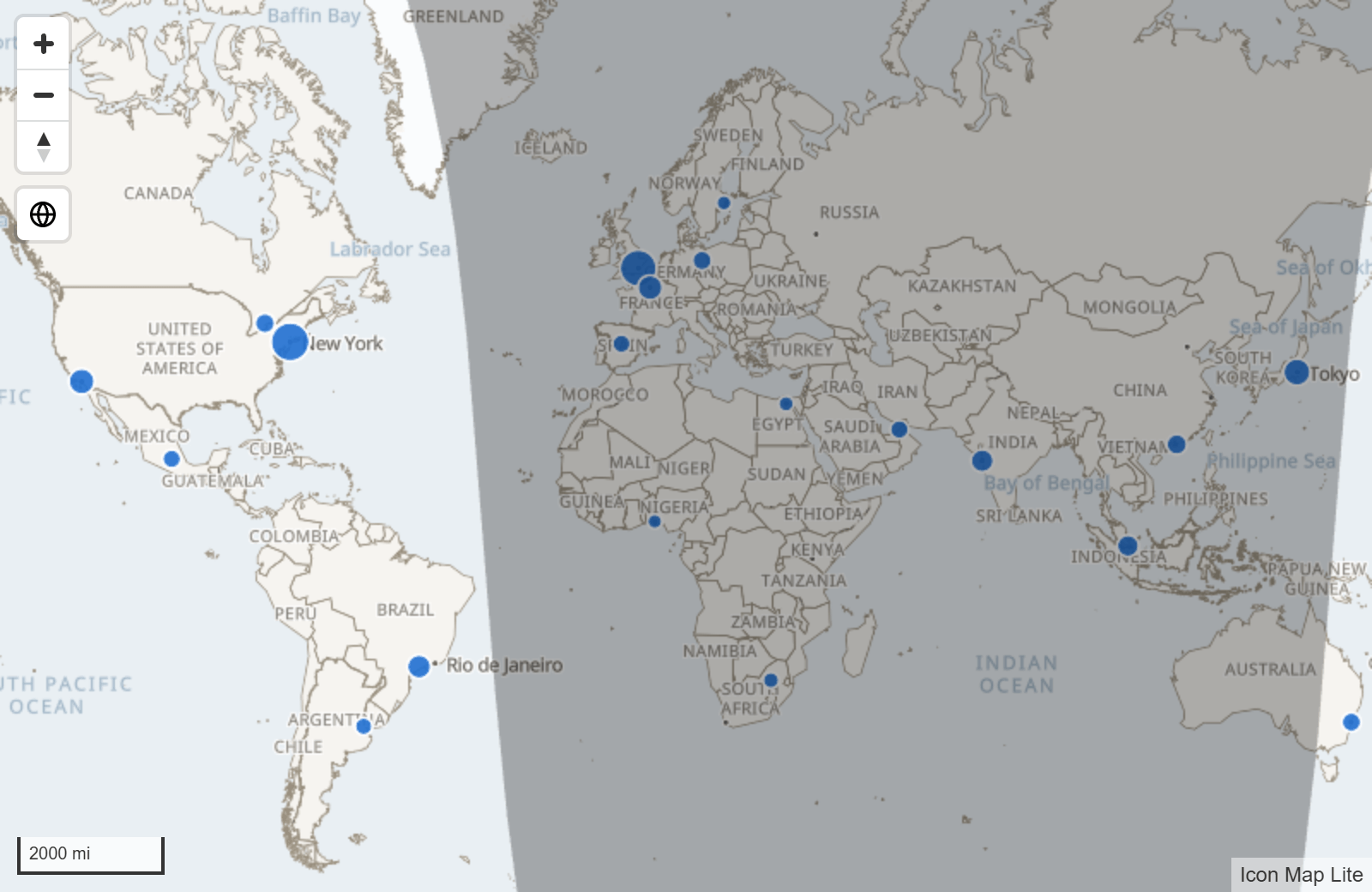
Add the day and night shading
New in 1.0.1.2 In the Layer Manager, add a reference layer and choose Day and night. See Add a layer. To do the same in the Format pane:
- Select the map, and open Format pane > Reference Layers.
- Switch on the Daylight Terminator group.
How it works
- The shading is worked out inside the visual, from the clock of the device the report is viewed on and the position of the sun. Nothing is downloaded.
- It shows the current time and is redrawn every second, so the line between day and night moves while the report is open.
- It always shows the present moment. It cannot show the time of a row of your data, and it does not follow a slicer or a time filter.
- It draws one edge between day and night, with the night side shaded in one color.
Settings
Format pane > Reference Layers > Daylight Terminator
| Setting | What it does | Default |
|---|---|---|
| Daylight Terminator (the group's switch) | Shows the shading | Off |
| Transparency | 0 is solid, 100 is invisible | 70 |
| Z Index | Drawing order, 0 to 1000. Higher is nearer the viewer | 450 |
| Terminator Color | Color of the night shading | #000000 |
Tips and limits
- With the default Z Index of 450, the night shading is drawn over your circles, lines, images and shapes, and under 3D columns and data labels. Lower it below 360 to draw the shading under every data layer. See Reference layers overview.
- The day and night shading has no tooltip and cannot be selected.