
You are reading the Icon Map Lite documentation for version 1.0.1.2, which has not been released yet. Go to the latest version (1.0.1.1).
What's new
The headline changes in each version of Icon Map Lite, with links to the pages that explain them.
For every change and fix in each version, see the Release notes.
Version 1.0.1.2
New in 1.0.1.2
This version adds a dialog for adding and arranging layers. The Format pane still holds every setting.
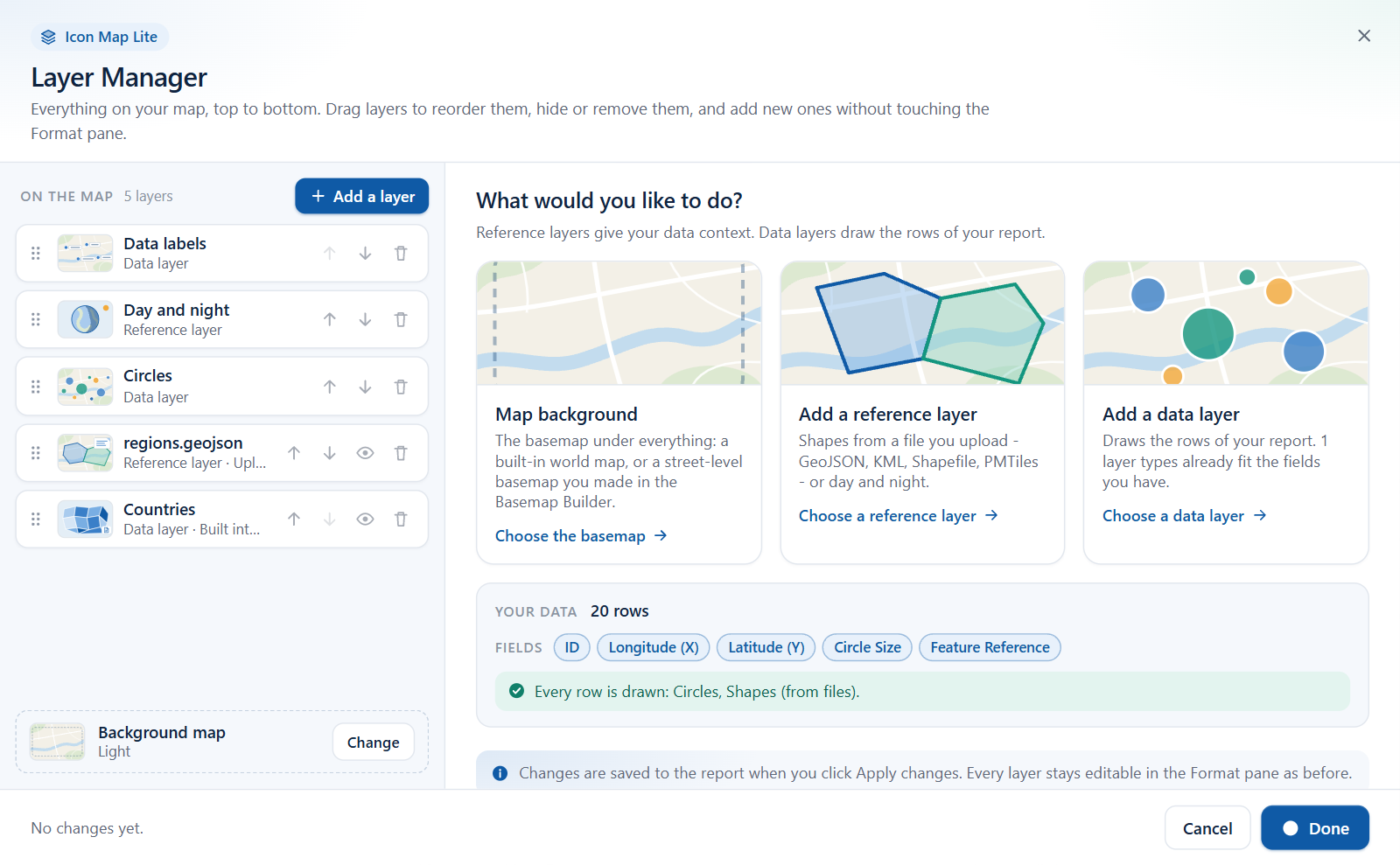
Layer Manager
- See every layer on the map in one list, in the order it is drawn. Drag layers into a new order, hide them or remove them.
- Add a data layer step by step, from the same eight kinds as the "What kind of map are you making?" guide. For Shapes (from files), choose the built-in boundaries or upload a file.
- Add a reference layer: shapes from a file you upload, up to five, or day and night shading.
- Change colors, transparency, sizes, zoom range, labels and tooltips in an editor for each layer. An uploaded reference layer can replace its file, and a Shapes (from files) layer can change its shapes to another built-in set or an uploaded file.
- Your data shows how many rows the visual received, which fields are filled in, and whether every row is drawn. When a layer draws nothing, it shows example rows, explains why they are skipped and suggests a fix, including a DAX measure for drawing two layers from one table.
- The Background map page picks the built-in theme, uploads a custom basemap, and opens the Basemap Builder.
- Picking a layer in the "What kind of map are you making?" guide also opens that layer's editor in the Layer Manager.
See Layer Manager, Add a layer and Check your data.
Changes to be aware of
- The Layer Manager card is the first card in the Format pane. It replaces the Diagnostics card: the Data Configuration Summary is now Your data in the Layer Manager.
- The layer guide's Data configuration summary button is now Open Layer Manager.
Version 1.0.1.1
Icon Map Lite is built to meet Microsoft's certification requirements: it makes no network requests, and everything it draws is inside the visual or stored in the report.
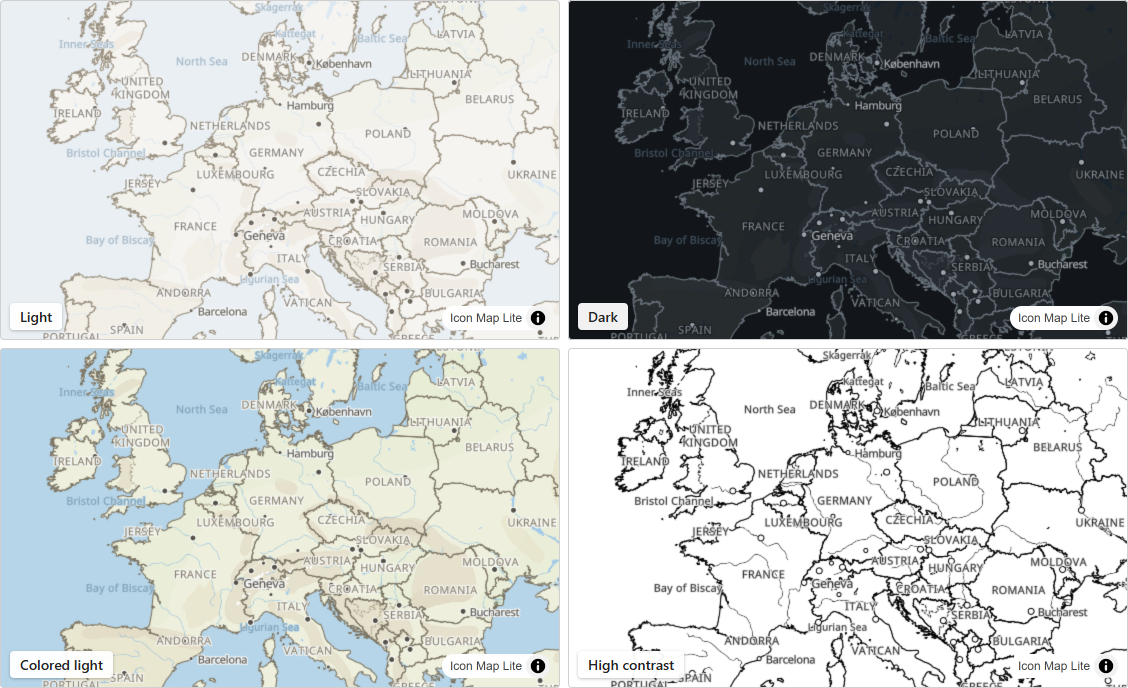
A world map inside the visual
- A vector world map built into the visual, from world scale to country scale (zoom levels 0 to 3), in seven themes, or None for a transparent background.
- Place names follow the report's language: English, German, Spanish, French or Portuguese.
- Switches for the map's labels, boundaries, and land and water features.
- With Windows high contrast on, the map switches to the High contrast theme in the viewer's own colors.
See The background map.
Your own detail and shapes, uploaded
- Upload a custom basemap, an
.imbasefile of up to 25 MB made with the Basemap Builder, for street-level detail of one area. See Custom basemaps (.imbase). - Upload GeoJSON, TopoJSON, KML, zipped shapefiles, IMDF and PMTiles archives as data layers or reference layers. See Shapes from files and built-in boundaries and Shapes from file.
- Join your data to built-in countries, countries split into their parts, and states and provinces, with no file to upload.
- Count points inside shapes you upload, with the Cells layer. See Cells: H3 hexagons and grids.
Drawing your data
- Lines as 3D Arcs, Flow arcs, Flow Tree and Routes, alongside straight and shortest lines. See Lines and Routes.
- Card label styles: Glass, Dark Glass, Card, Pill, Neon and Halo Text, with titles, images and footers, and labels that appear on mouse over or when selected. See Data labels.
- Text and emoji badges for the Images layer. See Images and icons.
Selection, filtering and accessibility
- Selecting on the map filters the report like a slicer, by click, lasso or radius, and bookmarks keep the selection. See Select and filter with the map.
- The map can filter other visuals to the area it shows. See Filter by the map's location.
- Keyboard navigation of the items on the map.
Licensing
Icon Map Lite is licensed per user through Microsoft AppSource, with a free one-month trial. There is no license key. See How Icon Map Lite is licensed.
Changes since 1.0.1.0
- The built-in world map now covers zoom levels 0 to 3, so that the visual fits the size limit for importing a visual into the Power BI service.
- The Routes line shape, data labels on shapes from PMTiles archives, more card label options, and Cells from uploaded shapes were added.
Earlier versions
The Release notes list every version.