
The background map
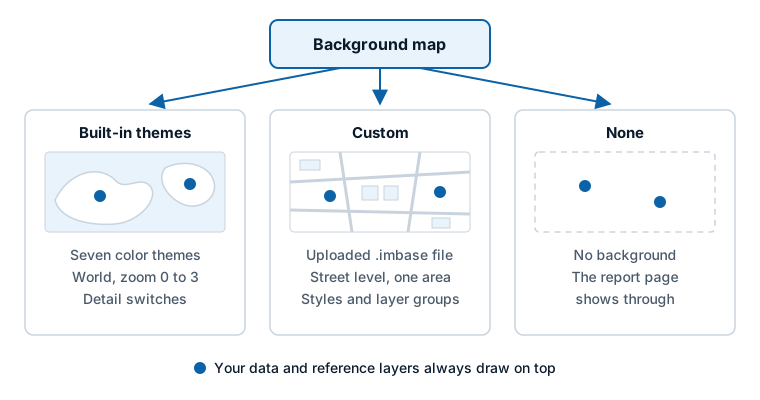
The background map is the world map drawn under your data. Icon Map Lite has its own world map built in, in seven color themes, so it draws with nothing downloaded. For street-level detail in one area, you can upload a custom basemap.
What is built in
Icon Map Lite carries a vector world map inside the visual. It is drawn from Natural Earth data: land and sea, lakes and rivers, country and state borders, deserts, ice, urban areas, and the names of countries, states, cities, seas and mountain peaks.
- Nothing is downloaded. The map, its fonts and its labels are part of the visual, so it draws the same way for every reader.
- It shows detail down to zoom level 3, which is about the scale of a continent or a large country. The whole map has to fit inside the visual, and Power BI limits how large a visual can be. When you zoom in further, the map is enlarged but gains no more detail. Your data stays sharp at every zoom level.
- Its labels follow the report language. Place names are shown in English, German, Spanish, French or Portuguese, to match the language of the report. A place with no translation shows its own name. There is no setting for this. See Languages.
For street-level detail, see Custom basemaps (.imbase).
Choose a theme
- Select the map, and open Format pane > Background Layer > Map.
- Choose a theme in Background map. The map redraws straight away.
A new map uses Light.
| Background map | What it draws |
|---|---|
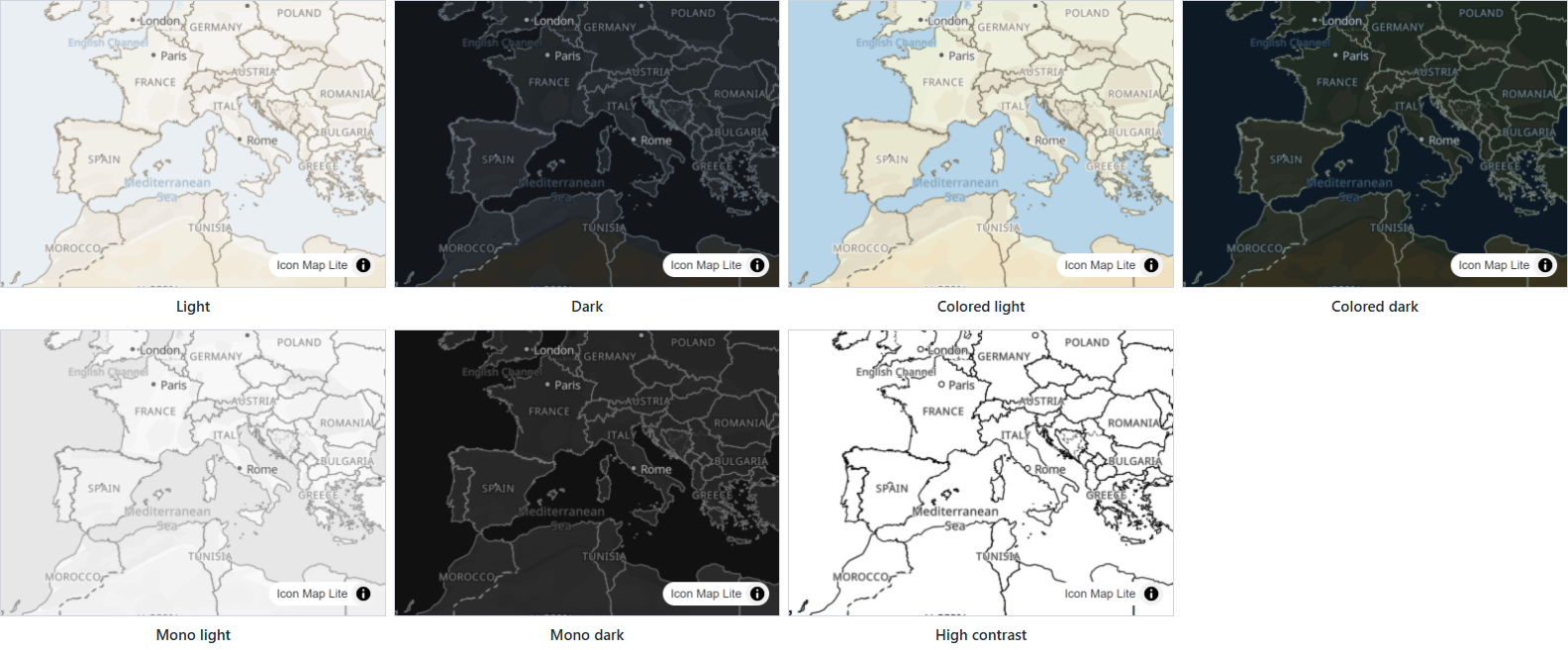
| Light | The built-in world map in light colors. This is the default |
| Dark, Colored light, Colored dark, Mono light, Mono dark | The same world map in other color schemes |
| High contrast | The world map in two colors only, for readers who use Windows high contrast. See below |
| Custom | A basemap file you upload. See Custom basemaps (.imbase) |
| None | No background map at all. The map is transparent and the report page shows through |
The seven built-in themes draw the same features and differ only in their colors. Each theme brings its own background color; there is no separate background color setting. If you want a plain color behind your data, choose None and set the visual's background in Power BI's own settings, under Format pane > General > Effects > Background.
A theme can change in reading view as well as while editing, so a bookmark can switch the map from one theme to another.
High contrast
High contrast draws the map in two colors, and repaints it in the foreground and background colors of the reader's Windows high contrast theme.
When a reader has Windows high contrast switched on, Icon Map Lite replaces every built-in theme with High contrast automatically, whatever theme you chose. None and Custom are kept as you set them. The map controls and the data layers switch to the reader's high contrast colors too.
Choose what the map shows
Three groups below Map switch parts of the built-in map on and off. They appear when Background map is one of the built-in themes, and are hidden for None and Custom. Every switch is on by default, and a change takes effect straight away without moving the map.
| Group | Switch | What it hides when off |
|---|---|---|
| Map labels | Country names | The names of countries |
| State and province names | The names of states and provinces | |
| Towns and cities | Town and city names and their dots | |
| Seas and oceans | The names of seas and oceans | |
| Mountain peaks | The names of peaks and their dots | |
| Map boundaries | Country borders | The borders between countries, and the outline of the coast. With it off, land and sea can be hard to tell apart in Light |
| Internal country borders | Borders inside a country, such as those between England, Scotland, Wales and Northern Ireland, or between the regions of Belgium | |
| State and province borders | The borders of states and provinces | |
| Disputed borders | Borders that are in dispute | |
| Land and water | Deserts and landform | Deserts and other landforms |
| Ice and glaciers | Ice sheets, ice shelves and glaciers | |
| Urban areas | The built-up areas of cities | |
| Lakes | Lakes | |
| Rivers | Rivers |
The land and the sea cannot be switched off. To have no map at all, choose None.
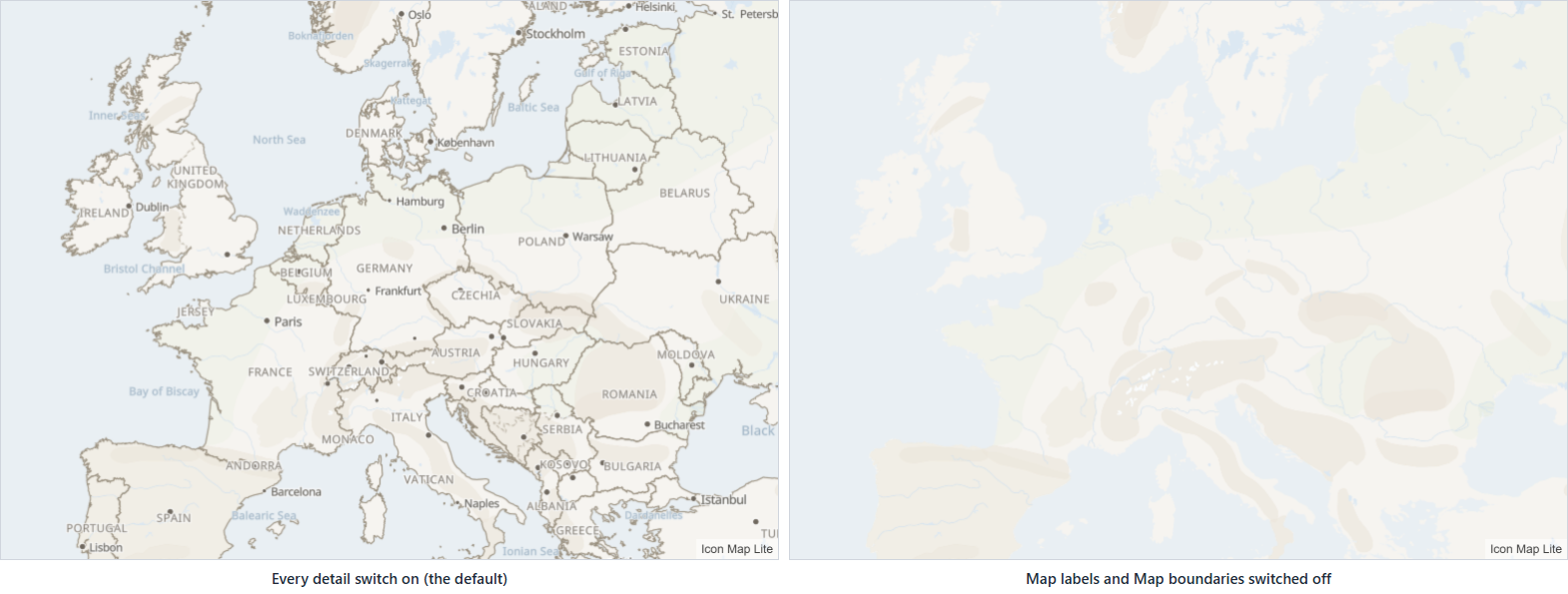
Place names are part of the background map, so they are drawn under your data. If filled shapes cover the names your readers need, raise the shapes' transparency, or switch the place names off and label your own data instead. See Data labels.
The map credit
The credit line sits in the bottom right corner of the map. It always carries an Icon Map Lite link. Text you type in Format pane > User Interface > Controls > Additional Attribution is added to it, and a custom basemap adds the credit written in its file. When the map is narrow, the credit folds into a small "i" button. See Map controls.
When you need more than this
The built-in map is a world map for continent and country scale views. Icon Map Lite cannot stream basemaps, so it has no satellite imagery, no street maps of the whole world and no basemaps from ArcGIS or other providers. A custom basemap gives you street-level detail for one area, up to 25 MB.
If your report can use visuals that connect to online map services, Icon Map Pro and Icon Map Slicer are the most capable mapping for Power BI, with detailed basemaps for the whole planet. See Lite, Pro and Slicer.