
How Icon Map Lite is licensed
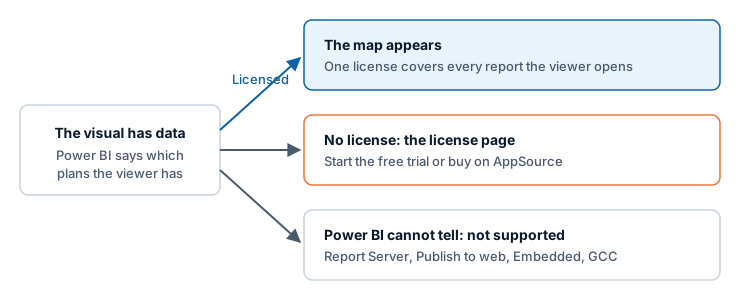
Icon Map Lite is licensed per user through Microsoft AppSource. Licenses are bought on AppSource and assigned in the Microsoft 365 admin center, and Power BI tells the visual whether the person viewing a report has one. There is no license key to enter and nothing to set up in the report.
Who needs a license
- Everyone who views a report that contains Icon Map Lite needs a license assigned to them. That includes the people who build the report.
- A license is per person, not per report. One license covers every report that person opens.
- Licenses are assigned to people or groups in the Microsoft 365 admin center, alongside your other Microsoft subscriptions.
An Icon Map Lite license does not cover Icon Map Pro or Icon Map Slicer, and their licenses do not cover Icon Map Lite.
Try it free
Icon Map Lite has a free one-month trial on Microsoft AppSource. The trial is a license like any other: start it on AppSource, and the map appears as soon as Power BI passes it to the visual.
Buy licenses
Icon Map Lite is sold on Microsoft AppSource. The license page in the visual links to the same listing.
For licenses for a team or an organization, purchase orders, or questions about which Icon Map product suits you, contact sales@tekantis.com.
What a viewer without a license sees
The license check runs once the visual has data with an ID, and again when you switch between editing and reading. As an author you first see the start page, and then the license page when you add fields. A viewer with a license never sees it.
When Power BI reports that the viewer has no Icon Map Lite license, the visual covers the map with the license page, a frosted sheet. The zoom and globe buttons, the scale bar and the attribution stay visible around the sheet, and the map can still be moved behind it.
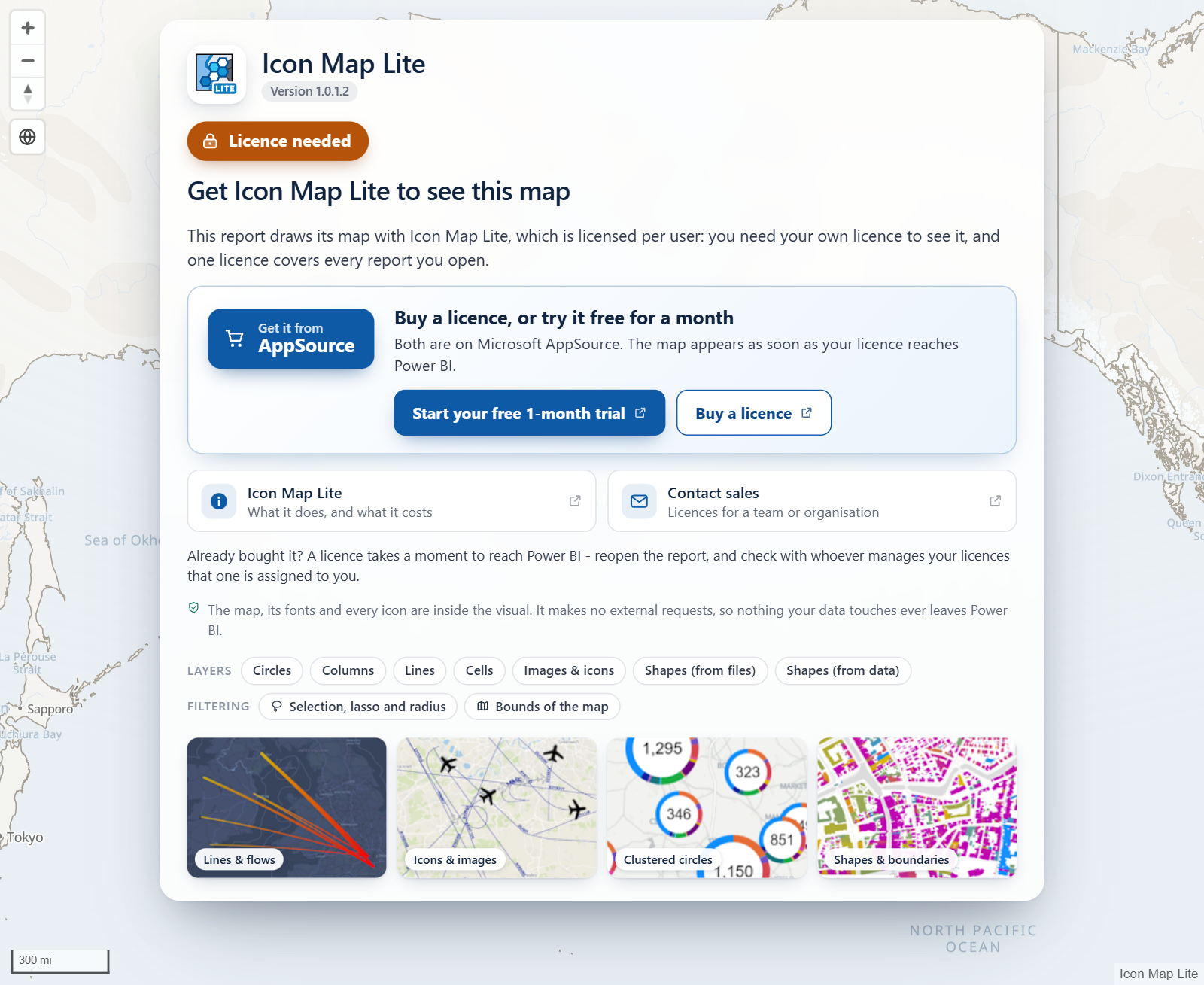
The page shows:
- The badge License needed and the heading "Get Icon Map Lite to see this map", with a line explaining that the visual is licensed per user and that one license covers every report the viewer opens.
- A Get it from AppSource button, and the buttons Start your free 1-month trial and Buy a license. All three open the Icon Map Lite listing on Microsoft AppSource.
- Icon Map Lite, which opens the product page on icon-map.com, and Contact sales, for licenses for a team or organization.
- A reminder that a new license takes a moment to reach Power BI.
When you have recently bought a license
A license takes a moment to reach Power BI. If the license page is still showing:
- Close and reopen the report. In the Power BI service you can press F5. In Power BI Desktop, close and reopen it.
- Check with whoever manages your licenses that one is assigned to you in the Microsoft 365 admin center.
Where licensing works
Per user licensing needs Power BI to tell the visual which licenses the viewer holds. Power BI Desktop and the Power BI service do. Power BI Report Server, Publish to web, Power BI Embedded and government clouds such as GCC cannot, so Icon Map Lite does not support them.
Where Power BI reports that it cannot tell, the visual shows a page headed "Icon Map Lite does not support this environment", with the badge Not supported here. It explains that Icon Map Lite works in Power BI Desktop and the Power BI service, and offers Contact us about options and a link to the Icon Map Lite product page. There is no buy button, because a license would not help there.
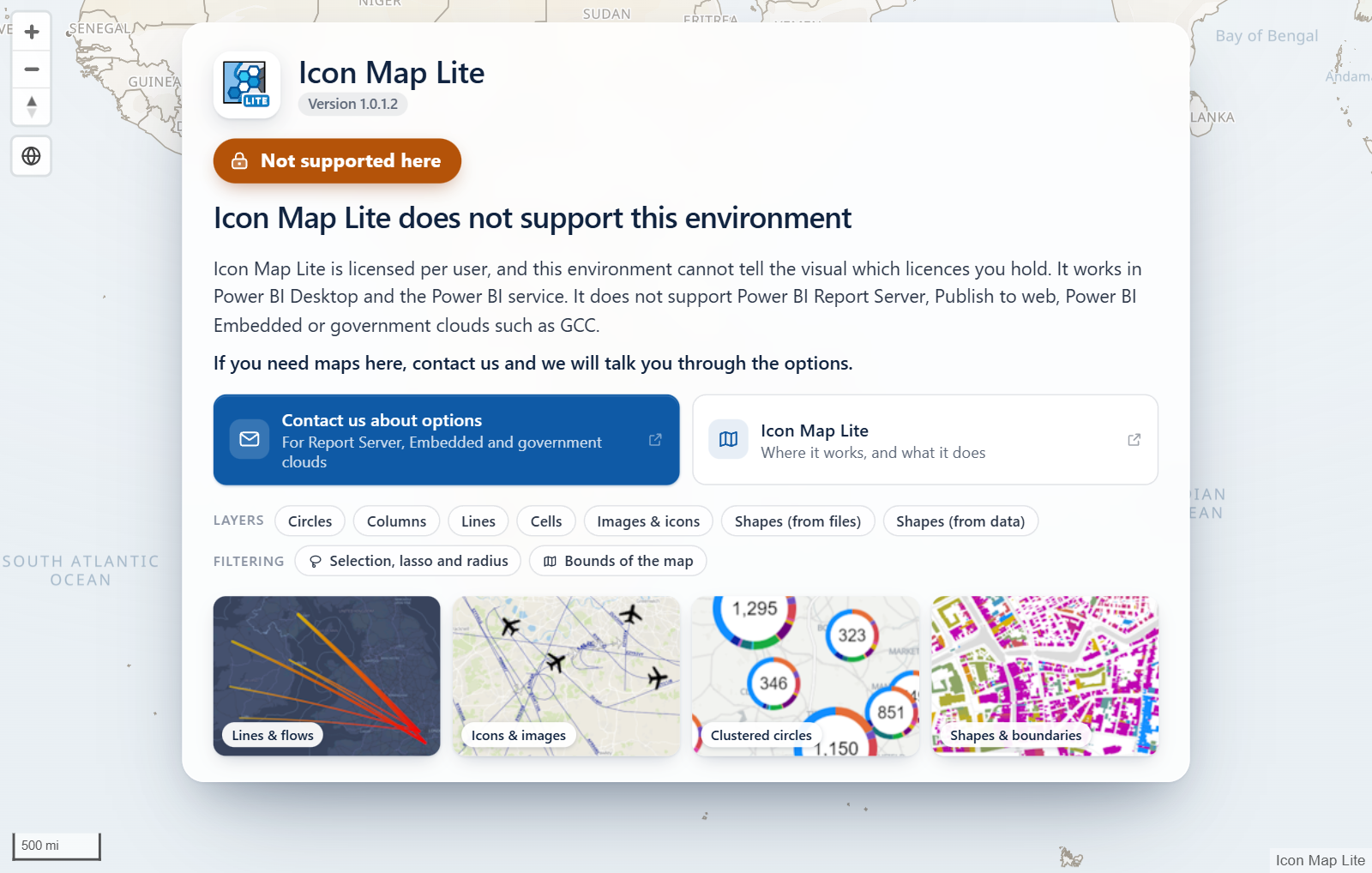
For maps in those environments, use Icon Map Pro or Icon Map Slicer, which are licensed differently and work in all of them. See Supported environments and privacy.
Nothing to configure
- There is no license key, no license setting in the Format pane and no account to create.
- The visual does not contact a licensing service. Power BI checks the license and tells the visual the result.
- The Icon Map Lite card in the Format pane shows the version only.