
What's new
The headline changes in each version of Icon Map Pro, with links to the pages that explain them.
For every change and fix in each version, see the Release notes.
Version 1.1.0.12
New in 1.1.0.12
This version draws your data in 3D space: a 3D model at each point, and shapes at the heights held in your data. It also reads files straight from OneLake. The new features are part of the Modern engine.
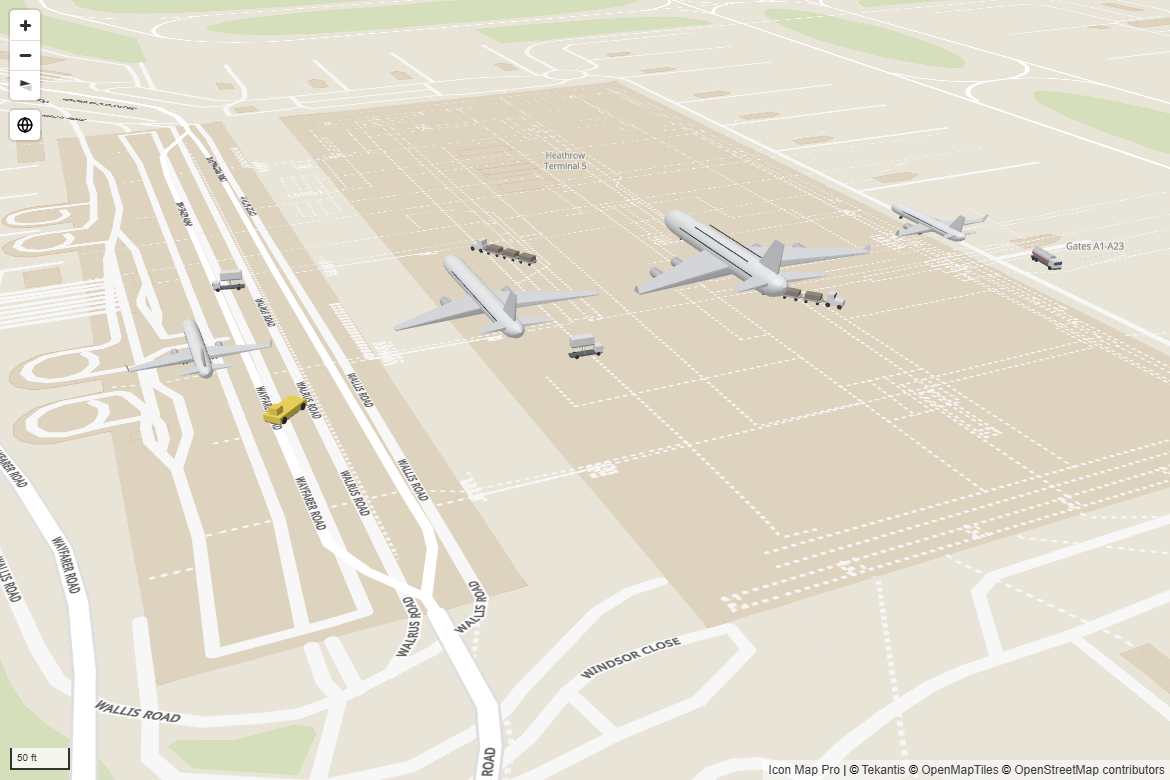
3D models
- A new 3D Models data layer draws a glTF model at each longitude and latitude: vehicles, aircraft, wind turbines, masts, buildings and more.
- Pick models in the new model picker, from the Icon Map Catalog, your organization's catalog, a link to a
.glbfile, or OneLake. A preview shows each model the way the map draws it. - One model for every row, or a model per row chosen by a field, with Match by name to pair your values with models.
- Each row can be turned with Heading, Pitch and Roll, raised with Height above ground, sized in meters or pixels, tinted, and animated at a speed taken from your data.
- Sit on terrain stands models on the 3D terrain. Turn it off to place aircraft at their altitude above sea level.
- Models can be selected, show tooltips and cross-highlight the report, and the lasso selects them where they are drawn. Auto zoom frames models at their height, aircraft in the sky included.
See 3D models.
BIM models
- A new BIM Models data layer places a building, lift or plant room on the map and binds its parts to your rows: put the part names in Feature Reference, and your data colors, fades, hides and selects the parts.
- Convert an IFC model in the free BIM to Icon Map Converter in the Icon Map Customer Portal. It runs in your browser, and the file is never uploaded. It writes the model and a parts table to load into your semantic model.
- Save the model in the report, or link it from OneLake or the web. Place it from the IFC location, or drag and turn it on the map.
See BIM models.
Shapes at their heights
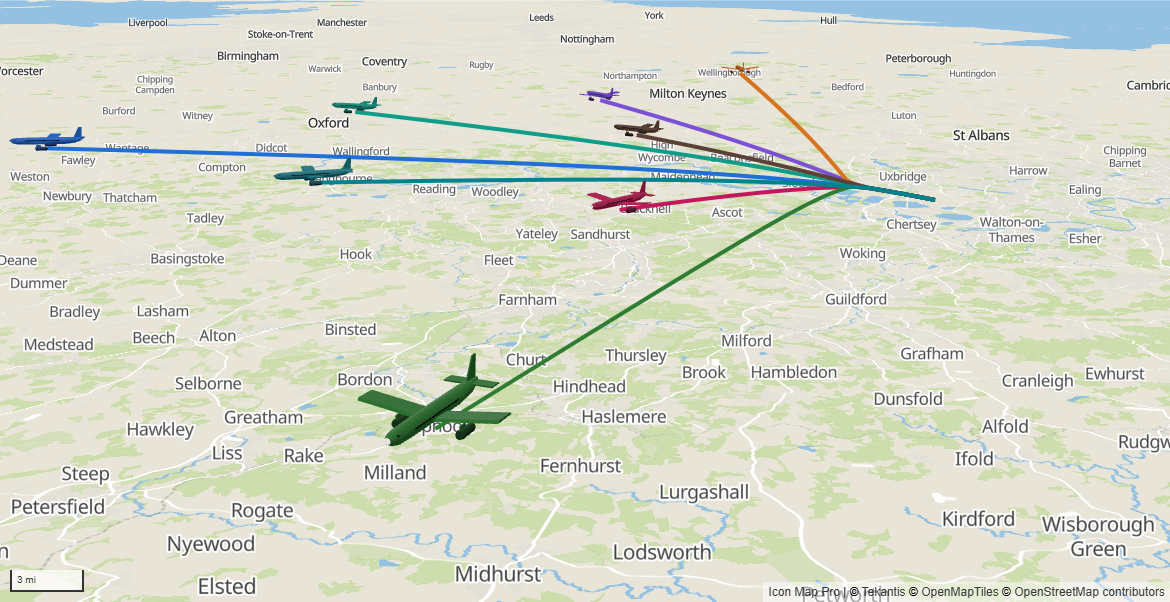
- Use Z heights on Shapes (from data) draws WKT and GeoJSON with a height at each coordinate in 3D: aircraft tracks, pipelines across a valley, floating airspace.
- Heights are measured from sea level or from the ground, in meters or feet. Missing heights in the middle of a line are filled in.
- Selection, cross-highlighting, tooltips and the lasso work where the shapes are drawn. The Layer Manager has the same settings.
Files in OneLake
- Use a file in a Fabric lakehouse wherever the visual takes a link: images, GeoJSON, KML and CSV reference layers, Shapes from files, PMTiles archives in the Vector tiles layer, and 3D models.
- Choose from OneLake in the upload window browses your lakehouses, then links to a file or imports a copy.
- Each viewer reads the file directly from OneLake with their own access. The file never passes through Icon Map's servers.
See Files in OneLake.
Shapes that stay visible when zoomed out
Simplify When Zoomed Out on Shapes (from data) and Shapes (from files) keeps short lines and small shapes on the map as you zoom out. Its default, Auto, keeps every shape unless a layer is very large. See Shapes from data and Shapes from files.
Catalog raster legends
Raster catalog layers, such as habitat and species maps, can show their palette in the legend, and a layer group's palette can be applied to all its variants at once. See Raster catalog layers.
Also in this version
- On the Modern engine, Flow Arcs can be clicked to select, cross-filter and cross-highlight, and show their tooltips. See Lines.
- MapTiler basemaps on the Legacy engine draw with the visual's own map library, instead of a second copy of it.
Changes to be aware of
- Shapes (from data) and Shapes (from files) now keep short lines and small shapes when zoomed out (Auto). A map with very many such shapes can take a moment longer to draw when zoomed out. Set Simplify When Zoomed Out to On to return to the previous behavior.
- A report whose WKT or GeoJSON carries heights looks the same as before until you turn on Use Z heights.
- A OneLake file asks the viewer to sign in, and needs OneLake settings in your organization. Reports without OneLake files never ask. See Before you start.
- Outline Blur on Shapes (from data) is now shown where it applies, on the Modern engine.
Version 1.1.0.11
New in 1.1.0.11
This version adds dialogs for adding and arranging layers, choosing basemaps and finding ArcGIS content. The Format pane still holds every setting. The new features are part of the Modern engine.
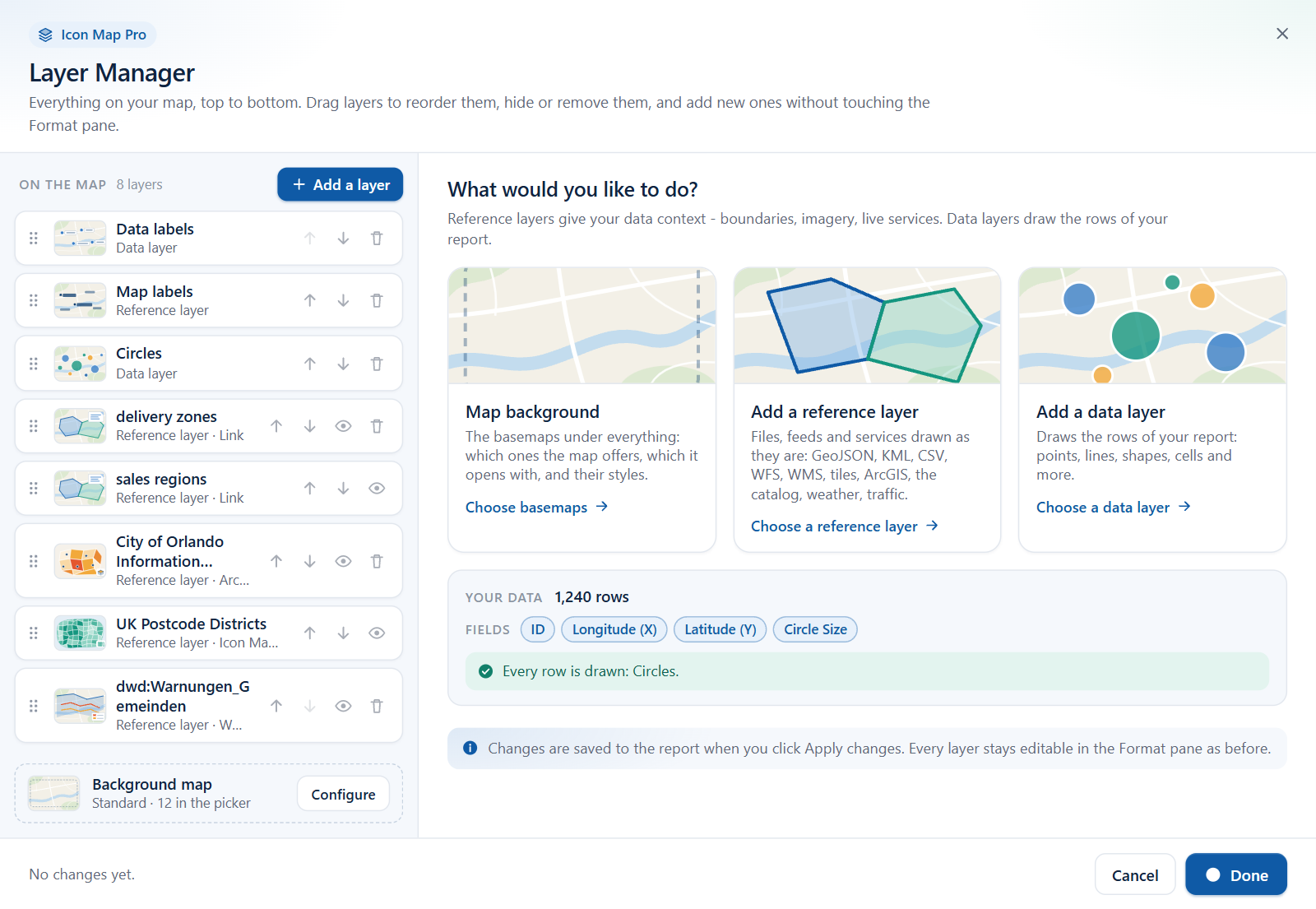
Layer Manager
- See every layer on the map in one list, in the order it is drawn.
- Add data layers and reference layers step by step, with a check of each link before it is added.
- Change the most used style options, drag layers into a new order, hide them or remove them.
- Your data shows how many rows each layer draws. When a layer draws nothing, it shows you example rows, explains why they are skipped and suggests a fix.
- Picking a layer in the "What kind of map are you making?" guide now opens the Layer Manager on that layer.
See Layer Manager, Add a layer and Check your data.
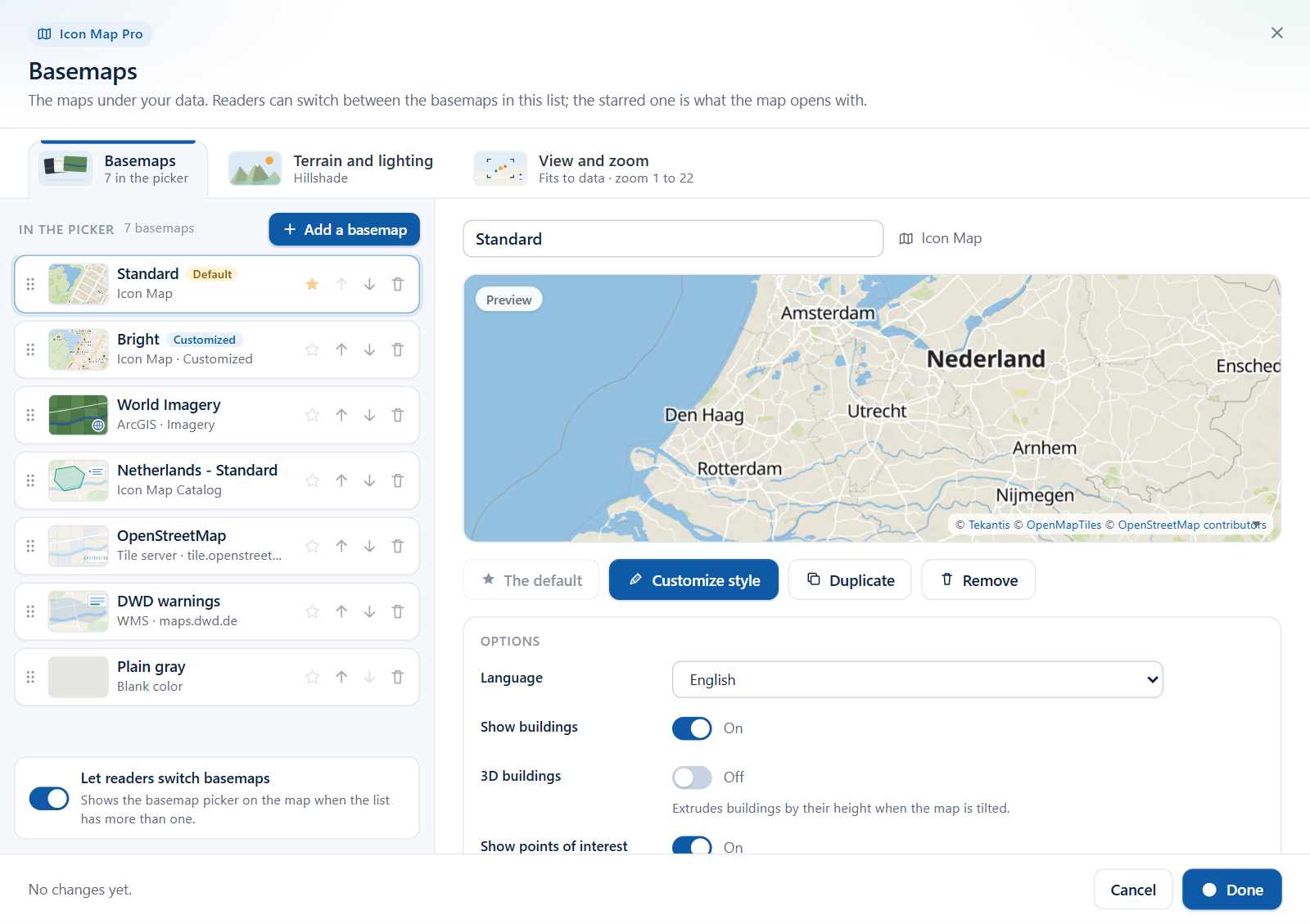
Basemaps dialog
- Give a map a list of basemaps from any mix of providers, and choose the one it opens with.
- Let report readers switch between them with a basemap picker on the map.
- Use basemaps from the Icon Map Catalog, or a plain color.
- Customize a basemap style layer by layer in the style editor.
- Set hillshade, 3D terrain, light, sky, zoom and tilt in the same dialog.
The dialog is used by new maps. Maps that predate it keep their basemap settings in the Format pane. See The Basemaps dialog, Customize a basemap style and Basemaps overview.
ArcGIS
- Browse ArcGIS searches your content, your organization, Living Atlas and public items, with a preview, so you no longer need to find and paste a service address.
- ArcGIS reference layers accept more than feature layers: map and imagery services, vector tile services and whole web maps.
- Layers can use their ArcGIS symbology, labels and pop-ups, and appear in the legend.
- Sign in with ArcGIS connects with your own ArcGIS account.
- An ArcGIS web map can be used as a basemap.
- Public ArcGIS tiled services, styles given by their URL and web maps load without an API key. Only Esri's basemap styles need one.
See ArcGIS layers, Connect to ArcGIS and ArcGIS layers bound to data.
Reference layers
- File layers added by link now read GeoJSON, TopoJSON, KML, KMZ, CSV files with coordinates, and WFS services, and can reload on a timer.
- Raster layers accept a WMTS service link as well as a tile template.
- WMS layers can show their legend.
- When a server does not allow Power BI to read a link, the layer can be read through the Icon Map proxy.
See Files and feeds: GeoJSON, KML, CSV, WFS, Raster tiles, WMTS and WMS and API keys, authentication and the proxy.
Map view
- Allow Tilt and Max Pitch control whether and how far readers can tilt the map.
- New maps have World Copies on, so the map repeats as you pan past its edge.
See View, zoom and projection.
Languages
- Basemap place names follow the report's language on Icon Map styles that have several languages. The Language settings start on Report language. Choose a language, English included, to keep that one.
- The Layer Manager, the style editor, the upload window and the default legend and layer control titles are translated too.
See Languages and Icon Map basemap styles.
Legend
- A layer whose legend mode is Gradient always shows a gradient, even when the map shows only a few items or a single color.
- File, WMS and ArcGIS reference layers have entries in the legend.
See Legend.
Changes to be aware of
- With the legend on, file, WMS and ArcGIS reference layers now appear in it. To leave one out, switch off its in legend setting in Format pane > Legend > Legend labels.
- A layer whose legend mode is Gradient and that showed "Colors set by conditional formatting" in 1.1.0.10 now shows a gradient. Other modes are unchanged.
- In a report in German, Spanish, French or Portuguese, an Icon Map basemap or Map Labels layer whose Language was never set now shows place names in the report's language. To keep English names, set Language to English.
- On the Modern engine the Layer Manager card replaces the Diagnostics card as the first card in the Format pane. The data summary is now Your data in the Layer Manager.
- Some names in the Reference Layers and Data Layers cards changed on the Modern engine to match what the layers now accept: GeoJSON / KML / CSV / WFS, ArcGIS Layer and Raster / WMTS Layer.
Version 1.1.0.10
Version 1.1.0.10 introduced the Modern map engine and everything that depends on it.
The Modern engine
- New maps use the Modern engine automatically. Existing maps stay on the Legacy engine unless you switch them in Format pane > Rendering > Map engine.
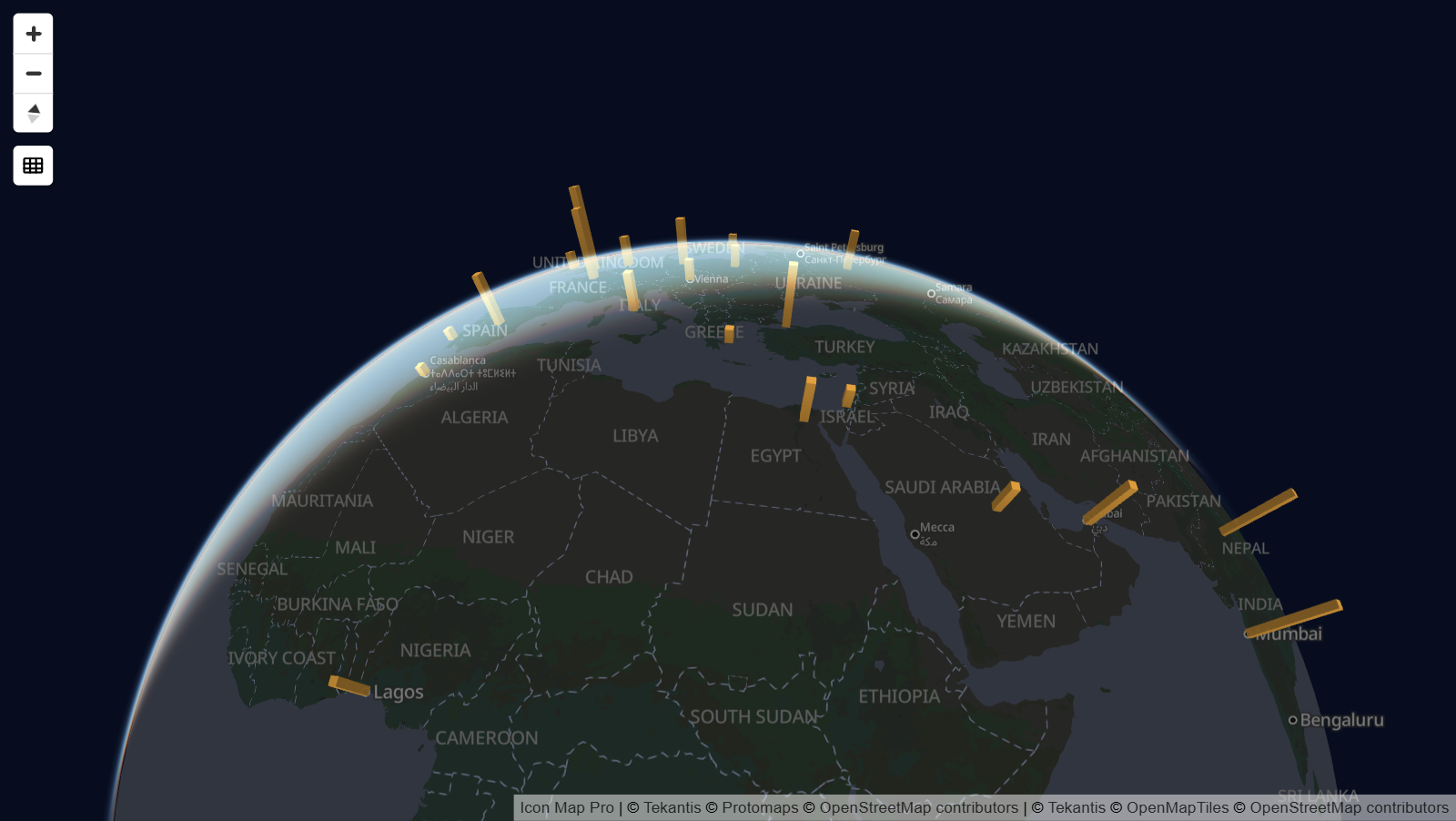
- Globe projection, with a button on the map to switch between the globe and the flat map.
- Tilt and rotate the map, and set the pitch and bearing it opens with.
- 3D terrain, hillshade over any basemap, and sky and light settings.
- An Antialiasing setting for smoother edges.
See Modern and Legacy engines, View, zoom and projection and Terrain, hillshade, sky and lighting.
New ways to draw data
- 3D columns: a column at each point, with its height set by the Column Height field. See 3D columns.
- New line shapes: Flow Arcs, Flow Tree, Routes and 3D lines, plus dash patterns that can differ on each row and animate. See Lines and Routes.
- More cell grids: S2, A5 and Geohash alongside H3, from coordinates or from cell IDs, and custom shapes that count points inside polygons you upload. See Cells: H3 hexagons and grids.
- Label styles: Glass, Dark Glass, Card, Neon and Halo Text, with titles, images and footers, and labels that appear on mouse over or when selected. See Data labels.
Help while you build
- The "What kind of map are you making?" guide appears when your rows do not reach a layer. It shows which fields each layer type needs and turns a layer on when you pick it. See Choose a layer type.
- Blank text cells now count as empty, so tables from CSV files, Excel and Power Query can feed several layers without extra measures. See Combine several layers in one map.
Languages
Icon Map Pro is available in German, Spanish, French and Portuguese as well as English. The visual follows the language of the Power BI report throughout: the Build and Format panes, the map controls, the legend, dialogs and messages. See Languages.
Selection and performance
- The pointer changes over items that can be selected, and selecting a selected item again clears the selection.
- Lines from WKT and 3D shapes highlight when selected.
- Formatting changes no longer redraw data that has not changed, and highlighting large selections is quicker.
See Selection, cross-filtering and highlighting.
Changes to be aware of
- The Modern engine and Icon Map basemaps need WebGL 2. See Supported environments and limits.
- New maps zoom to fit their data with 50 pixels of padding. Existing maps keep their padding.
- Lines that do not have both an origin and a destination are no longer drawn.
Earlier versions
Version 1.1.0.9 and earlier are covered by the documentation for 1.1.0.9 and earlier. The Release notes list every version.