
Files in OneLake
New in 1.1.0.12
A file stored in a Microsoft Fabric lakehouse can be used wherever Icon Map Slicer takes a file or image link, the way Power BI's own visuals accept OneLake files. Paste the file's OneLake URL, or pick it with Choose from OneLake. Each viewer reads the file straight from OneLake, with their own access to it.
Where OneLake files work
| Where | What you can use |
|---|---|
| Files and feeds reference layers | A GeoJSON, TopoJSON, KML, KMZ or CSV file, by link. Any file the upload window accepts, as an imported copy. |
| Shapes from files | A GeoJSON file by link. Any file the upload window accepts, PMTiles archives included, as an imported copy. |
| Images and icons, the images of Shapes from data and Lines, and point images on reference layers | An image URL in your data or in the Format pane. |
| Vector tiles | A PMTiles archive, with Use PMTiles on. |
| 3D models | A .glb file, chosen in the model picker or given as a model link in your data. |
| BIM models | A .glb or .glb.gz file, linked or imported as a copy in the BIM model picker's OneLake tab. |
Only files in the Files section of a lakehouse can be used, and only map files, images, and .glb and .glb.gz models.
Before you start
OneLake files need a few things in place. Administrators set them once for the organization.
| What | Who | Where |
|---|---|---|
| OneLake lets the visual read files with a signed link | Fabric administrator | Admin portal > Tenant settings > OneLake settings > Authenticate with OneLake user-delegated SAS tokens. The change can take 15 minutes to apply. |
| Custom visuals may sign in for the viewer | Power BI administrator | The Power BI visuals tenant settings. |
| The organization has approved the Icon Map app's access to OneLake | Microsoft Entra administrator | Admin consent for the Icon Map app. Organizations that use Icon Map for Fabric usually have it already. |
| Each viewer can read the file | Lakehouse owner | Read access to the lakehouse, and to the folder that holds the file. Not needed for an imported copy. |
The visual asks a viewer to sign in only when the map loads a OneLake file, or when Choose from OneLake is selected. A report with no OneLake file never asks.
Use a OneLake URL
- In Fabric, open the lakehouse, find the file under Files, and open its Properties pane.
- Copy the URL. It looks like
https://onelake.dfs.fabric.microsoft.com/<workspace-id>/<lakehouse-id>/Files/<folder>/<file>. - Paste it where the visual takes a link: the link of a layer in the Layer Manager or the Format pane, an image URL in your data, or the model picker's From a link tab.
The form with names, https://onelake.dfs.fabric.microsoft.com/<workspace name>/<lakehouse name>.Lakehouse/Files/..., works too, as do the onelake.blob.fabric.microsoft.com host, regional OneLake hosts and abfss:// paths.
The Layer Manager does not read a OneLake link when you add it. Its link check says "A file in OneLake" and that the file is read when the map loads.
Choose from OneLake
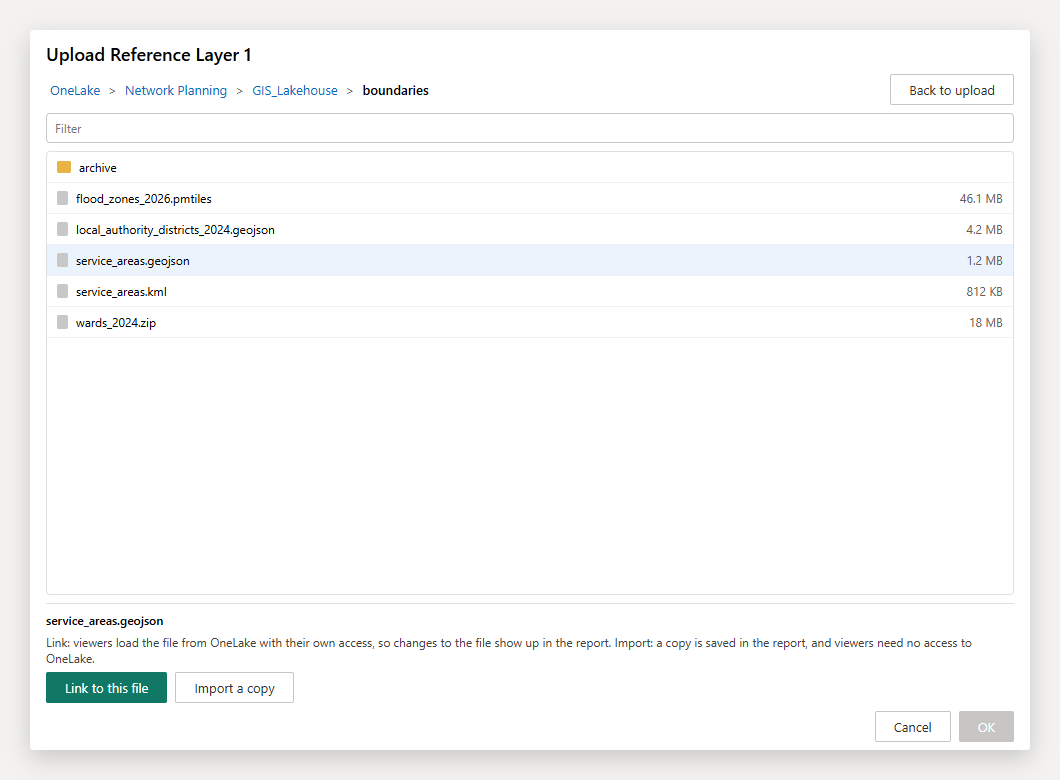
The upload window of Files and feeds, Shapes from files and the custom shapes of Cells has a Choose from OneLake button under the drop area.
- Select Choose from OneLake. The first time, the window closes while you sign in, then opens again on the OneLake browser.
- Pick a workspace, a lakehouse, then a folder. Only workspaces that have a lakehouse are listed. Only the files the layer can use are listed, and Filter narrows a long list.
- Select a file, then Link to this file or Import a copy.
| Choice | What it does |
|---|---|
| Link to this file | Viewers load the file from OneLake with their own access, so changes to the file show up in the report. |
| Import a copy | The file is read once and saved in the report, exactly like a file uploaded from your computer. Viewers need no access to OneLake. |
Link to this file is offered for the formats the layer reads from a link: GeoJSON, TopoJSON, KML and KMZ for reference layers, and GeoJSON for Shapes from files. Custom shapes can only be imported. Back to upload returns to the drop area.
Images in the Format pane
Under the image URL fields of the Format pane, a Choose from OneLake switch opens the OneLake browser for images. Pick a workspace, a lakehouse, a folder and an image, then Link to this file: its OneLake URL goes in the field, and each viewer loads the image with their own access. The switch turns itself off again, and Cancel leaves the field as it was.
The fields are Image URL in Images and icons, Image URL at start and Image URL at end in Lines, Image URL, Image URL at Linestring Start and Image URL at Linestring End in Shapes from data, and the point Image URL of each reference layer. A chosen image is a fixed value, so it replaces conditional formatting on that field.
3D models from OneLake
In the model picker, select Add models, then From a link. Paste the OneLake URL of a .glb file, or select Choose from OneLake under A .glb file in a Fabric lakehouse to browse for one. Each viewer loads the model from OneLake with their own access to the lakehouse. A model link in your data, through conditional formatting on Model, can be a OneLake URL too.
Only self-contained .glb files work. A .gltf file loads its other parts without the viewer's access, so pack it into a .glb file first. See 3D models.
How the file is read
- The Icon Map service signs a read-only link to the file for the viewer, valid for about an hour, using the viewer's own sign-in. The browser then reads the file directly from OneLake.
- The file never passes through Icon Map's servers. OneLake checks each viewer's access, so a viewer who cannot open the lakehouse cannot load the file.
- Links are signed again before they expire. A PMTiles archive is signed for each read, so it keeps working however long the report stays open.
When a file does not load
The map's message panel explains a failed OneLake file once:
| Message | What to do |
|---|---|
| OneLake refused to let this visual read the file | A Fabric administrator turns on Authenticate with OneLake user-delegated SAS tokens (Admin portal > Tenant settings > OneLake settings). It can take 15 minutes to apply. |
| You don't have permission to read the file | Ask the lakehouse owner for Read access to the lakehouse and the folder that holds the file. |
| The file wasn't found, or you can't open its workspace or lakehouse | Check the URL, and that you can open the workspace. |
| Your organization hasn't approved Icon Map's access to OneLake | A Microsoft Entra administrator grants consent to the Icon Map app. |
| Your Power BI administrator has turned off sign-in for custom visuals | It is allowed in the Power BI visuals tenant settings. |
| Sign-in isn't available here | Sign-in does not work everywhere, for example in Publish to web. Import a copy of the file instead. |
| The file can't be loaded from OneLake | Use a map file, an image or a .glb model in the Files section of a lakehouse, with the URL from its Properties pane. |
Not covered
OneLake URLs are not read for:
- Pictures in data label cards.
- Basemap, style and terrain links.
Use a file on a web server for these.