

A new map engine, 3D visualisation, advanced spatial grids and improved route mapping. Here's what has changed and what it means for Power BI users.
Icon Map Pro has continued to evolve since it was first released in 2024, introducing new capabilities for building interactive, data-rich maps directly in Microsoft Power BI.
The latest version 1.1.0.10, released in October, takes a significant step forward.
At the centre of this release is the Modern map engine, introducing new possibilities for 3D mapping and geographic interaction. Alongside it are several new data layers, additional spatial indexing systems, support for uploading PMTiles, enhanced route and flow visualisations, and improvements to labels, performance and interactivity.
While some changes are immediately visible, others introduce new ways of working with geographic data, reducing the amount of spatial processing required before information can be displayed in Power BI.
Let's explore the most significant changes and their practical applications.
Introducing the Modern map engine
The most significant change in version 1.1.0.10 is the introduction of the Modern map engine.
Previous releases used the rendering engine now referred to as Legacy, based on Leaflet. Modern uses MapLibre technology, providing a different rendering architecture and enabling a wider range of geographic visualisations.
One of the first differences users will notice is how they can interact with the map. Traditional mapping views generally look directly down onto the Earth's surface. The Modern engine allows users to rotate and tilt the map, providing a perspective view of geographic features.
It introduces several important capabilities:
- Rotation and tilt: Change the direction and viewing angle of the map.
- Globe projection: Display geographic data on a 3D globe rather than a flat map.
- 3D terrain: Represent the elevation of the landscape.
- Hillshading: Enhance the appearance of terrain across supported background maps.
- Sky and lighting: Adjust the appearance of the surrounding environment.
- Antialiasing: Improve the visual smoothness of rendered geographic features.
These features can be particularly useful when geography itself is an important part of the information being communicated : transport planners can explore routes through mountainous terrain, infrastructure organisations can view assets in their surrounding landscape, and environmental analysts can examine geographic patterns from different perspectives.
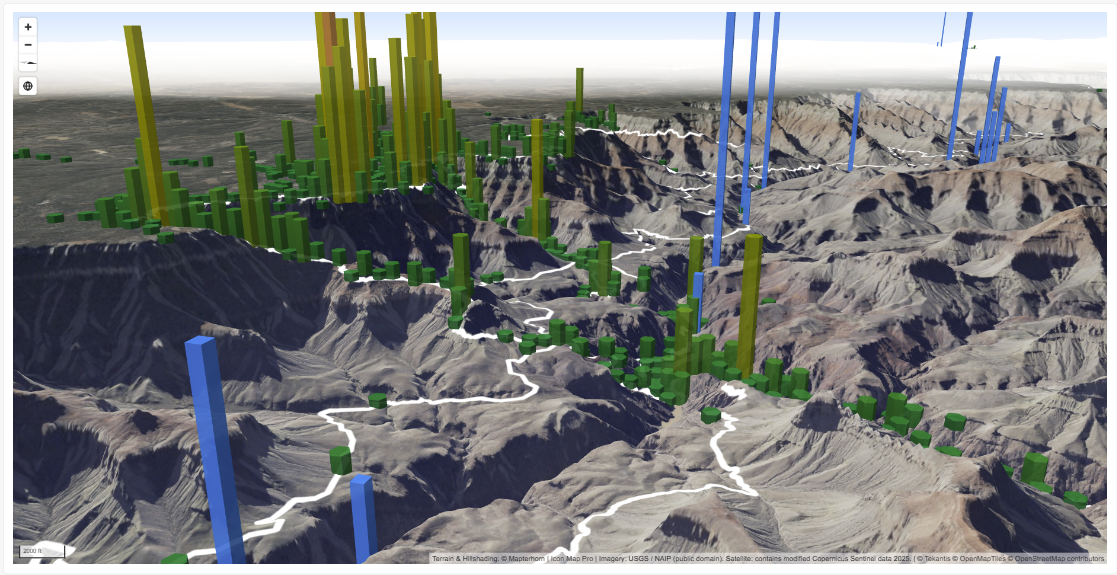
The map of a section of the Grand Canyon combines 3D terrain, satellite imagery, wildlife sightings, hiking trails and river rapids. The ability to rotate and tilt the map helps reveal the surrounding topography, while multiple data layers provide additional geographic context.
Users can also control which layers are displayed, making it easier to concentrate on particular information without losing the broader geographical context. This is a useful example of how the Modern engine brings geographic context and business data together in a more immersive map view.
Taking Power BI mapping into 3D
The Modern engine also introduces a new 3D Columns data layer, allowing numeric values to be represented as vertical columns at geographic locations.
Previously, a typical Power BI map might represent a measure using the size of a circle or the colour of a geographic area. With 3D Columns, that measure can also determine the height of a column rising above the map. Column heights can be relative to the data or expressed as absolute heights in metres.
This introduces another way to compare geographic values, particularly where there are large differences between locations.
Potential applications include:
- Population and employment across cities.
- Revenue and sales performance by location.
- Construction project values.
- Energy generation and consumption.
- Infrastructure capacity.
- Operational performance across sites.
This time the map displays cities around the world, with column height representing population.
By combining the columns with a globe projection, users can explore the global distribution of population while comparing differences between individual cities.
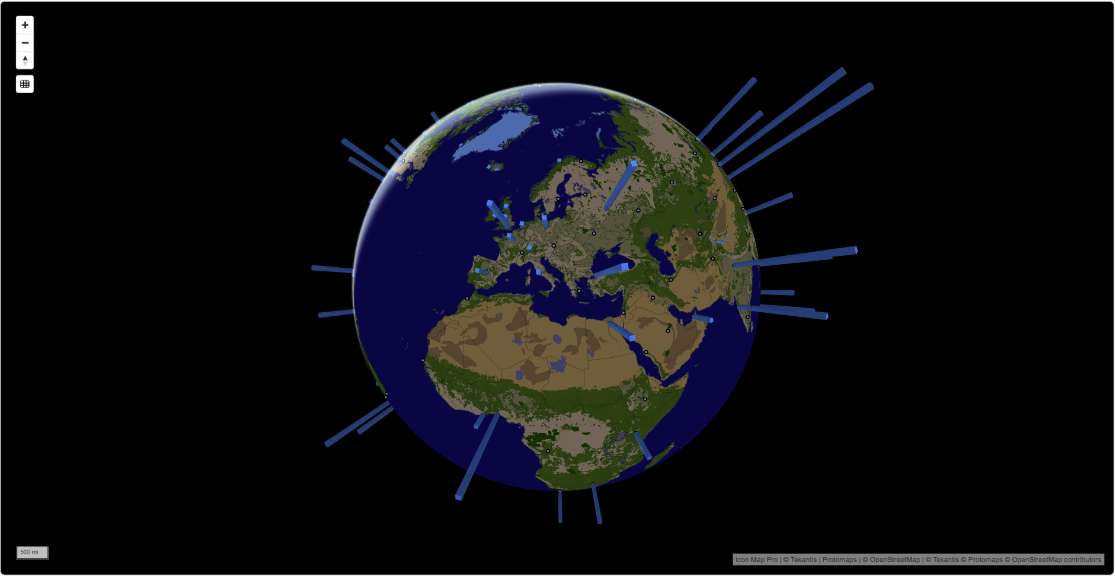
The effect is particularly useful for communicating broad geographic differences at a glance. However, 3D visualisation is not necessarily the best approach for every analytical question.
Where users need to compare exact values, conventional charts and tables remain valuable. The benefit of Icon Map Pro is that these can sit alongside the map within the same Power BI report.
Advanced spatial aggregation with the new Cells layer
Spatial aggregation helps reveal patterns in geographic datasets by grouping individual locations into defined geographic areas. A dataset containing thousands of incidents may be difficult to interpret when every incident is represented by an individual point. By aggregating these locations into geographic cells, it becomes easier to identify concentrations, variations and emerging patterns.
Icon Map Pro has supported H3 hexagonal grids for some time. Version 1.1.0.10 expands these capabilities through the new Cells layer, which supports several spatial indexing systems:
- H3: Hexagonal cells widely used in geographic analysis.
- S2: A hierarchical system that divides the globe into spatial cells.
- A5: An alternative global spatial indexing system.
- Geohash: A hierarchical geographic encoding system based on latitude and longitude.
These additional systems allow users to work with geographic data using the spatial indexes already present in their data platforms - an organisation storing locations using S2 identifiers can use those identifiers without first having to convert them into H3 cells.
The Cells layer supports both aggregation from geographic coordinates and rendering from existing cell identifiers. Aggregation settings and zoom-dependent resolution can be applied across the supported grid systems.
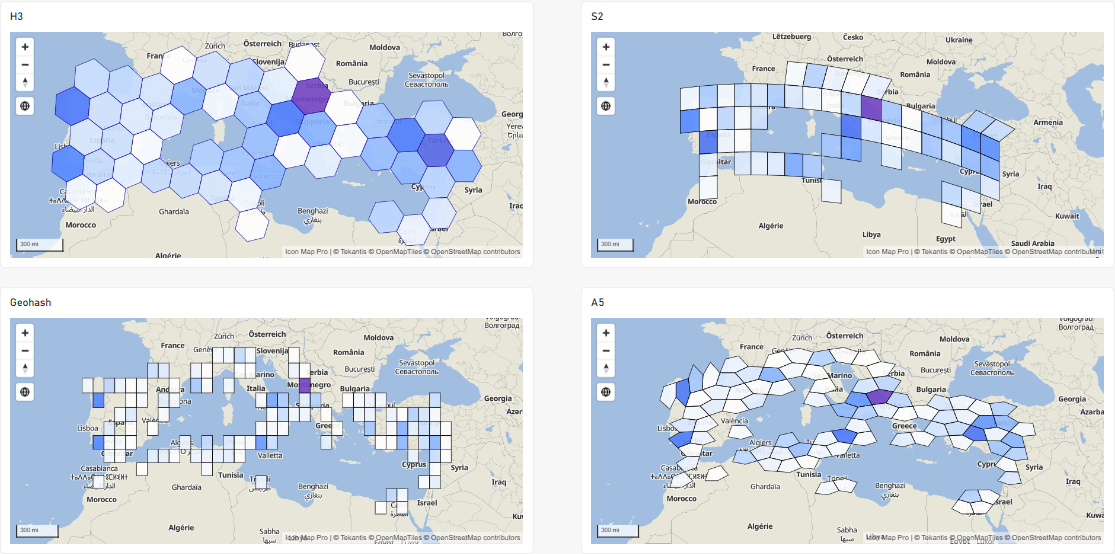
Here we are mapping fire incident locations around the Mediterranean and comparing different ways of representing spatial concentrations. This provides a useful illustration of how the choice of geographic aggregation can influence the way patterns are presented and explored.
Custom Shapes: Aggregate points into your own boundaries
One of the most interesting additions to the Cells layer is Custom Shapes. Rather than being restricted to regular spatial grids, users can upload their own geographic polygons and automatically aggregate points within them.
Imagine an organisation with 50,000 individual incident locations and a separate file containing operational zones - with the Cells layer, Icon Map Pro can determine which incidents fall within each polygon and calculate aggregated values.
These might include:
- The number of incidents within each area.
- The total value of events occurring within an area.
- The average severity or performance measure.
- The minimum or maximum recorded value.
This is different from using the Shapes from Files data layer. The Power BI data is generally matched to geographic features using an existing identifier, such as a district code or area name.
Using Cells and Custom Shapes, the relationship is determined geographically using the locations of the underlying points so this removes the need to perform a separate point-in-polygon spatial join before loading the data into Power BI.
For organisations working with incident locations, asset inspections, customer activity or operational events, this provides a more direct way to perform geographic aggregation. It also means spatial summaries can respond to changes in the underlying Power BI data, including filters and slicer selections.
Custom Shapes are particularly useful where organisations want to analyse data using their own operational boundaries rather than a predefined geographic grid.
Working with detailed geographic datasets using PMTiles
Large or complex geographic datasets can present challenges when displayed in interactive maps.
A national railway network, for example, might contain thousands of individual track sections with detailed geometry. Similarly, road networks, building footprints and infrastructure datasets can contain substantial amounts of geographic information.
Traditionally, GeoJSON and Shapefiles have been common ways of bringing this information into Icon Map Pro - version 1.1.0.10 adds the ability to upload PMTiles archives directly into Shapes from Files and reference layers and adds support for data labels on uploaded PMTiles shapes and the ability to zoom to a clicked PMTiles feature.
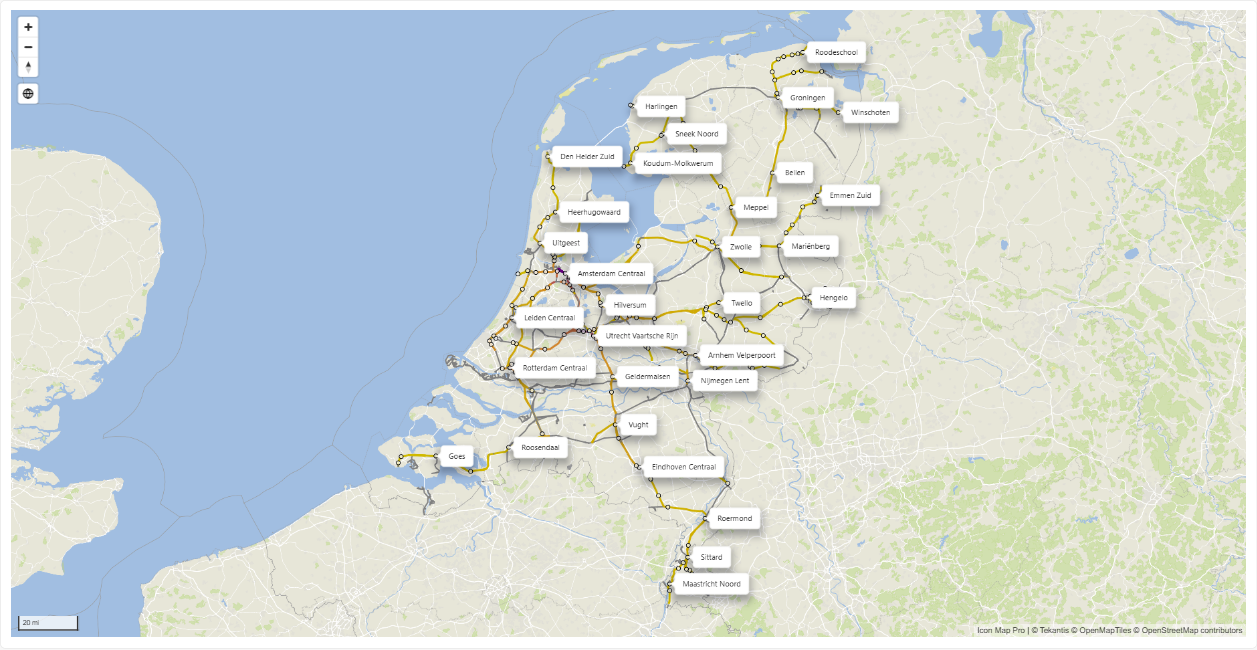
This railway network map uses PMTiles to represent railway lines across the Netherlands. The geographic features can be combined with operational measures, such as passenger volumes, allowing individual railway sections to be styled according to the associated data.
Should you use PMTiles instead of GeoJSON?
Not necessarily. GeoJSON remains a straightforward option for smaller datasets and simpler geographic boundaries. Shapefiles continue to be useful when working with existing GIS datasets. PMTiles becomes particularly attractive where geographic files are large, detailed or intended to be displayed across multiple zoom levels. For very large PMTiles archives, hosting the data as vector tiles may be preferable to embedding the file directly in the Power BI report.
The choice depends on the size and complexity of the geometry, how frequently it changes, and how users need to interact with it.
New ways to visualise routes, flows and connections
One of the most extensive areas of development in 1.1.0.10 is the addition of several new line visualisation types.
Lines are fundamental to many geographic applications, including transport networks, logistics, utilities, supply chains and aviation. However, different types of connections often require different forms of visualisation.
A simple line between two locations may be sufficient to represent a direct connection, but it becomes less useful when hundreds of routes overlap or when the direction and magnitude of movement are important.
The new line types provide more flexibility for addressing these situations.
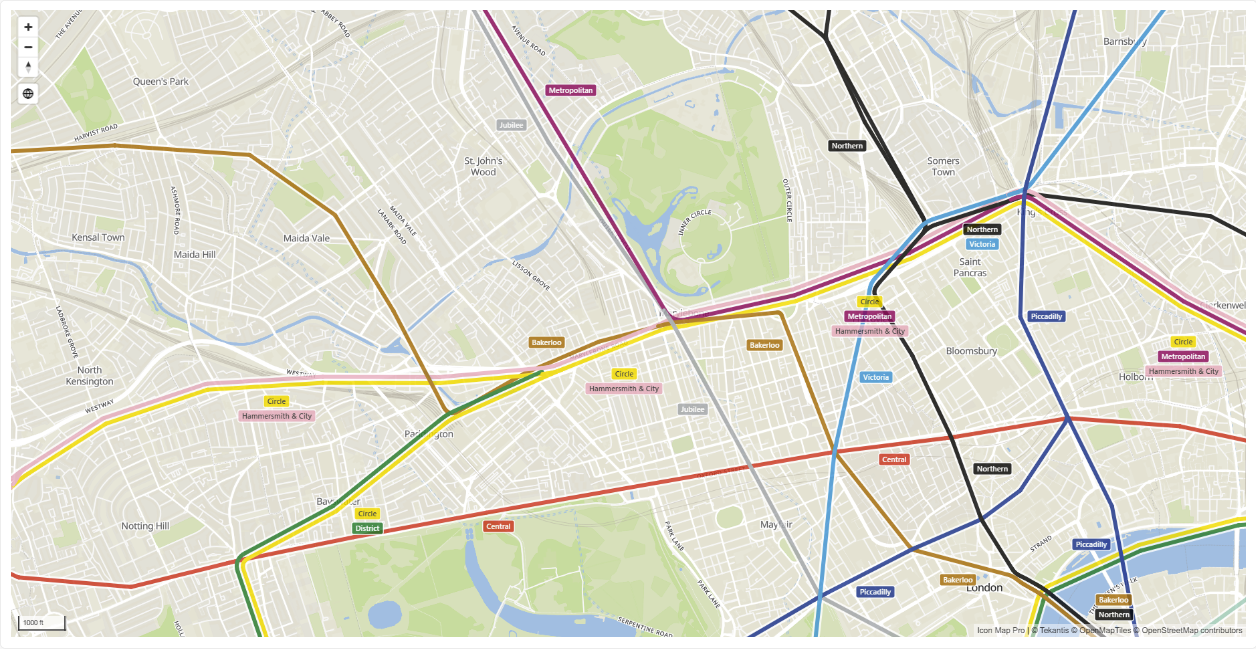
Routes: Display overlapping lines side by side
The new Routes line shape is particularly useful where multiple routes follow the same road or corridor. Previously, overlapping lines could obscure one another, making it difficult to identify individual services or routes. Routes can now be displayed side by side, keeping separate connections visible even when they share the same geographic path.
The London Underground map shows how multiple railway services can be displayed using different colours, including where routes share sections of track. This capability has applications beyond public transport. It could also be useful for bus networks, freight corridors, service routes and other situations where multiple activities share the same infrastructure.
Flow Arcs: Representing movement between locations
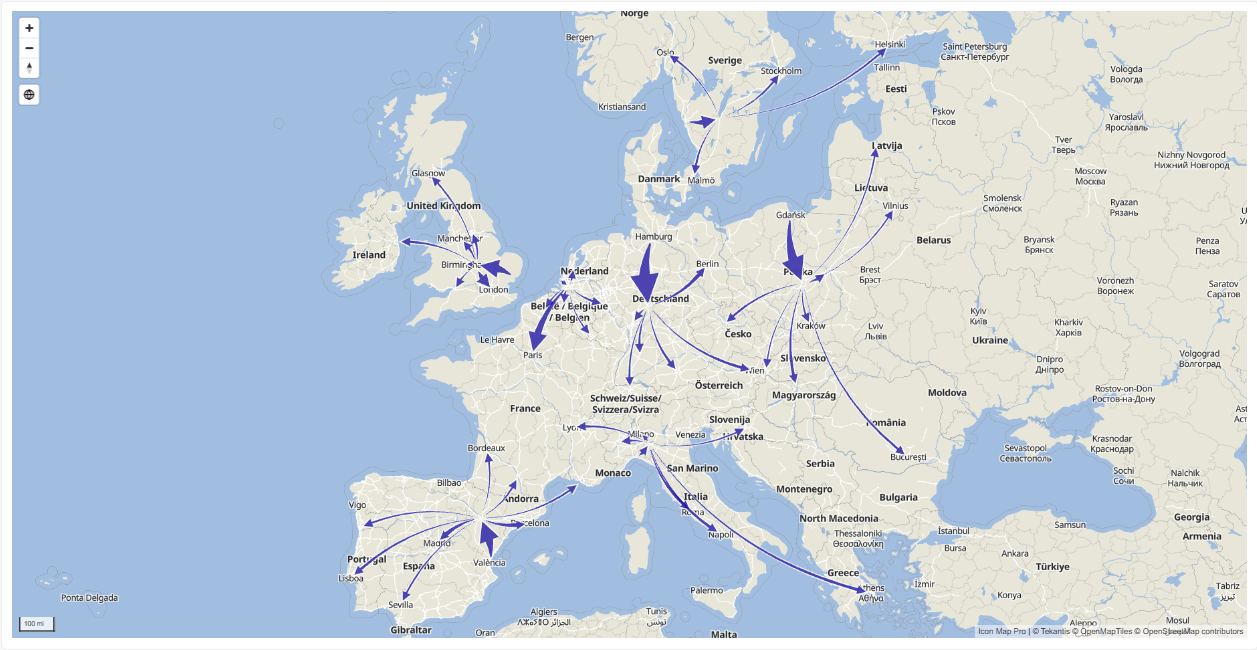
The new Flow Arcs line shape provides a way to display origin-destination flows using curved arcs. These can include directional arrows, outlines and value labels. Flow Arcs are especially useful when the objective is to communicate not only that two locations are connected, but also the direction and magnitude of movement between them.
Our Flow Arcs demonstration shows movements across a supply chain network. The flows represent pallets delivered per week, allowing users to compare the relative magnitude of movements between locations.
Potential applications include freight movements, distribution networks, supply chains and other origin-destination analysis.
Flow Tree: Simplifying complex networks
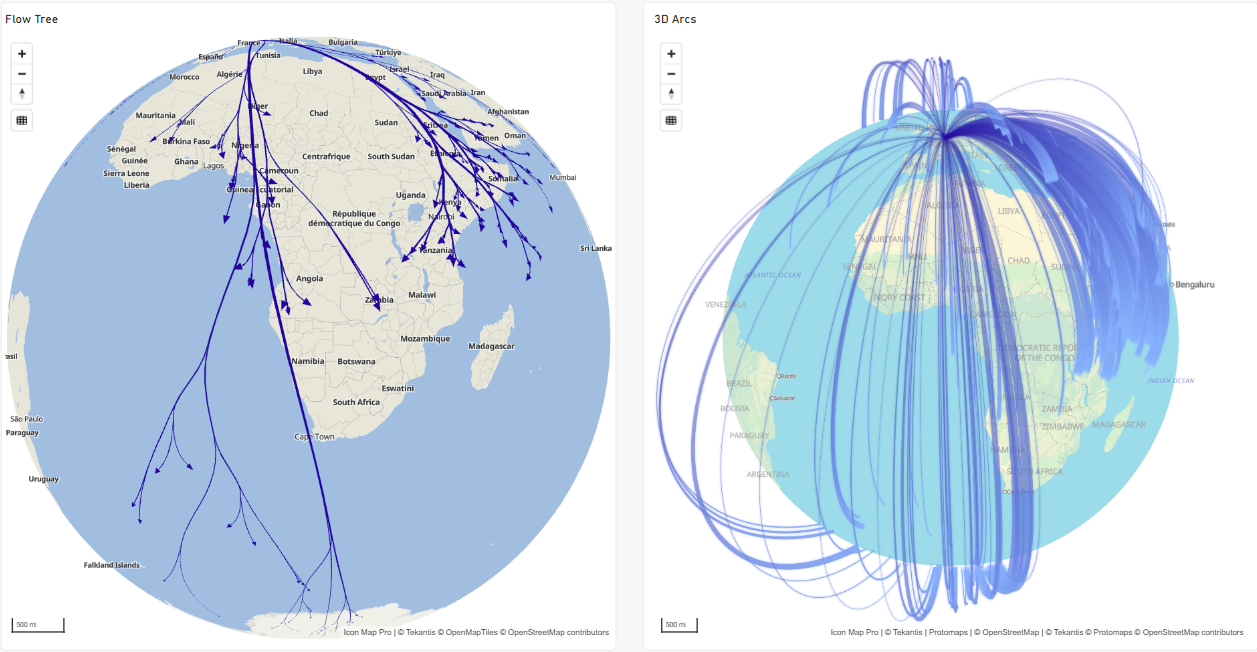
Where many destinations share the same origin, displaying individual connections can quickly produce a dense collection of overlapping lines. The new Flow Tree shape addresses this by grouping flows from a common origin into branching structures. This provides an alternative view of the relationships between a source location and its destinations.
It can be useful for identifying distribution patterns and making complex connection networks easier to interpret.
3D Arcs: Adding height to connections
The new 3D line capability provides another way to represent geographic connections. Lines can be raised above the map, creating elevated arcs between locations. For example, airline routes can be displayed above a globe, allowing users to explore connections from different viewing angles.
Animated dashed lines
Version 1.1.0.10 also introduces animated dashed lines. Dash patterns can be controlled for individual rows, and animation speeds can be adjusted to indicate movement in different directions. This can help communicate directional flows or draw attention to particular network connections.
Together, these additions significantly expand the options available for representing transport, logistics and infrastructure networks in Power BI.
Richer data labels and improved map presentation
Another important area of development is the way information can be displayed directly on the map.
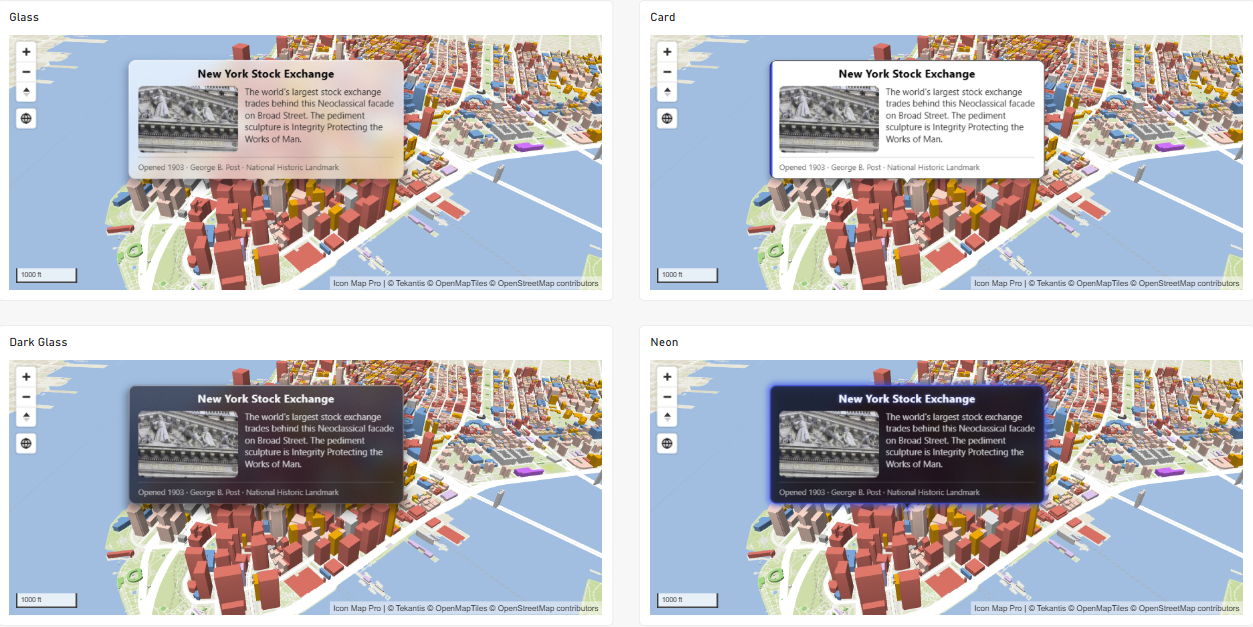
Version 1.1.0.10 introduces four new data label styles:
• Glass
• Dark Glass
• Card
• Neon
These provide alternatives to conventional text labels and allow richer content to be displayed. Depending on the configuration, labels can include titles, body text, images and footers. A new Label Visibility setting also provides greater control over when labels appear.
For example, a project management map could use a Card-style label todisplay the project name, delivery status, planned completion date and a photograph, whereas an infrastructure map might display an asset identifier, inspection details or operational status.
These approaches can reduce the need to move constantly between the map and separate report elements to understand individual geographic features.
Individual file reference layers also have their own label settings, providing more control when several geographic datasets are displayed together.
Improved interactivity, performance and usability
Beyond the new visualisation capabilities, version 1.1.0.10 introduces several improvements to the everyday experience of building and using maps.
More intuitive selection
Users can now click an already selected feature to clear its selection. A dedicated Clear Selections Button has also been introduced.
The pointer changes when hovering over selectable features, making it easier to identify which geographic objects support interaction.
Cross-highlighting has also been improved, including support for WKT lines and 3D extrusions.
These are useful enhancements when a map is connected to other Power BI visuals, such as charts, tables and slicers.
Better performance
The release reduces unnecessary map redraws when formatting settings are changed. Highlighting large selections is also quicker.
For reports containing substantial geographic datasets, these changes can make the authoring and analysis experience more responsive.
Easier map configuration
A new guide helps report authors identify the fields required by different map layers. When a map does not yet contain sufficient data to render a layer, the guide provides information about the fields needed and helps enable the appropriate layer. This is particularly useful when exploring unfamiliar geographic data or creating a map for the first time.
Multilingual support
Icon Map Pro now supports five interface languages:
• English
• German
• Spanish
• French
• Portuguese
The visual follows the language of the Power BI report, including formatting controls, legends, map controls, dialogs and messages. For organisations with international reporting teams, this makes Icon Map Pro easier to use across different countries.
Modern versus Legacy: What happens to existing reports?
Although Modern introduces substantial new functionality, the Legacy engine remains supported. Existing reports are not automatically switched to Modern when version 1.1.0.10 is installed. They continue using the Legacy engine unless the report author deliberately changes the rendering setting.
New maps use Modern by default. This distinction is important because some functionality available in Legacy is not yet supported in Modern.
Examples include certain background map integrations, custom image backgrounds using pixel coordinates, some coordinate reference systems and specific older formatting options.
Modern also requires WebGL 2. In environments where WebGL 2 is unavailable, such as some restricted virtual desktops or corporate systems, Legacy remains an important option.
Should you switch an existing report?
If you want to explore the new features, switching an existing report to Modern is a practical starting point.
We recommend checking the following:
- Confirm that your chosen background map is supported by Modern.
- Switch the engine under Rendering in the Format pane.
- Check that all data and reference layers appear as expected.
- Verify formatting, labels, selections and interactions.
- Test the report in Power BI Service and any other environments where it will be used.
Existing configurations are retained when switching engines, although certain settings may not produce identical results because the rendering technologies differ. If your report relies on a capability that is not currently supported by Modern, you can continue using Legacy.
Getting started with the new features
If you're already using Icon Map Pro, start by exploring the Modern engine in an existing report.
Try rotating and tilting the map, then consider whether one of the new data layers could add value to your geographic analysis. If you work with large datasets of point locations, explore the Cells layer and Custom Shapes or if you work with detailed geographic networks, consider whether PMTiles would be a suitable way to distribute the geometry.
And if your reports involve transport, logistics or other origin-destination relationships, experiment with the new Routes and flow visualisations.
Icon Map Pro continues to evolve, bringing advanced geospatial visualisation and analysis directly into Power BI. Version 1.1.0.10 is an important step forward, introducing not only new ways to display maps, but also new ways to work with geographic data.