
Subscriptions & Usage
After sign-in, the portal lands on Subscriptions. This page combines the "at a glance" information you'll use most often.
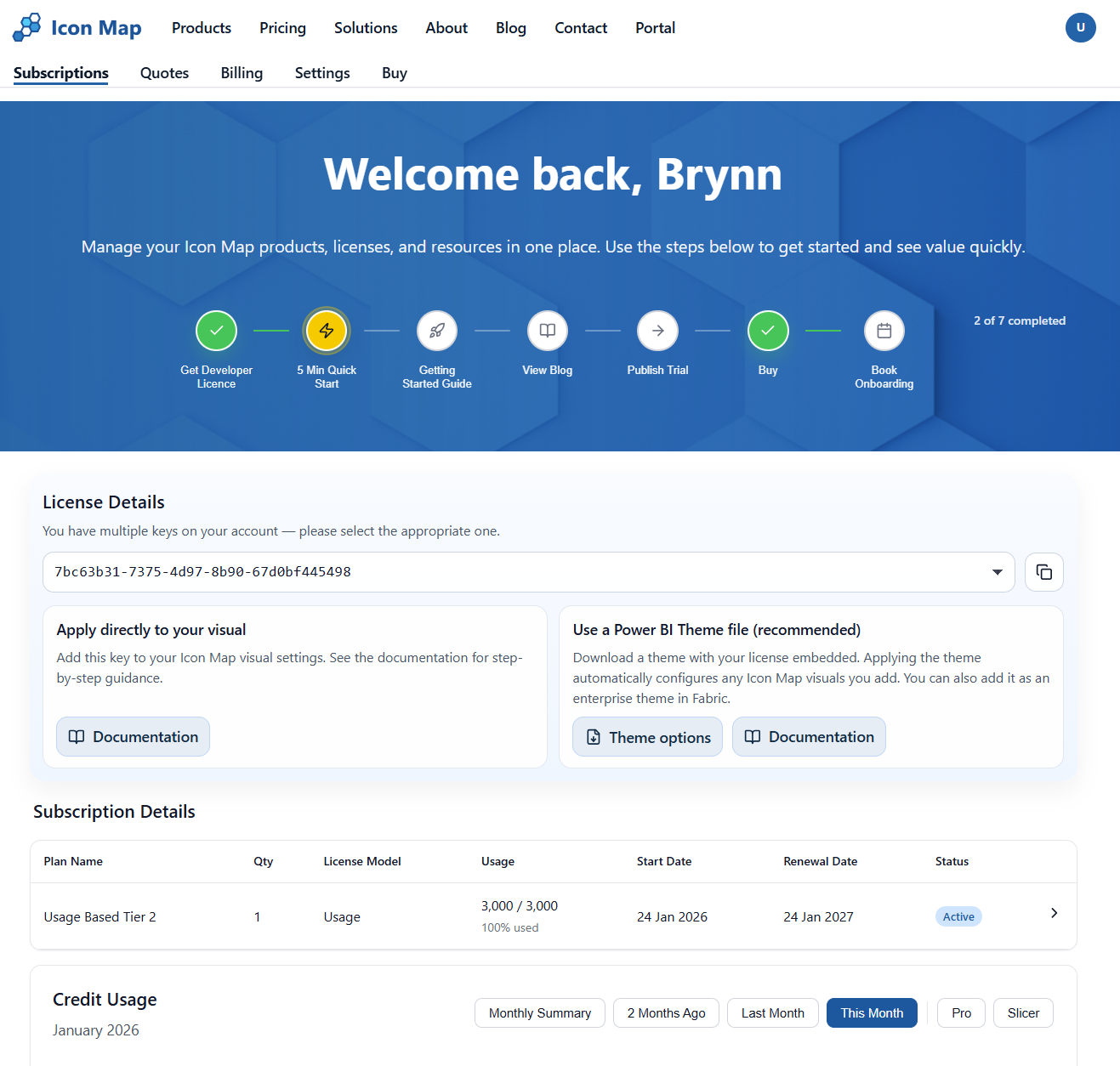
Getting Started Checklist
At the top you'll see a Getting started progress checklist. This is intended to guide you through the most common steps when getting started with Icon Map.

Developer License (Free)
We are currently offering a FREE 6 Month Developer licence which allows you to use both products in either Power BI Desktop or Power BI Service Edit Mode. We hope this will give you ample time to build out your use case, and see the value of the product before committing to a purchase.
To get your licence, simply click on the checklist item and complete the form.
License Details
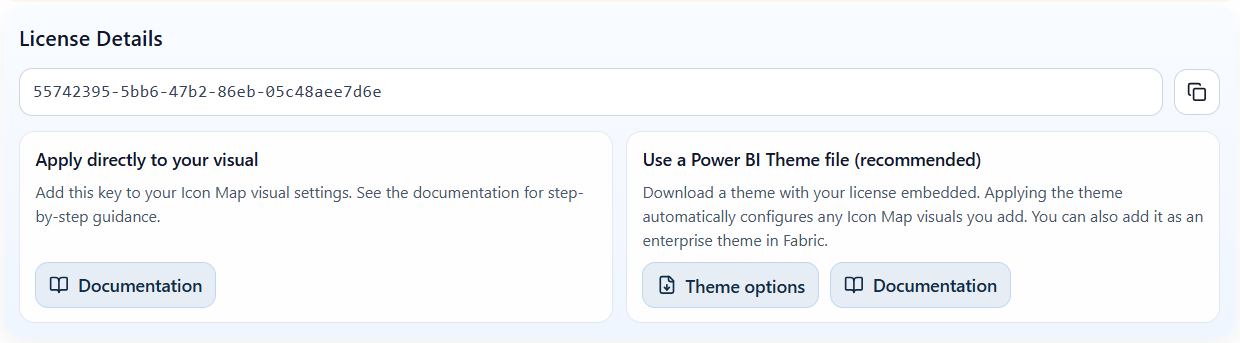
Once you have either purchased, or activated your free developer licence, you will see details of the licence key on the portal home page. If you have multiple keys there will be a dropdown to allow you to switch between licences.
Applying Your License
The licence details provide two options to apply the licence:
- Directly: Copy the active key, then follow the documentation for the steps to apply this to the visual. Note: this is persisted within the visual settings, so it needs to be applied each time you add a visual to a report.
- Using a Power BI Theme: To avoid having to enter the key every time you add the visual, you can download a Power BI theme file with the licence key embedded. This can then be used in your report. If you already have a company theme for styling, you can upload it and we will embed the key in it for you automatically.
Developer or Trial Licences
For Developer or Trial licences you will see details such as the current status, and start and end dates.
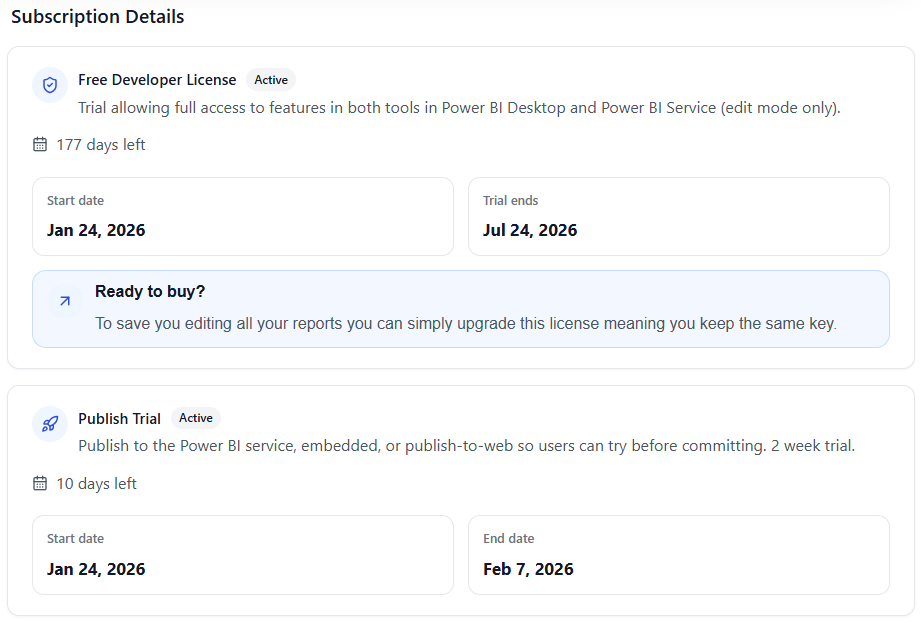
The following buttons will be available:
- Request a Publish Trial: When you are ready to publish your reports for user acceptance testing, you can use this button to get a free 2 week trial.
- Request an extension: If your 2 week trial has expired you can request an extension. The first extension will be automatic, after that we will review on a case-by-case basis.
- Ready to buy?: When you are ready to buy you can upgrade your developer licence. This means you will keep the same licence key, avoiding the need to update all reports you have built.
Paid Subscriptions
For Paid Usage-Based and Enterprise Subscriptions, you will see a table listing the subscriptions you have. Click a subscription row to open its Subscription details page.

Credit Usage
If you have subscribed to our usage-based licensing, you can view your current usage in the Credit Usage section.
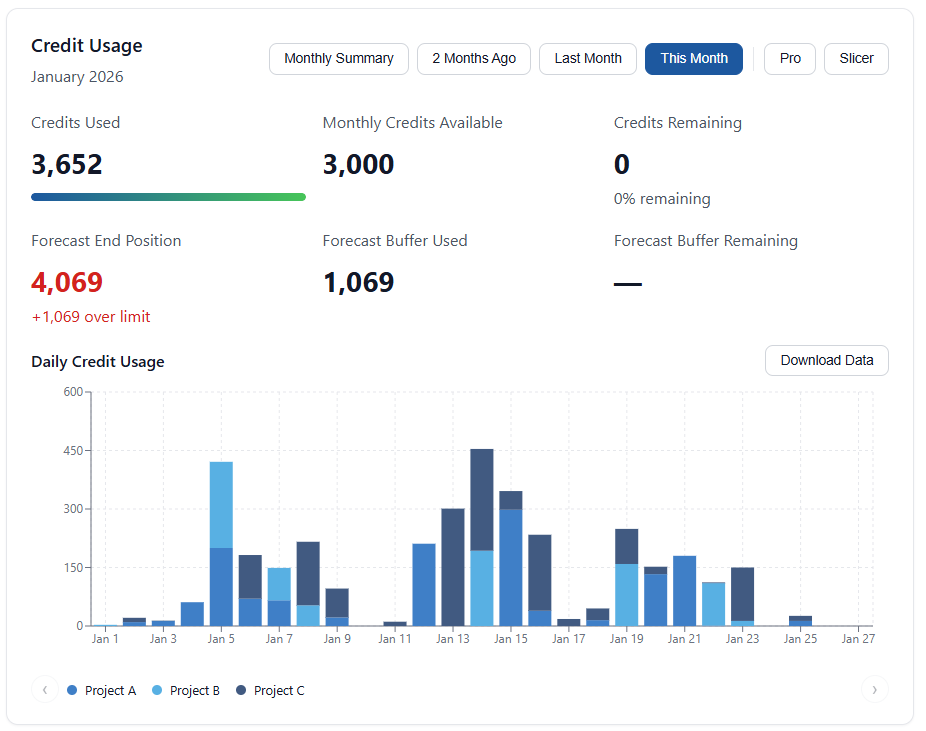
This provides the following detail about your usage:
KPI Tiles
- Credits Used: The total credits you have consumed so far this calendar month.
- Allowance: The total monthly allowance you have available as part of your subscription.
- Remaining: The remaining amount of credits this month.
- Forecast End Position: Based on your average usage over the past 2 weeks, we project this forward to the end of the month to predict the end position.
- Forecast Buffer Used: If you have purchased an annual usage subscription you will receive an annual buffer equivalent to one month's worth of transactions. If you go slightly over in a single month you will use the buffer.
- Forecast Buffer Remaining: This is the buffer we predict you will have left at the end of the month.
In the example above you can see we are forecast to go over our limit by 1,069, therefore 1,069 transactions will be used from the buffer. As the buffer is forecast to be fully utilised in this month, as soon as the buffer is exhausted the subscription will be automatically upgraded to ensure there are enough credits available, and prevent any effect on the end user.
Usage Charts
There are 4 interactive charts showing your daily usage breakdown over This Month, Last Month, or 2 Months Ago. You can also view a monthly summary for the past 12 months. If you are utilising both products, Icon Map Pro and Icon Map Slicer, you can filter the usage by product using the Pro and Slicer buttons.
Customer Reference Breakdown
If you are using a single usage licence across multiple projects, teams, or reports, we have an optional Customer Reference field in the Power BI Icon Map Visual properties next to the License Key property. This can be populated with anything you want, for example the project name, team name, or a tracking code. This will then appear in the legend of the charts, allowing you to view usage at this lower level of detail.
Alerts Banner
If you have any open quotes or usage alerts, you'll see a banner at the top of the page. Clicking it takes you straight to the detail.
