
Accessing the Portal
Open the portal by clicking Portal in the menu, or clicking Sign In.
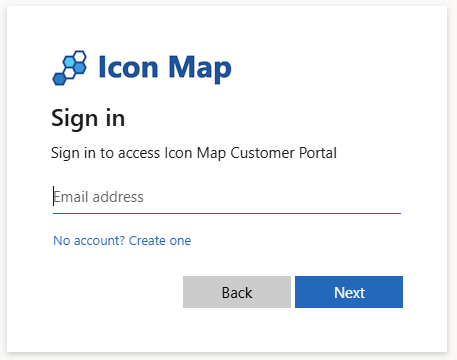
You will see a standard Entra ID sign-in pop-up. If you already have an account, enter your email address and sign in. To create an account, click No account? Create one and enter your details.
Sign in uses a passwordless system - Azure will send you a unique code by email each time you log in.
Account Creation
The portal is designed to be as flexible as possible regarding accounts, allowing multiple shared accounts to be set up within an organisation. For example, you may wish to have an account per department to manage licensing separately.
:::note Important If you sign in and you have not already been invited to an existing Icon Map account, the portal will automatically create a new account for you on first login. If your company or department already has a central account where you manage an existing Icon Map licence, please speak to the account owner to get an invite before signing in. :::
Requesting to Join an Existing Account
When you sign in for the first time, the portal will check whether your organisation already has any discoverable accounts. If one or more are found, you will be shown a prompt listing the available accounts along with their plan name. You can choose to:
- Request to join an existing account, or
- Create your own account
If you choose to request to join, all owners of that account will receive an email notification. They can then approve or decline your request directly from a link in the email. Once approved, you will receive a confirmation email and the account will be available the next time you sign in.
Accounts are only shown in this prompt if they have been marked as discoverable. By default, accounts with an active paid subscription are discoverable. Accounts with only a developer or trial licence are not shown unless the account owner has explicitly enabled discoverability. Account owners can control this setting from the Settings page. See Discoverable Accounts for more details.
Invitations
Account owners can also invite users directly from the Settings page. When invited, the user will receive an email with a link to sign in. If the invited user already has their own account, clicking the link will ensure they are directed to the correct account they were invited to.
Invites are tenant-scoped. The invited user must be in the same Microsoft tenant as the account, unless the account has been created against a personal account such as gmail.com - in this case any other personal account can be invited.
Next Steps
Once signed in, you'll land on the Subscriptions page where you can manage your licenses and view usage.